This page explains how agents can push their property listings to propertymate.com.au via the CRM. PropertyMate is an Australian AI-driven property platform that matches buyers based on lifestyle preferences — such as proximity to parks, schools, shopping, and public transport — rather than location alone.
Related tickets:
- https://atrealtycloud.atlassian.net/browse/DTD-4129 — Listings - PropertyMate Integration
Contact Details
| Name | Role | |
|---|---|---|
| Steve Abbott | Main contact | stevea@propertymate.com.au |
| Marco Harris | Dev/technical contact | marcoh@propertymate.com.au |
What changed
Before: There was no option to push property listings to PropertyMate from the CRM.
After: AU agents can now push their listings directly to propertymate.com.au via the Marketing tab in a listing. Listings can be published using the agent's own PropertyMate account or @realty's account.
Who this applies to
- All Australian agents with an active listing
- Agents using their own PropertyMate account
- Agents using @realty's PropertyMate account
- Oasis agents (via @realty's account, set up by the Onboarding Team)
Does not apply to New Zealand agents or listings.
Where to find it
- Log in to myatrealty.com
- Open a property and go to the active listing
- Click the Marketing tab
- Scroll to the Primary Websites table
- Locate the PropertyMate (direct) row
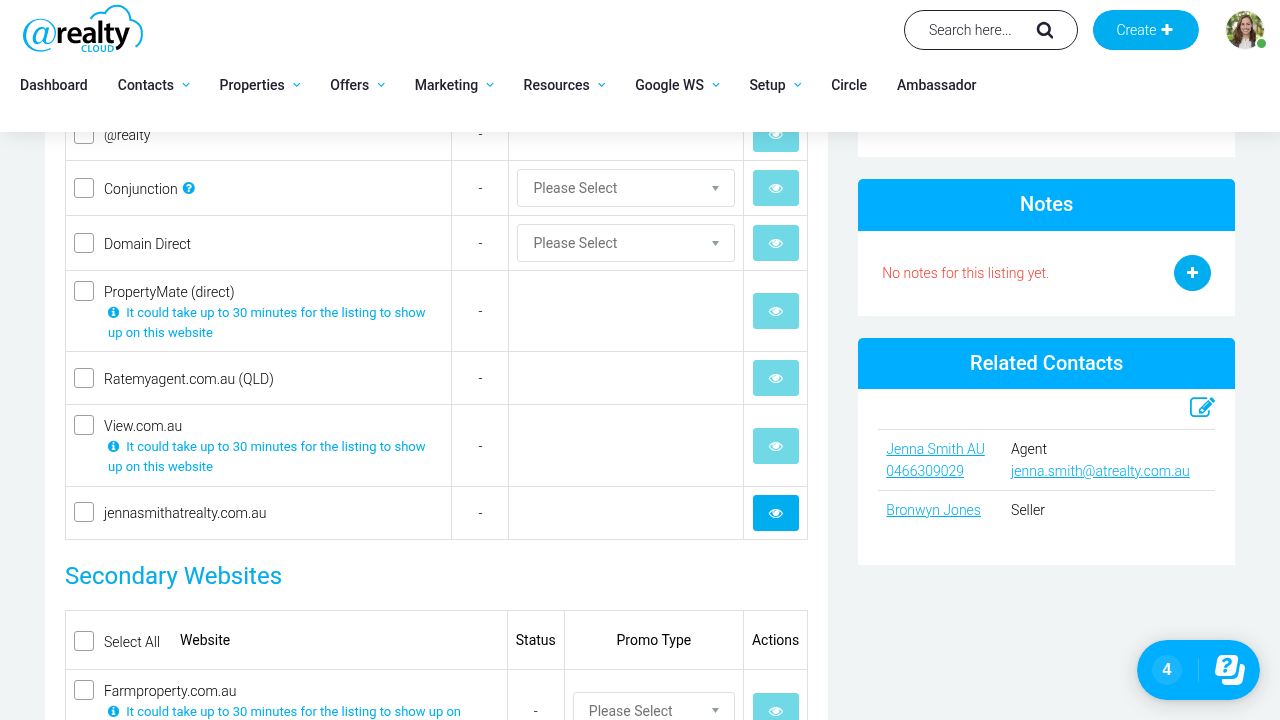
The PropertyMate (direct) row in the Primary Websites table on the Marketing tab.
How it works
PropertyMate Agency ID
The PropertyMate Agency ID is the agent's own CRM user ID — the same number that appears in the URL of their agent profile (e.g. myatrealty.com/v2/agent-profiles/9675330).
When an agent pushes a listing for the first time, PropertyMate receives the listing along with the agent's user ID and automatically creates an account for them. All subsequent pushes are linked to that same agent automatically — no further setup is needed on the PropertyMate side.
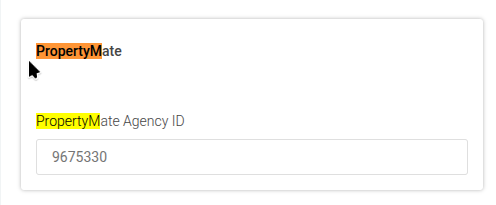
The PropertyMate Agency ID field filled with the agent's CRM user ID (9675330) on the SSO & Export tab.
Publishing a listing
Agents publish to PropertyMate by ticking the PropertyMate (direct) checkbox in the Primary Websites table and clicking Upload to Websites. The checkbox is only enabled when the listing status is not Draft (e.g. Active, Off Market).
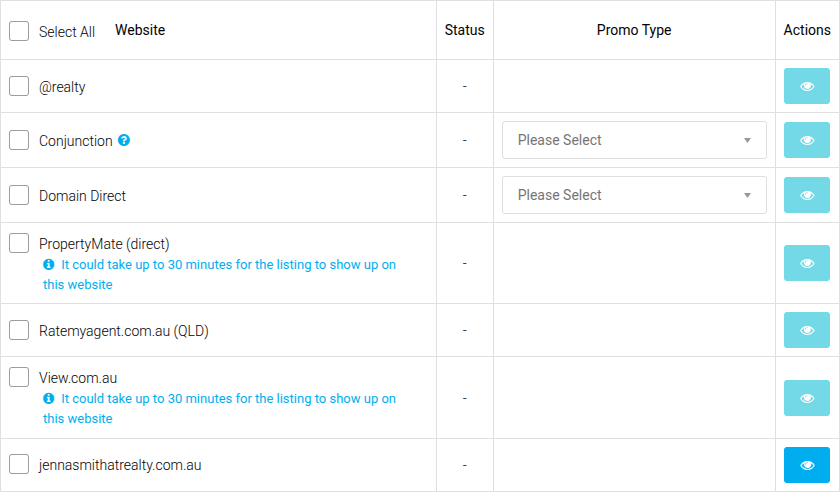
The PropertyMate (direct) row enabled on an active listing.
Oasis agents
Oasis agents use @realty's PropertyMate account. The Onboarding Team enters @realty's CRM user ID in the PropertyMate Agency ID field on the agent's profile. Once set up, Oasis agents push listings the same way as all other agents.
How to use it
Account setup
- Go to Set-Up → Users in the CRM.
- Open the agent's profile.
- Click the SSO & Export tab.
- Find the PropertyMate section.
- Enter the agent's CRM user ID in the PropertyMate Agency IDfield.
- The CRM user ID appears in the URL of the agent's profile page:
myatrealty.com/v2/agent-profiles/{userId}.
- The CRM user ID appears in the URL of the agent's profile page:
- Click Save.
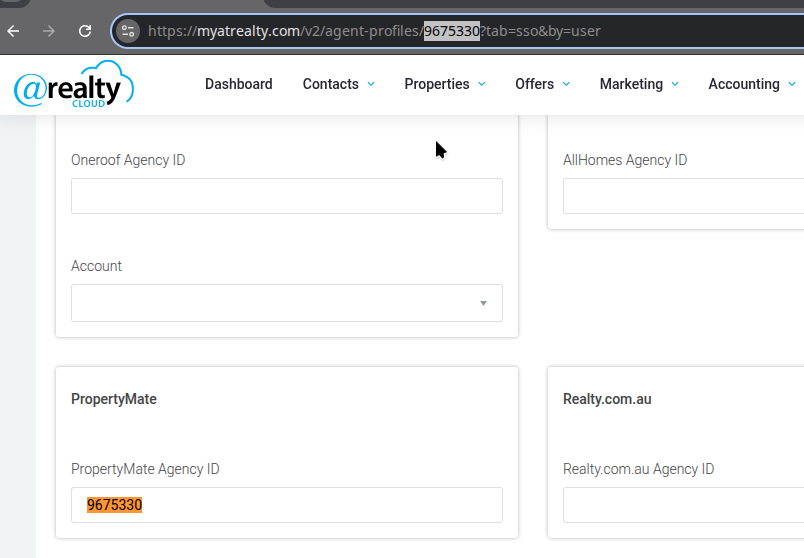
The PropertyMate Agency ID field on the SSO & Export tab, ready to be filled in.
Pushing a listing
- Open the property in myatrealty.com and navigate to the active listing.
- Click the Marketing tab.
- In the Primary Websites table, tick the checkbox next to PropertyMate (direct).
- If the checkbox is greyed out, check that the listing status is not Draft (see Troubleshooting below).
- Click Upload to Websites.
- The listing is submitted to PropertyMate. Allow up to 30 minutes for it to appear on propertymate.com.au.
Troubleshooting
- Check that the listing status is not Draft. The PropertyMate checkbox is disabled on Draft listings — change the status to Active or Off Market to enable it.
- Check that the PropertyMate Agency ID has been entered on the agent's SSO & Export tab. Without it, the listing may not publish correctly.
- Check that you clicked Upload to Websites after ticking the checkbox. Ticking the checkbox alone does not push the listing.
- If the listing has been pushed but is not appearing on propertymate.com.au, wait the full 30 minutes before checking again.
If the issue continues, contact IT with:
- Property ID and listing ID
- Screenshot of the Marketing tab showing the PropertyMate row
- Steps taken before the issue occurred
Notes & limitations
- PropertyMate is available for Australian listings only.
- The PropertyMate checkbox is disabled when the listing is in Draft status.
- It can take up to 30 minutes for a pushed listing to appear on propertymate.com.au.
- There is no subscription fee — PropertyMate is free to use.
- Oasis agents must have their PropertyMate Agency ID set up by the Onboarding Team before pushing.
Example scenarios
Scenario 1 — Agent pushes a listing but nothing appears on PropertyMate
Situation: An agent has set up their PropertyMate Agency ID and pushed a listing via the Marketing tab.
Problem: The listing does not appear on propertymate.com.au after clicking Upload to Websites.
Cause: PropertyMate can take up to 30 minutes to display a newly pushed listing.
Fix:
- Wait 30 minutes after clicking Upload to Websites.
- Check propertymate.com.au again by searching for the property address.
- If it still does not appear after 30 minutes, contact IT with the property ID and listing ID.
Result: The listing appears on propertymate.com.au within the expected 30-minute window.
Scenario 2 — PropertyMate checkbox is greyed out and cannot be ticked
Situation: An agent opens the Marketing tab on a listing and tries to tick the PropertyMate (direct) checkbox.
Problem: The checkbox is greyed out and cannot be selected.
Cause: The listing is in Draft status. PropertyMate (and all other portals) cannot be selected while a listing is in Draft.
Fix:
- Check the listing status at the top of the listing page.
- Change the status from Draft to Active or Off Market.
- Return to the Marketing tab — the PropertyMate (direct) checkbox will now be enabled.
- Tick the checkbox and click Upload to Websites.
Result: The listing is successfully pushed to PropertyMate.
Was this article helpful?
That’s Great!
Thank you for your feedback
Sorry! We couldn't be helpful
Thank you for your feedback
Feedback sent
We appreciate your effort and will try to fix the article