TABLE OF CONTENTS
- What is it?
- Before you start
- How to connect Claude to the @realty CRM
- What you can ask it
- Frequently asked questions
What is it?
The @realty CRM Assistant lets you ask Claude questions about your CRM data in plain English and get answers pulled live from the @realty Cloud, without logging in and searching yourself. It is powered by a connection called MCP (Model Context Protocol) - think of it as a secure bridge between Claude and the @realty CRM.
Once it is connected you can ask Claude things like “What’s the mobile number for John Smith?” or “Find my contacts in Southport” and Claude looks the answer up and replies in the chat.
Before you start
You will need the Claude app (either Claude Desktop or claude.ai, which most agents use, or Claude Code for the developer version) and your @atrealty.com.au Google account. You sign in with Google, so there are no passwords, API keys or tokens to copy or paste.
IMPORTANT: Only @atrealty.com.au Google accounts can connect. If you sign in with a personal Gmail account, access will be refused.
IMPORTANT: A paid Claude plan (Pro or Max) is required. The free plan does not allow connectors to run tools, so the CRM Assistant will not work on a free account.
The connection address you will need is: https://apiato.myatrealty.com/mcp
How to connect Claude to the @realty CRM
Claude Desktop or claude.ai
1. Sign in to Claude with your work Google account. Go to claude.ai and click Continue with Google.
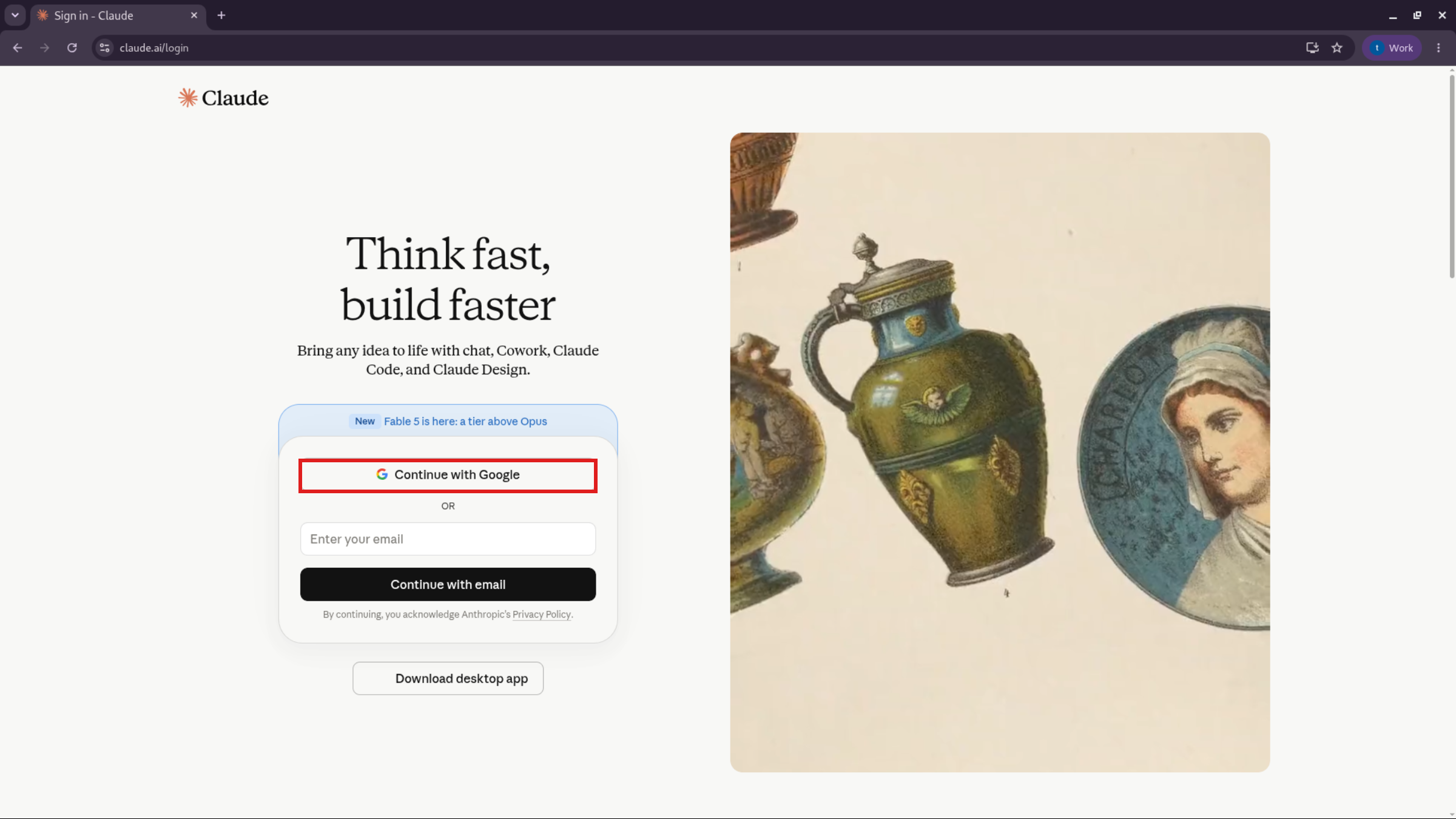
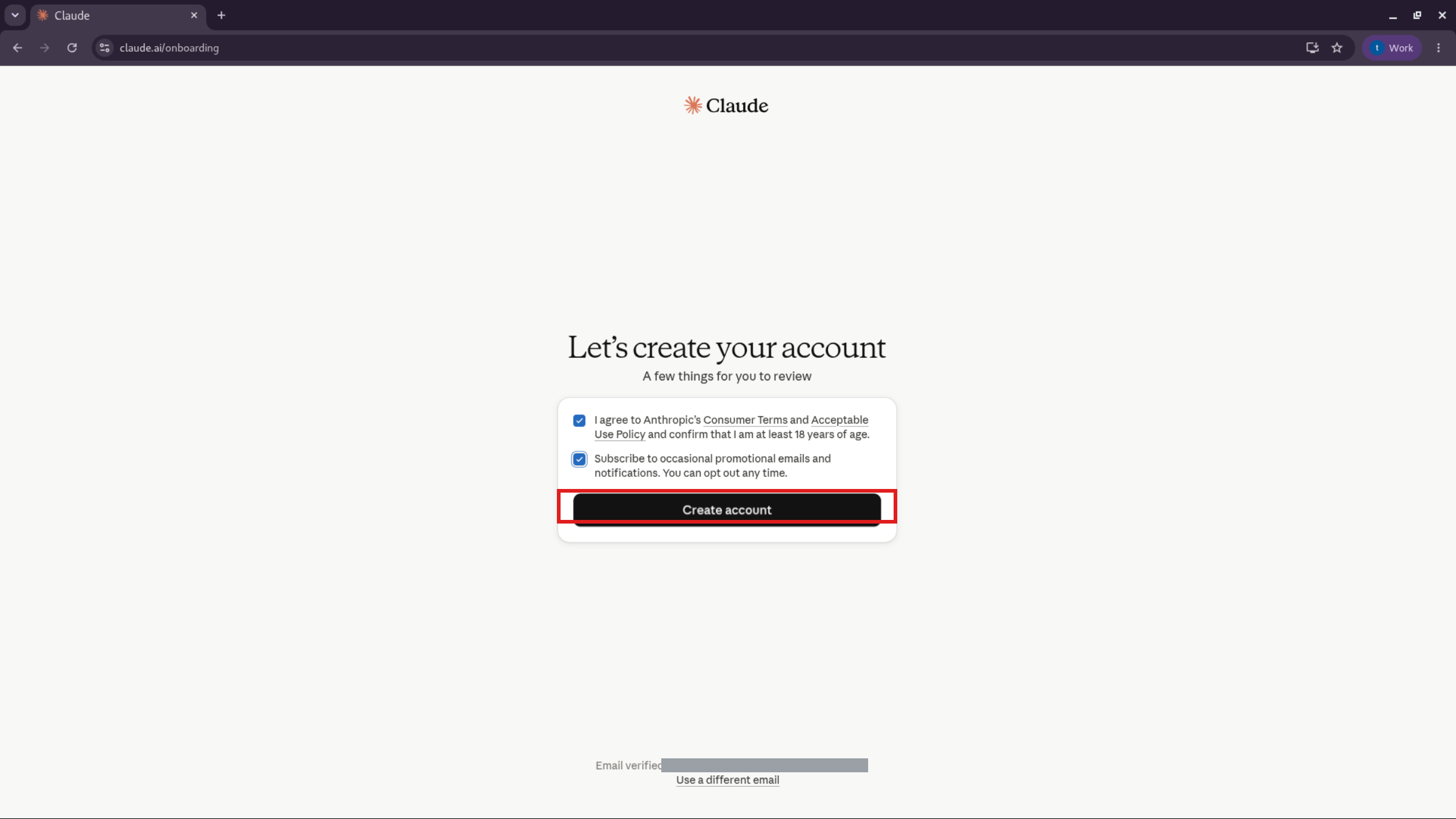
2. Create your account. Tick the terms and click Create account, then follow the short setup prompts.
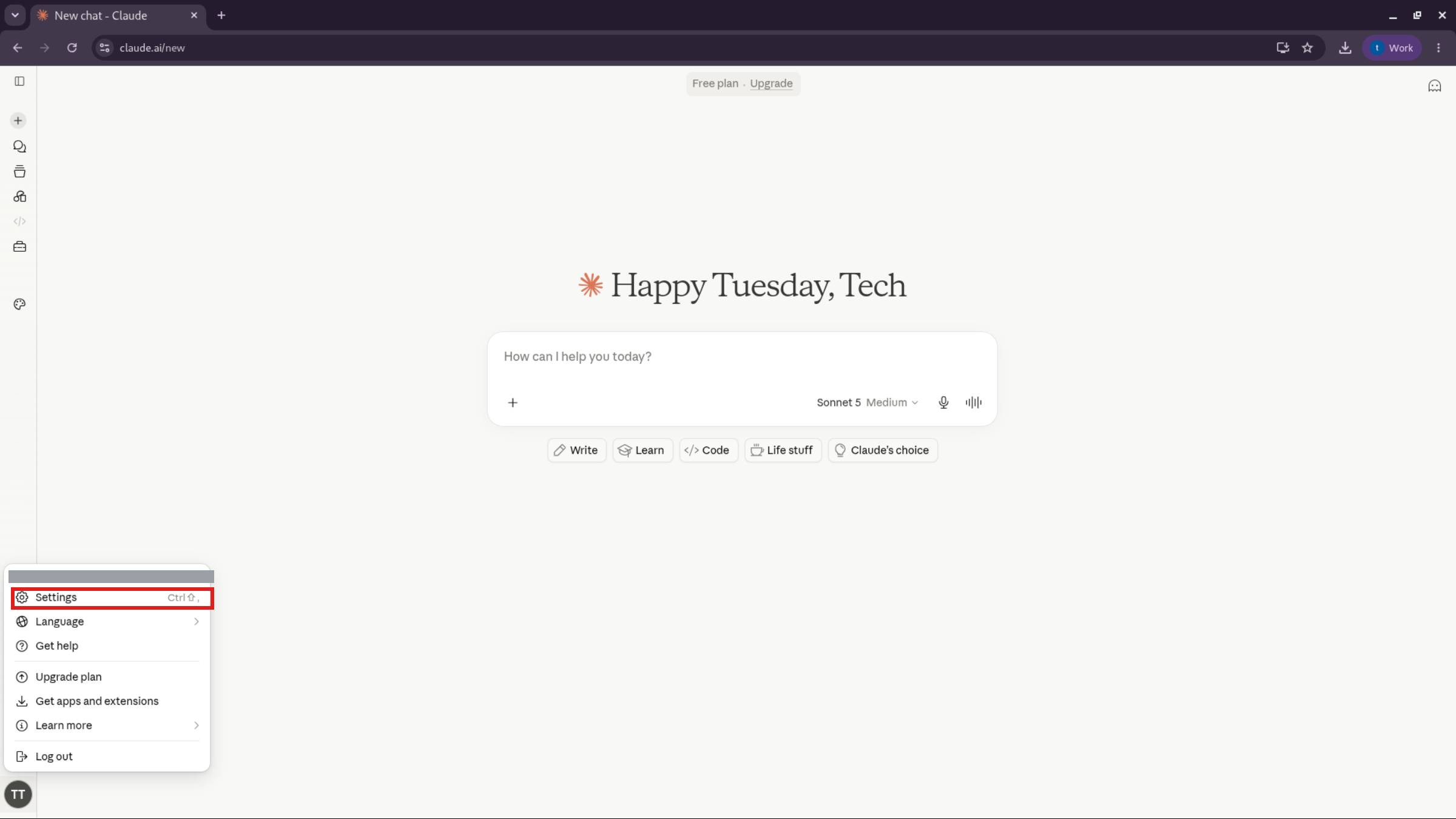
3. Open Settings. Click your profile at the bottom left and choose Settings.
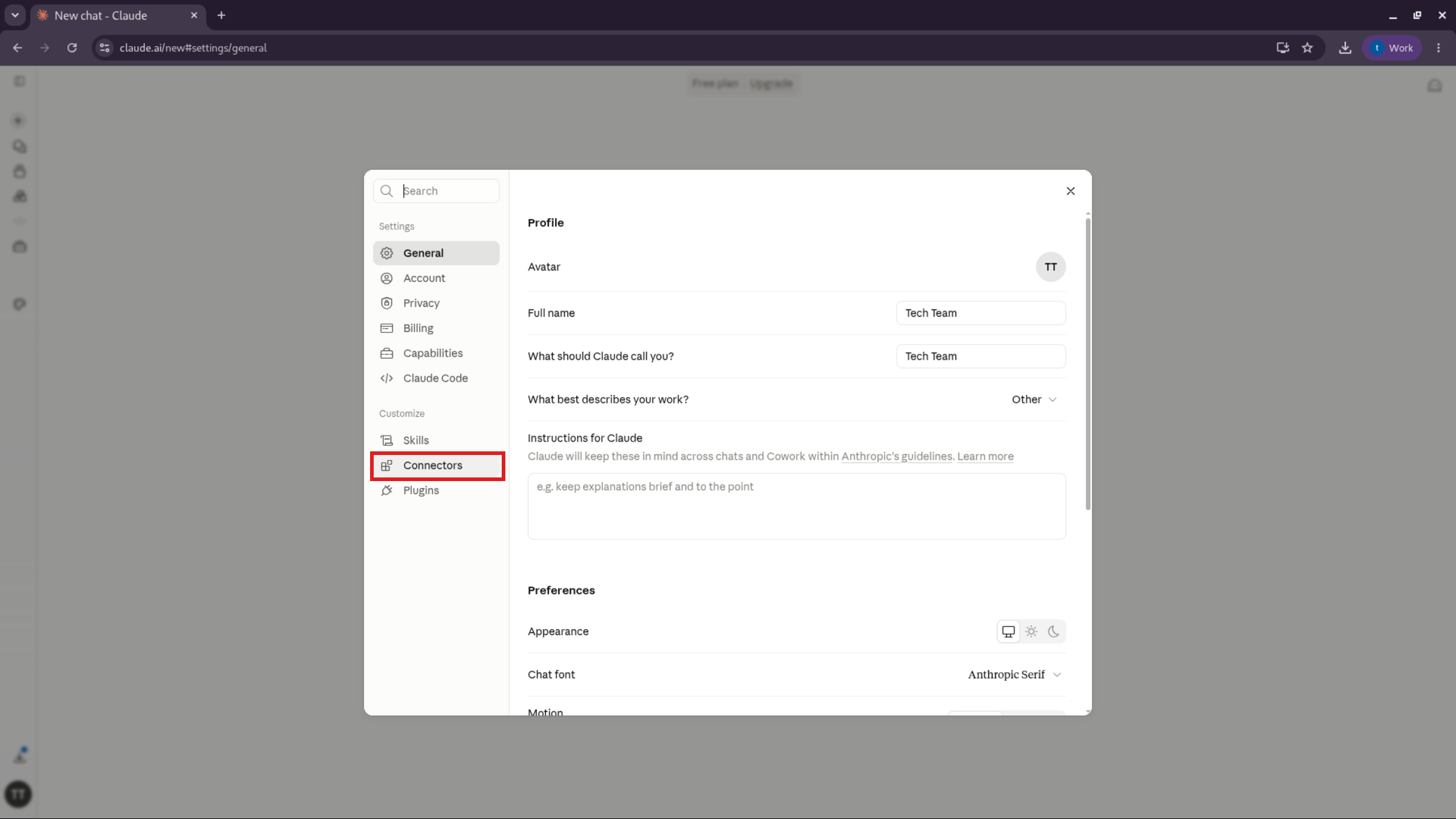
4. Open Connectors. In the Settings menu, click Connectors.
5. Add a connector. Click Add, then choose Add custom connector.
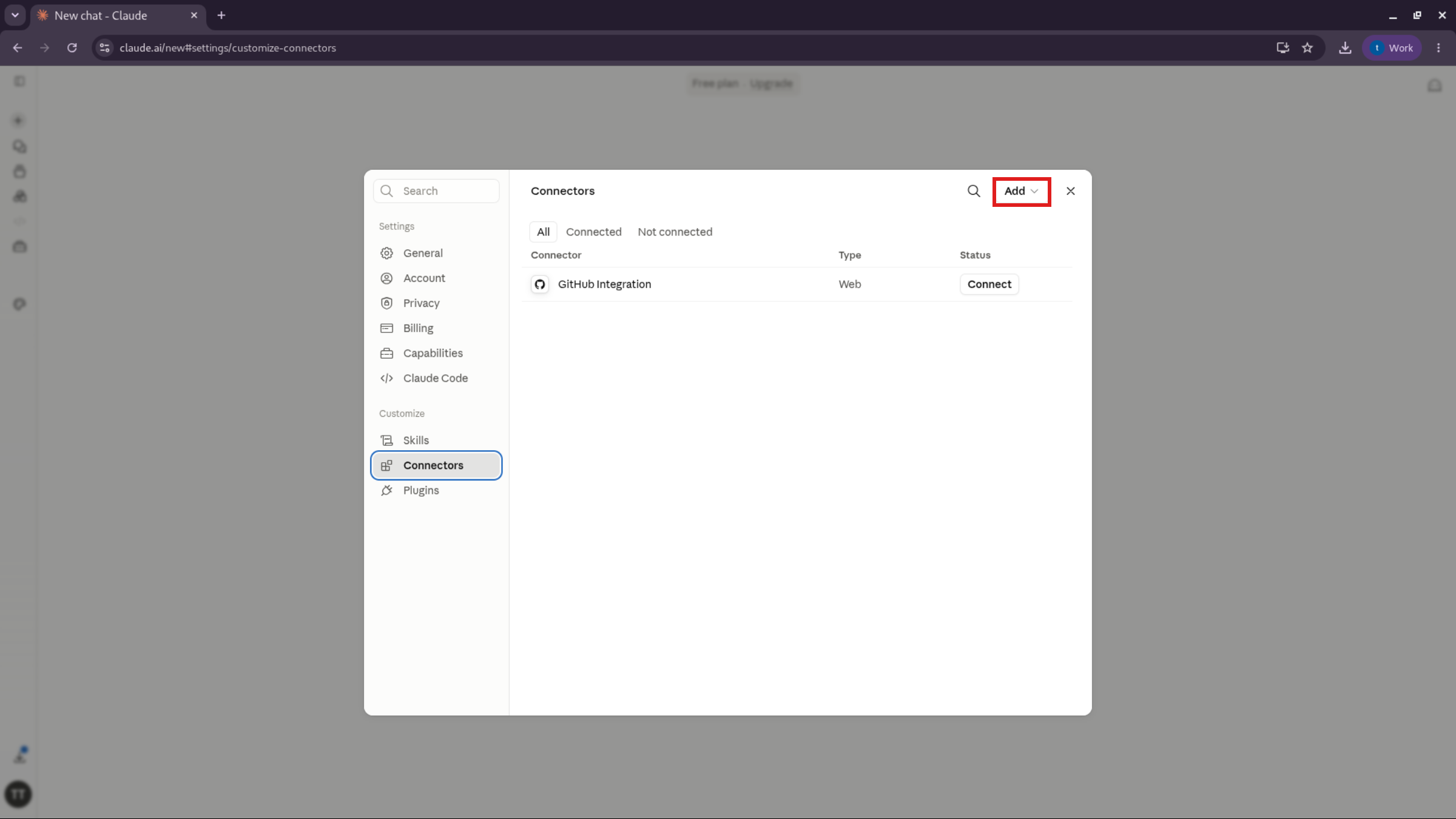
6. Enter the details. In Name type “@realty APIATO”, and in Remote MCP server URL paste https://apiato.myatrealty.com/mcp.
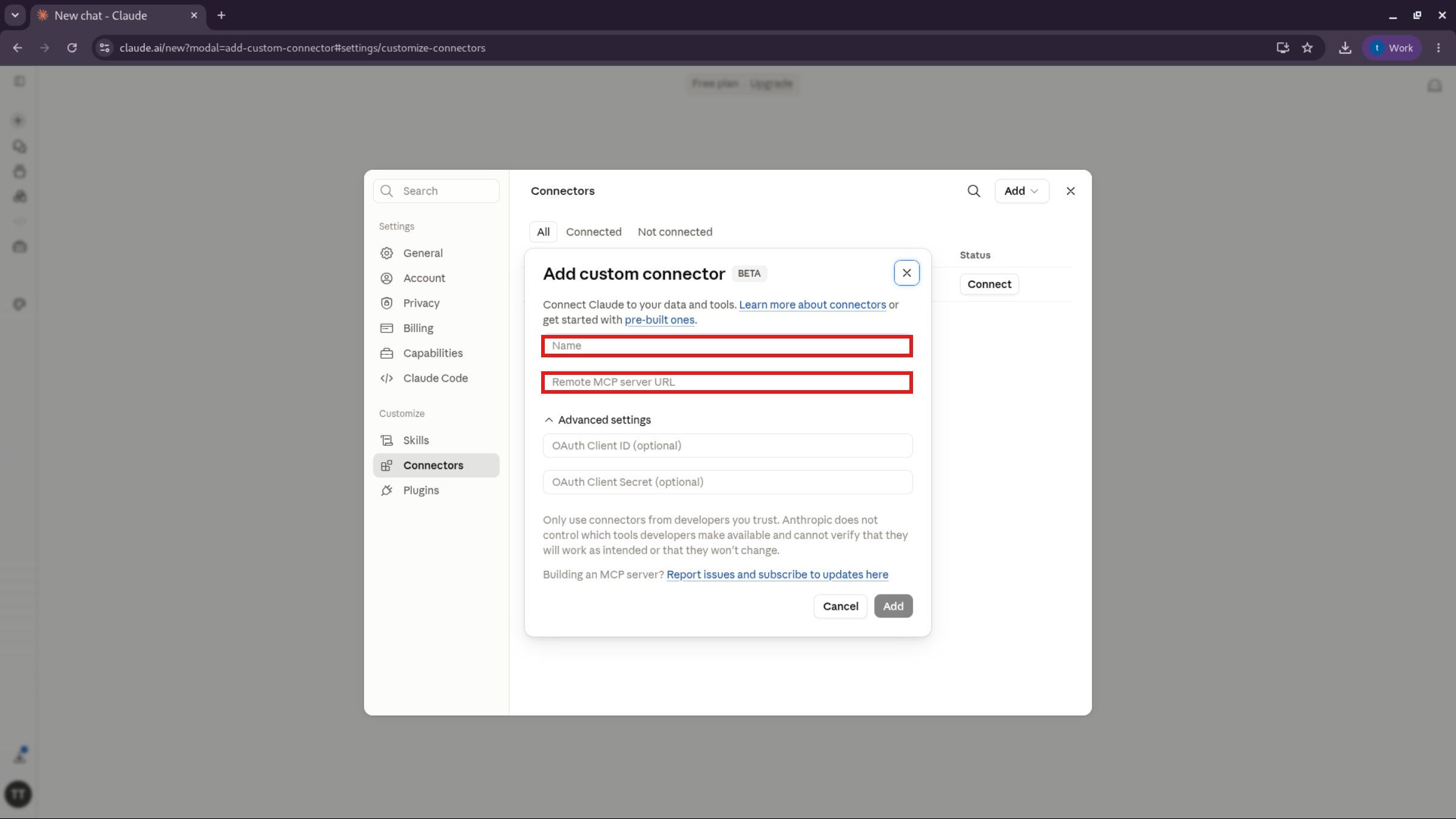
7. Add it. Click Add.
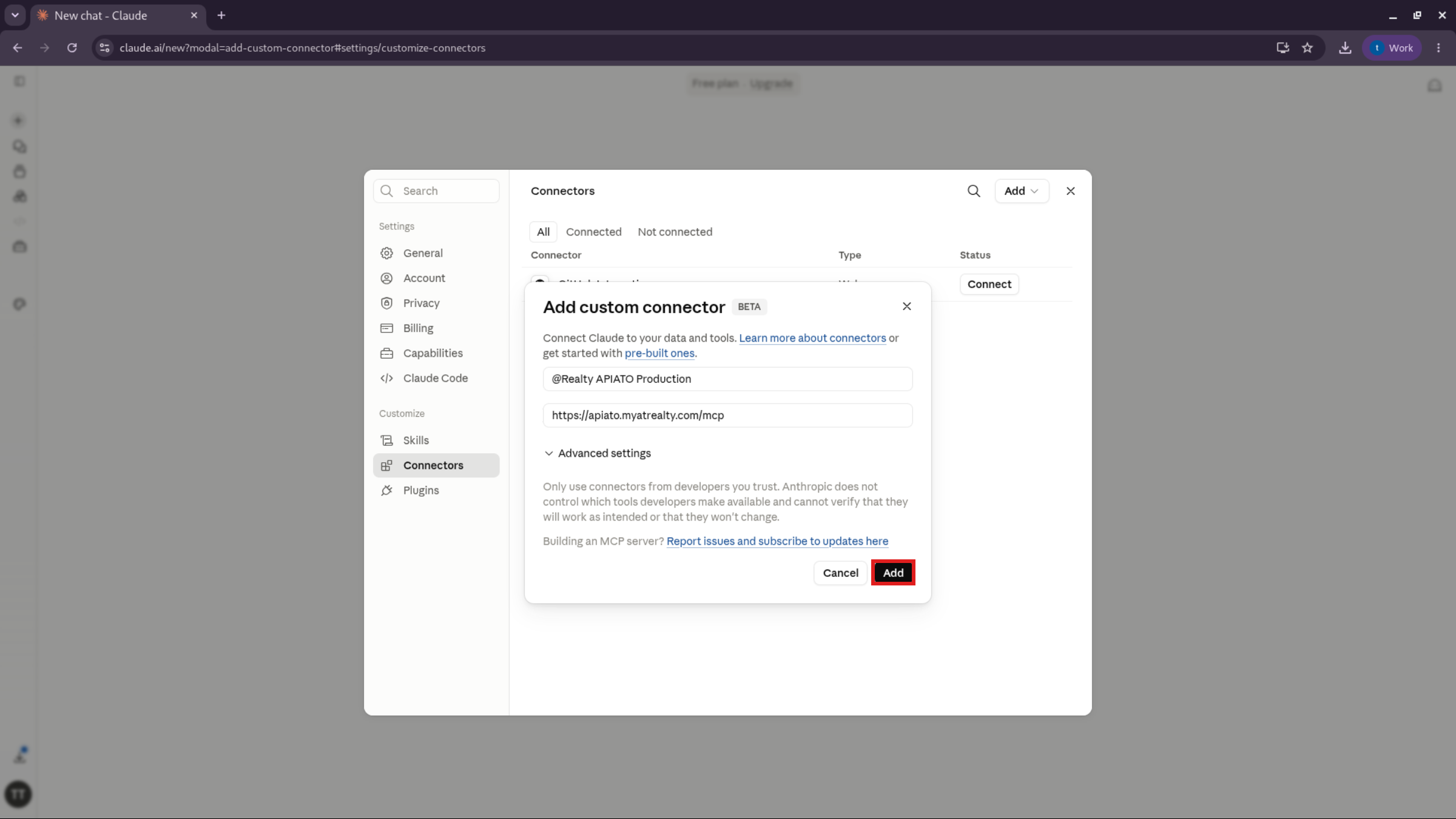
8. Connect. Click Connect to start the sign-in.
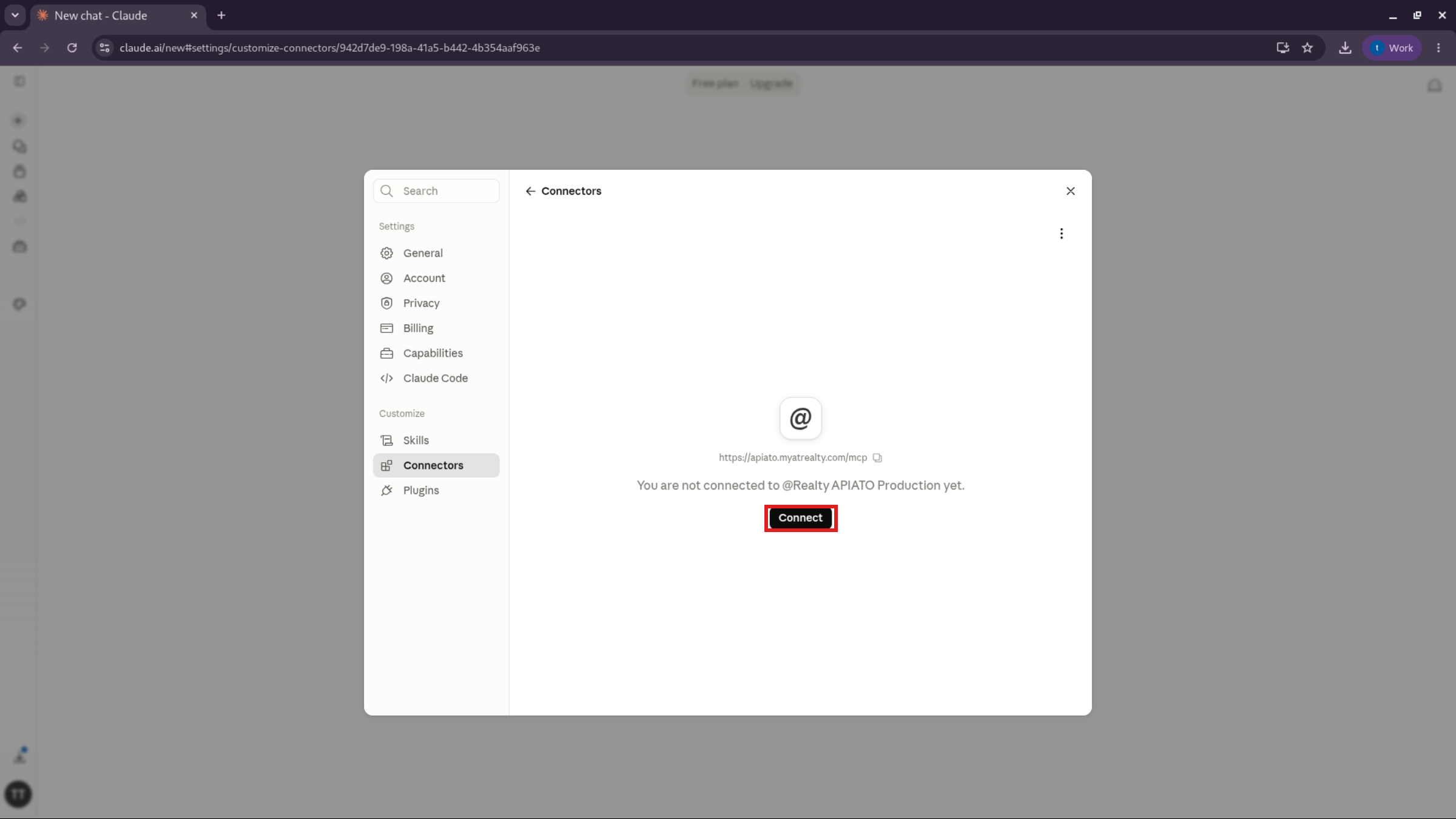
9. Authorise with Google. Sign in with your @atrealty.com.au Google account and click Continue.
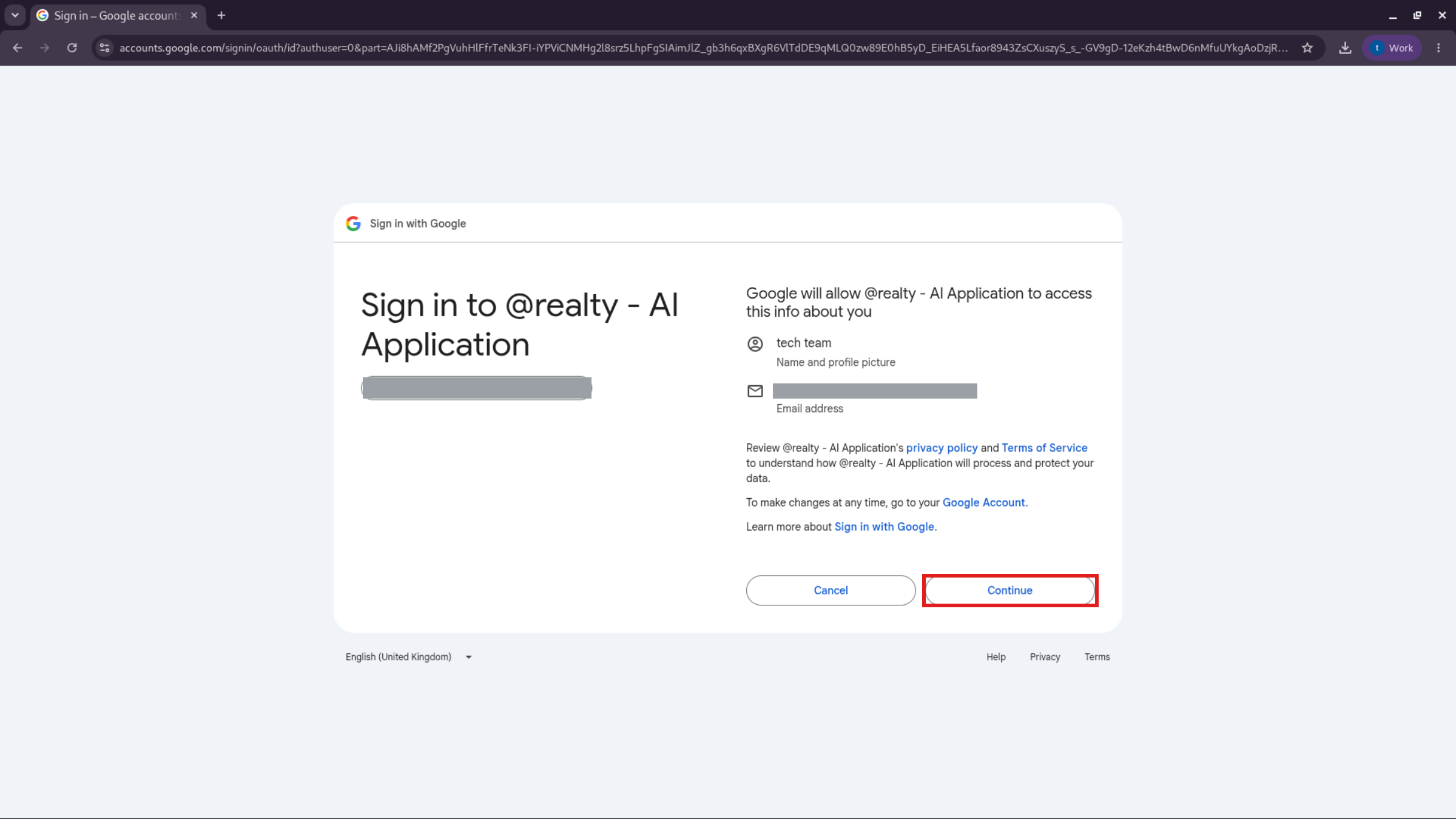
That’s it - you’re connected and can start asking CRM questions.
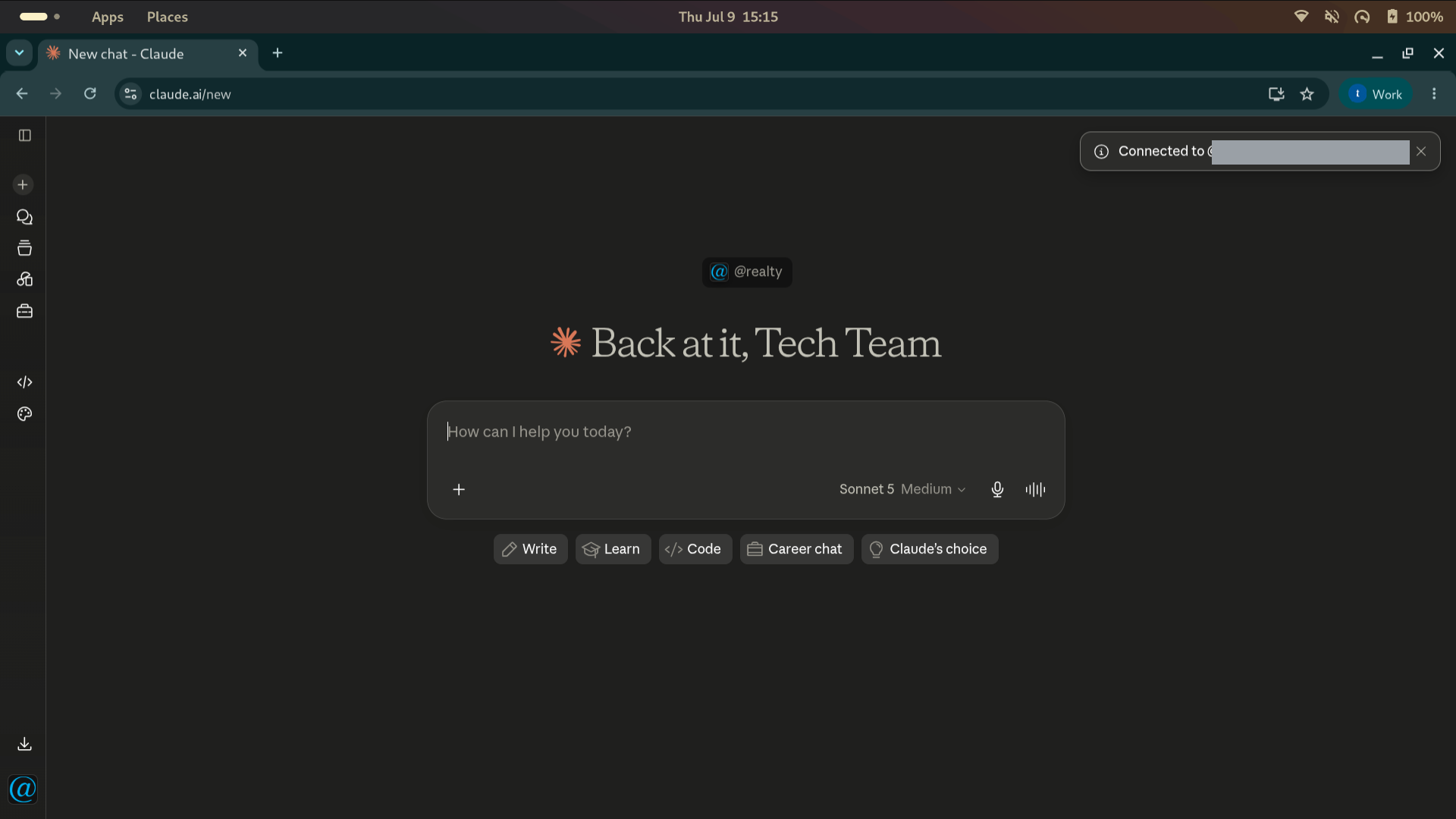
Claude Code
In your terminal, run claude mcp add atrealty --transport http --url https://apiato.myatrealty.com/mcp
Type /mcp and choose Authenticate.
Your browser will open automatically. Sign in with your @atrealty.com.au Google account.
Your connection is remembered, so you won’t need to sign in every time. If it ever expires, your browser will pop up for a quick Google sign-in and then carry on.
What you can ask it
You can ask Claude about your CRM data - your contacts, properties and listings - using everyday language. You only ever see the data you already have permission to see, because the Assistant uses your own login and your normal CRM permissions apply automatically.
For example, you can ask Claude to:
- Look up a contact’s phone number - “What’s the mobile for John Smith?”
- Search your contacts - “Find my contacts in Southport.”
- Get listing details - “Show me the listing at 12 Smith Street.”
- Search listings - “Search for listings under $700,000 in Robina.”
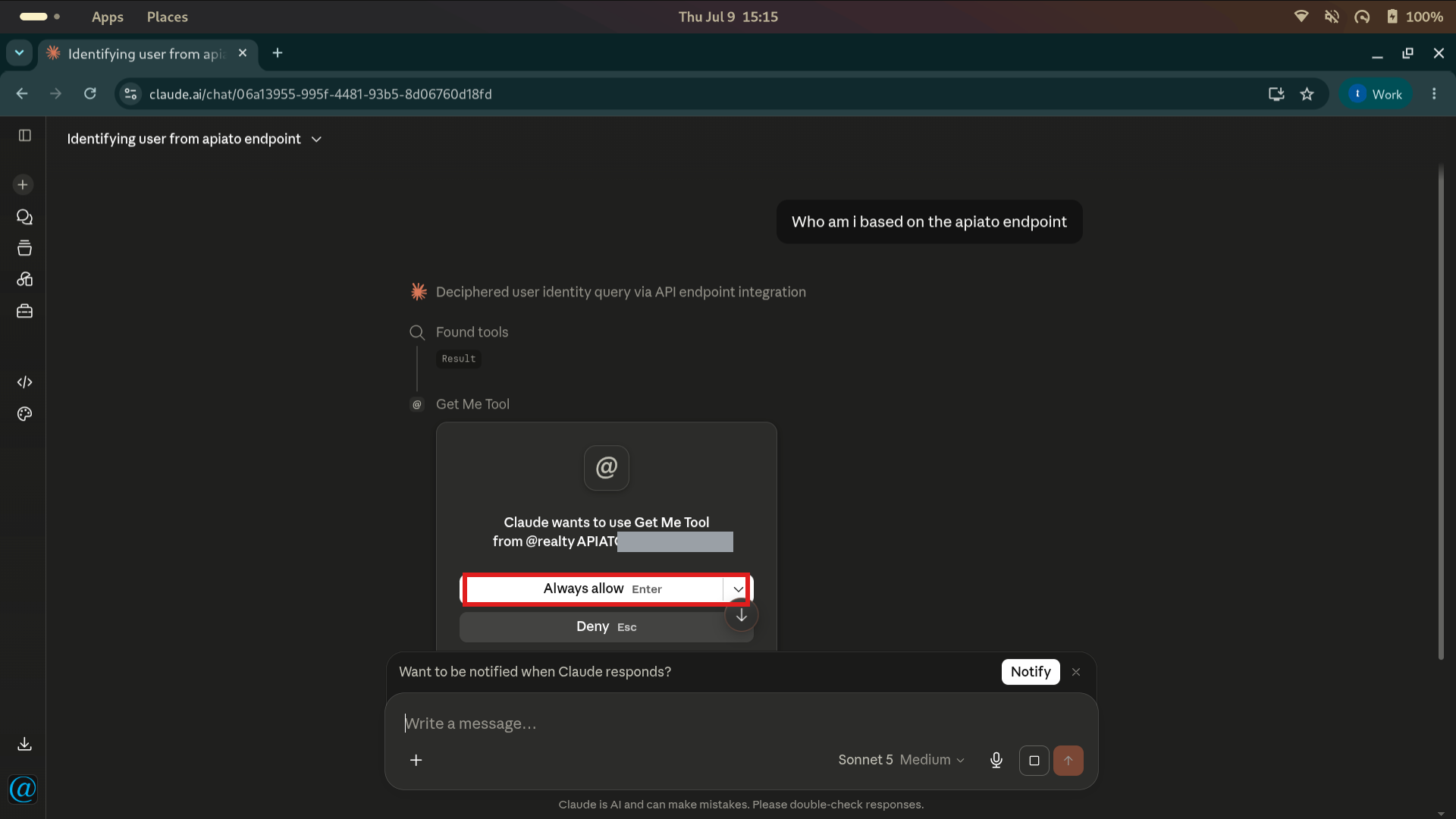
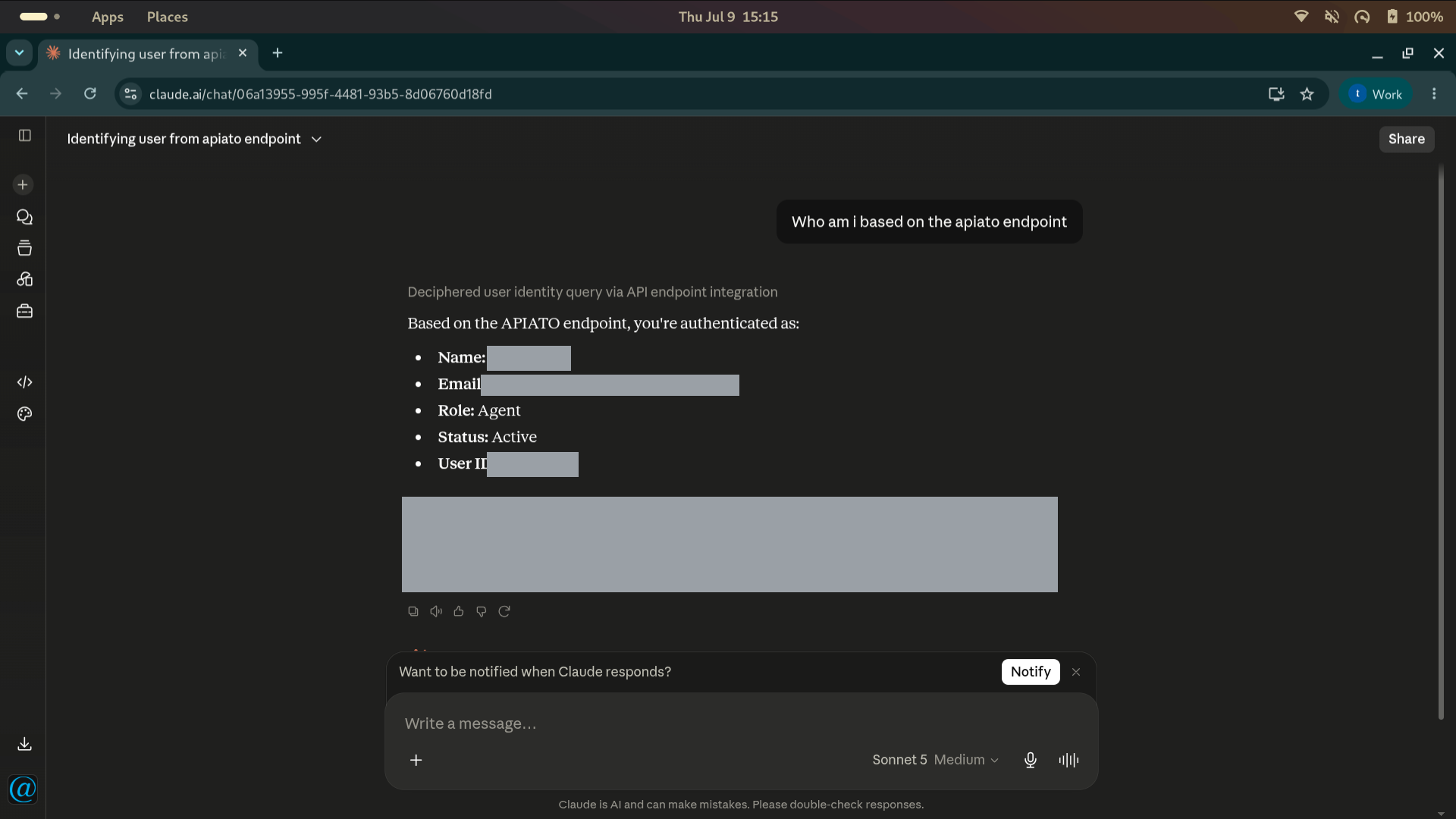
To check it is working, ask Claude “Who am I based on the @realty CRM connection?” The first time Claude uses a tool it will ask your permission - click Always allow.
Claude will then reply with your own agent details.
You can go further and ask “Using the same connection, show me the 5 most recent offers, listings and properties”. Click Always allow for each tool the first time it is used.
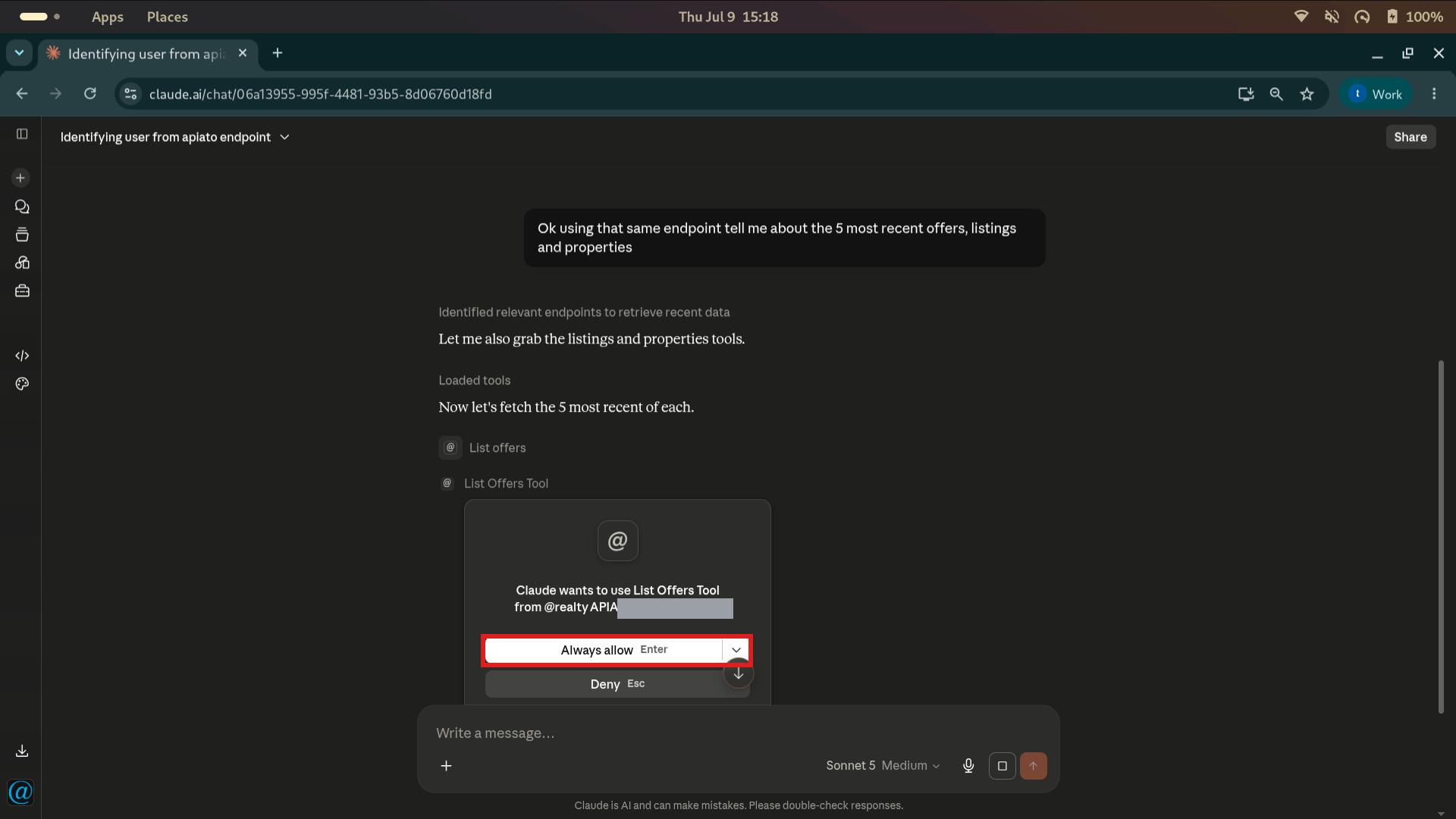
Claude pulls the results straight from the CRM.
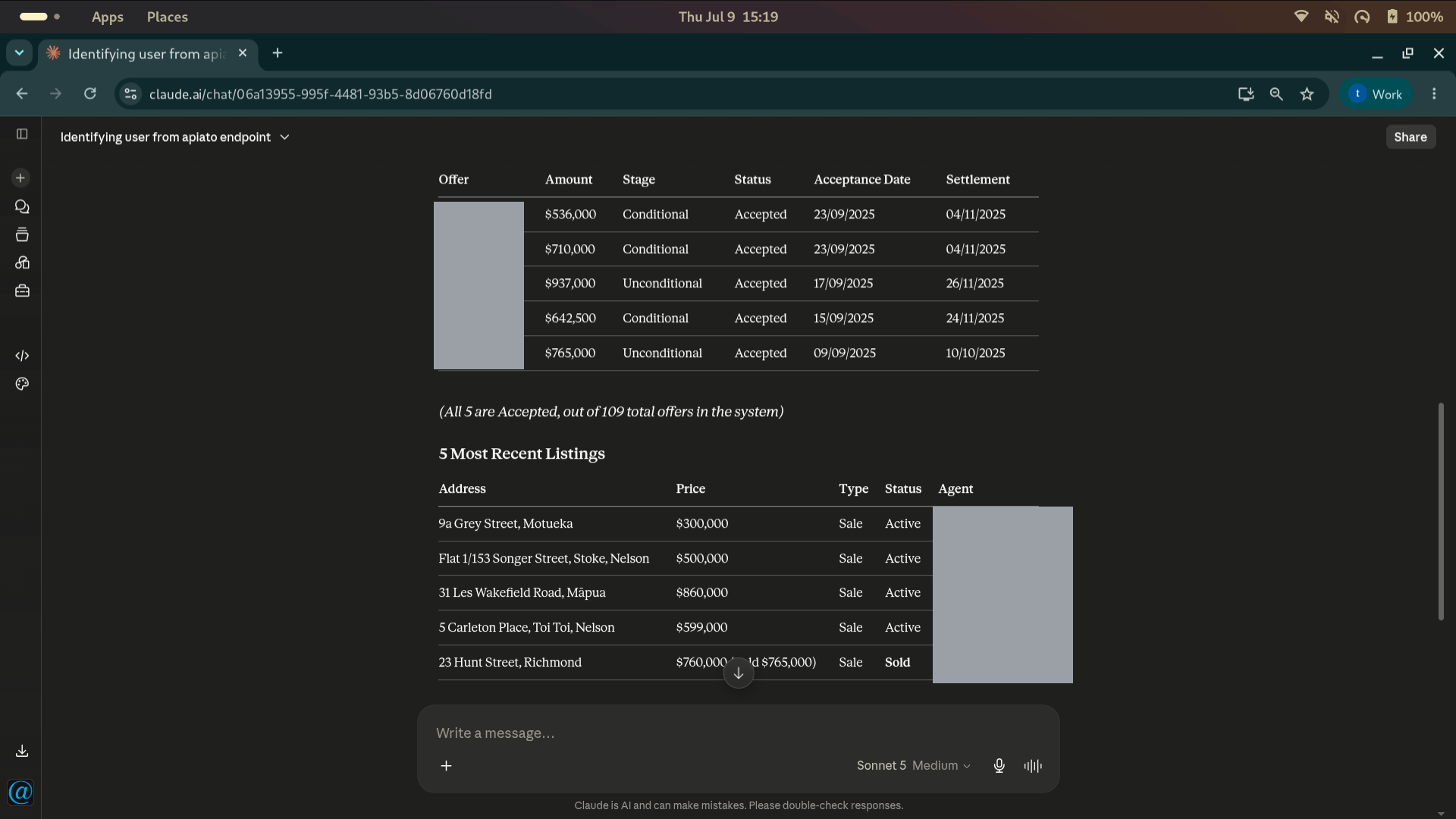
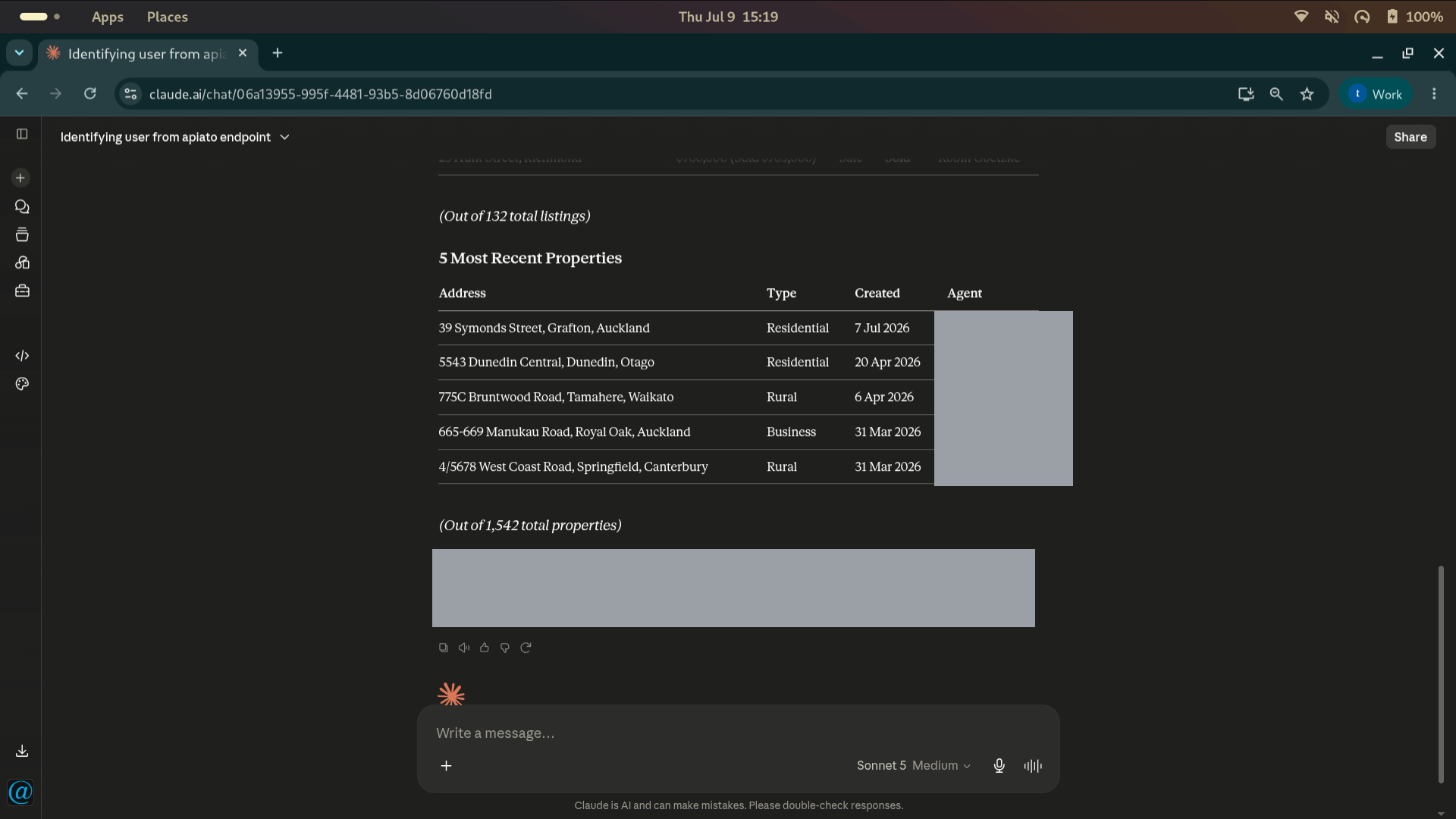
The Assistant is being expanded to cover more of the @realty Cloud’s information over time.
Frequently asked questions
Do I need CRM login details or an API key?
No. You only sign in with your @atrealty.com.au Google account. There is nothing to copy or paste.
Can I see other people’s data?
No. The Assistant uses your own account, so you see exactly what you would see if you logged into the CRM yourself.
My personal Gmail won’t connect. Why?
Only @atrealty.com.au Google accounts are allowed. Make sure you are signing in with your work Google account.
If you have any trouble connecting, please contact the Support Team at support@atrealty.com.au.
Was this article helpful?
That’s Great!
Thank you for your feedback
Sorry! We couldn't be helpful
Thank you for your feedback
Feedback sent
We appreciate your effort and will try to fix the article