TABLE OF CONTENTS
- What is it?
- Before you start
- Add the @realty MCP connection
- Connect an existing @realty app
- If you cannot add or find the app
- Try your first question
- Frequently asked questions
What is it?
The @realty CRM Assistant lets you ask ChatGPT questions about information in the @realty Cloud. ChatGPT uses a secure connection called MCP (Model Context Protocol) to look up CRM records and, where enabled, help you take actions. You can ask in everyday language, such as “Find my contacts in Southport” or “Show me the listing at 12 Example Street”.
Before you start
Use your own ChatGPT account in a web browser. You will also need your @atrealty.com.au Google account to authorise CRM access. Whether you can see the app and its tools depends on your ChatGPT plan, workspace settings and your @realty access.
IMPORTANT: Sign in to the @realty connection with your @atrealty.com.au Google account. A personal Google account will be refused. You do not need to copy an API key or password into ChatGPT.
Add the @realty MCP connection
This walkthrough shows how to add the @realty CRM server to your own ChatGPT account using the Work → Plugins layout. If the @realty app is already available, follow Connect an existing @realty app. Available options depend on your ChatGPT plan and workspace permissions.
Sign in to ChatGPT
1. Open ChatGPT. Go to chatgpt.com.
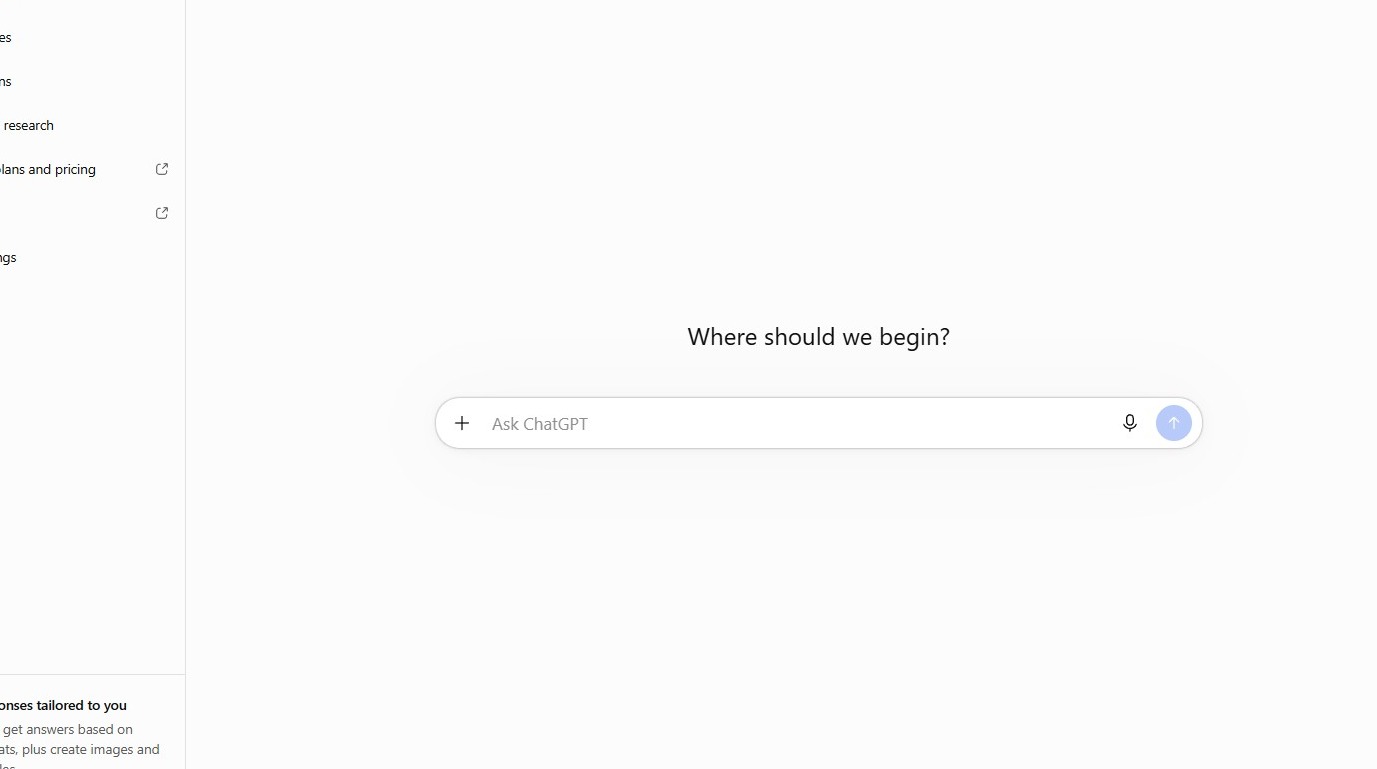
2. Click Log in. Use your own ChatGPT account.
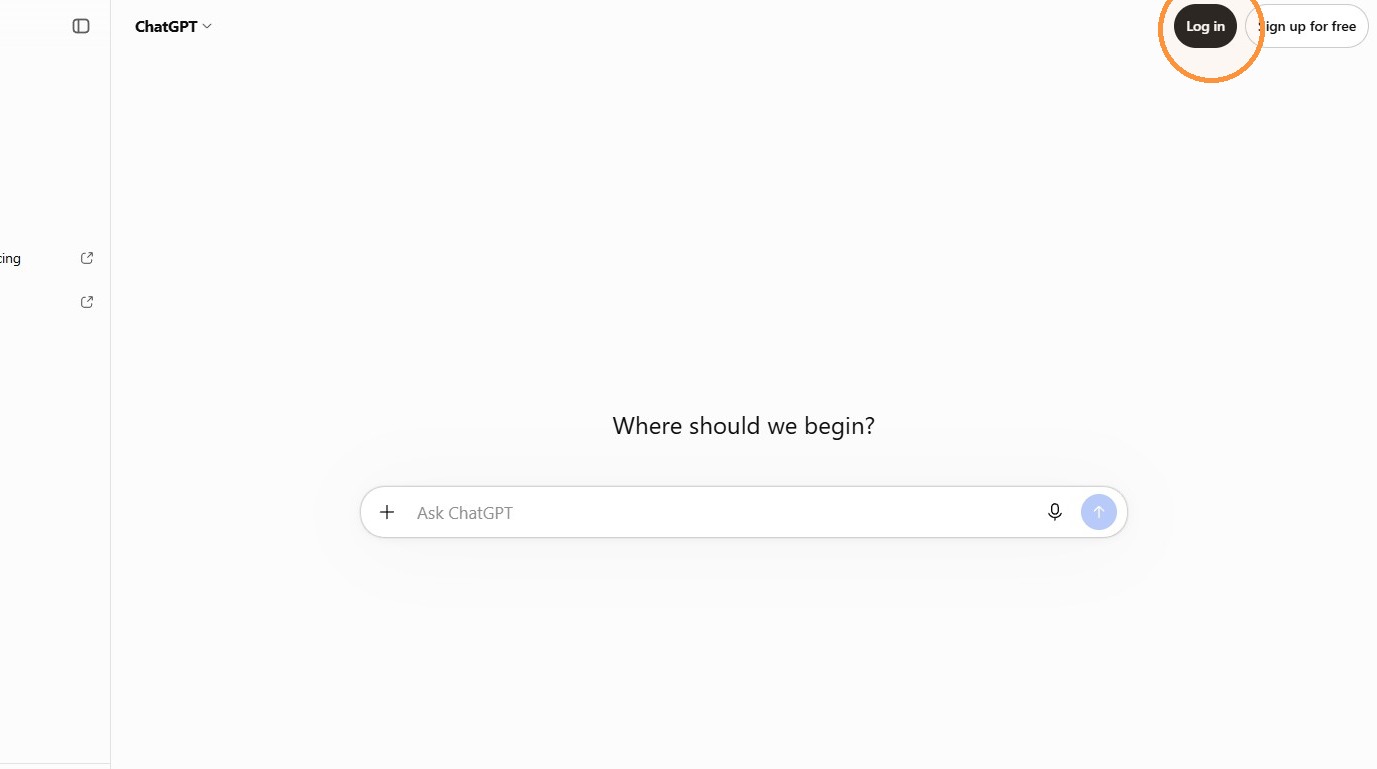
3. Choose your sign-in method. In this walkthrough, click Continue with Google.
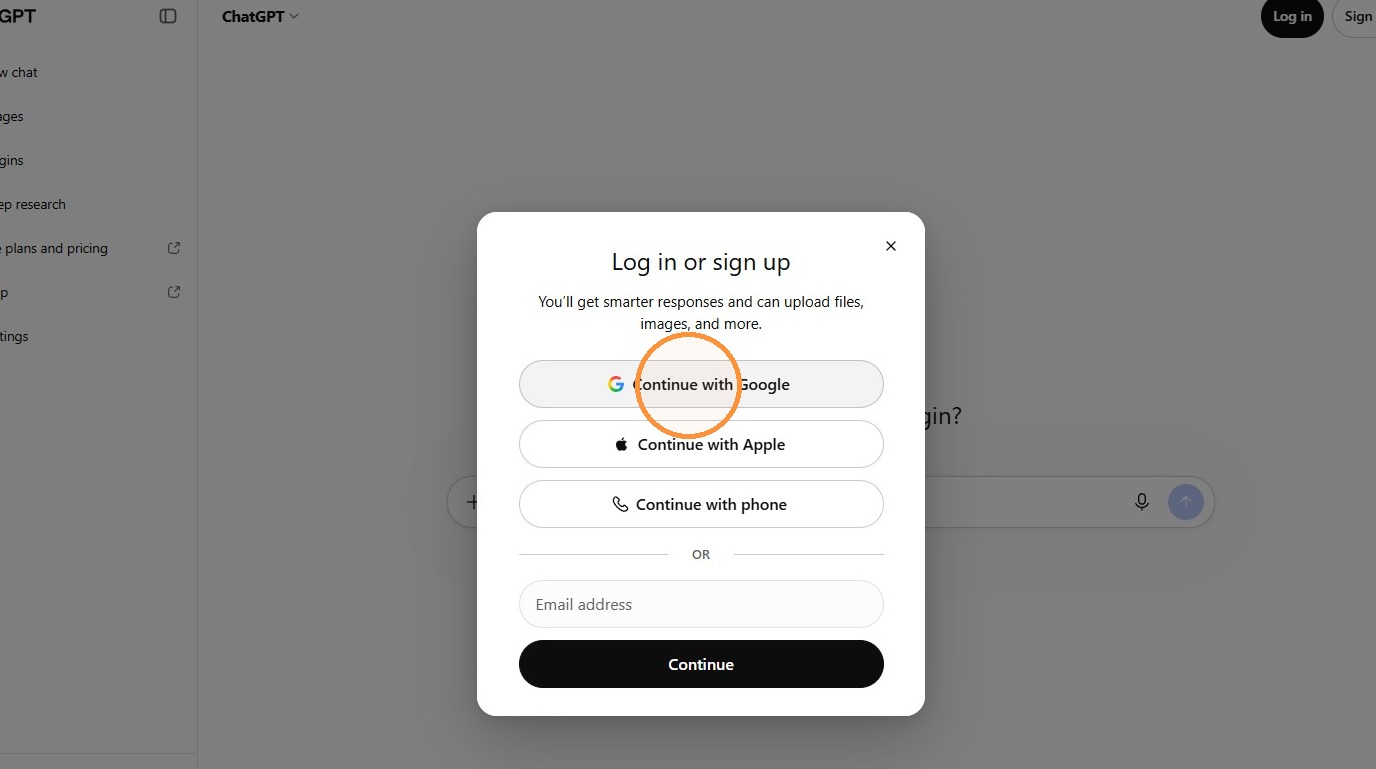
4. Select your Google profile. Choose the Google account you use for ChatGPT.
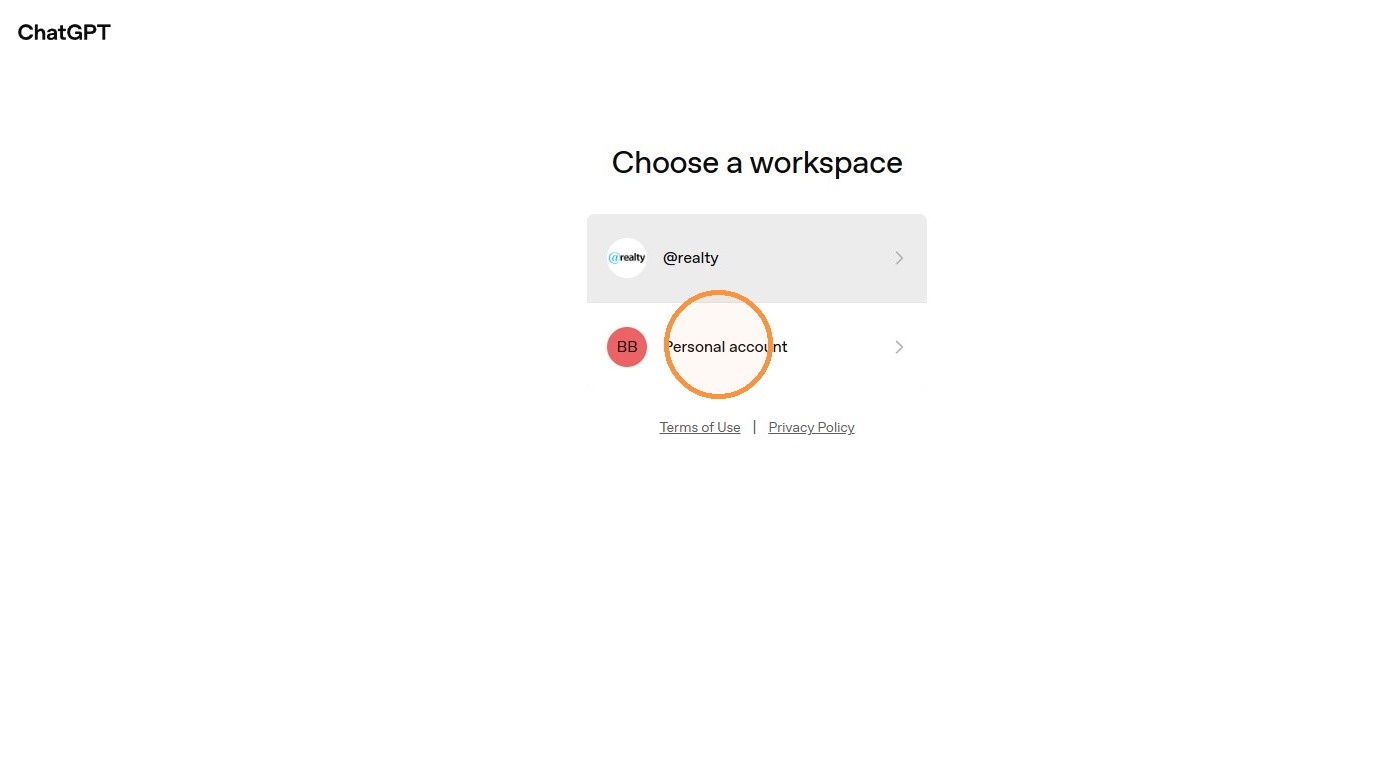
5. Choose your account or workspace. If you belong to a workspace, you can select it. Otherwise, click Personal account.
Open the MCP setup form
6. Open Work. Click the Work icon in the left sidebar.
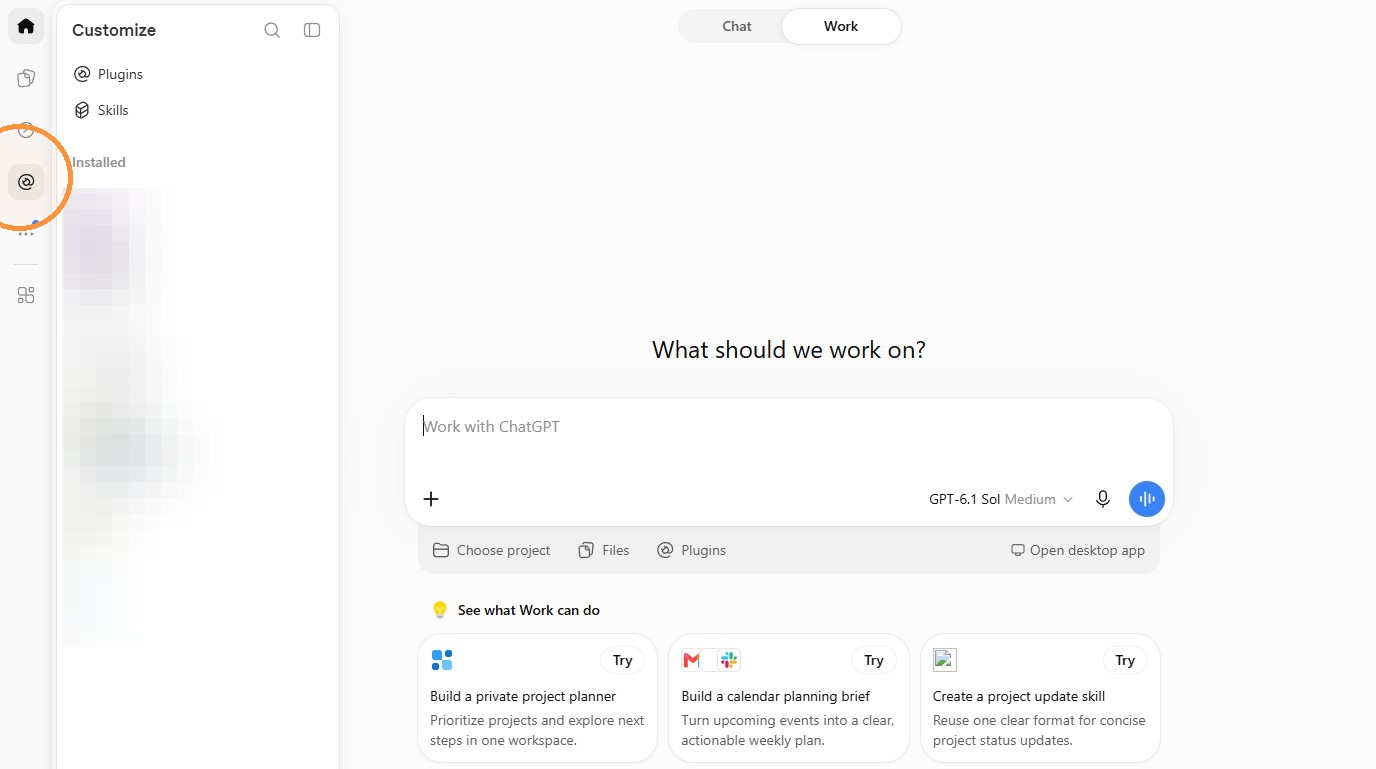
7. Open Plugins. Click Plugins.
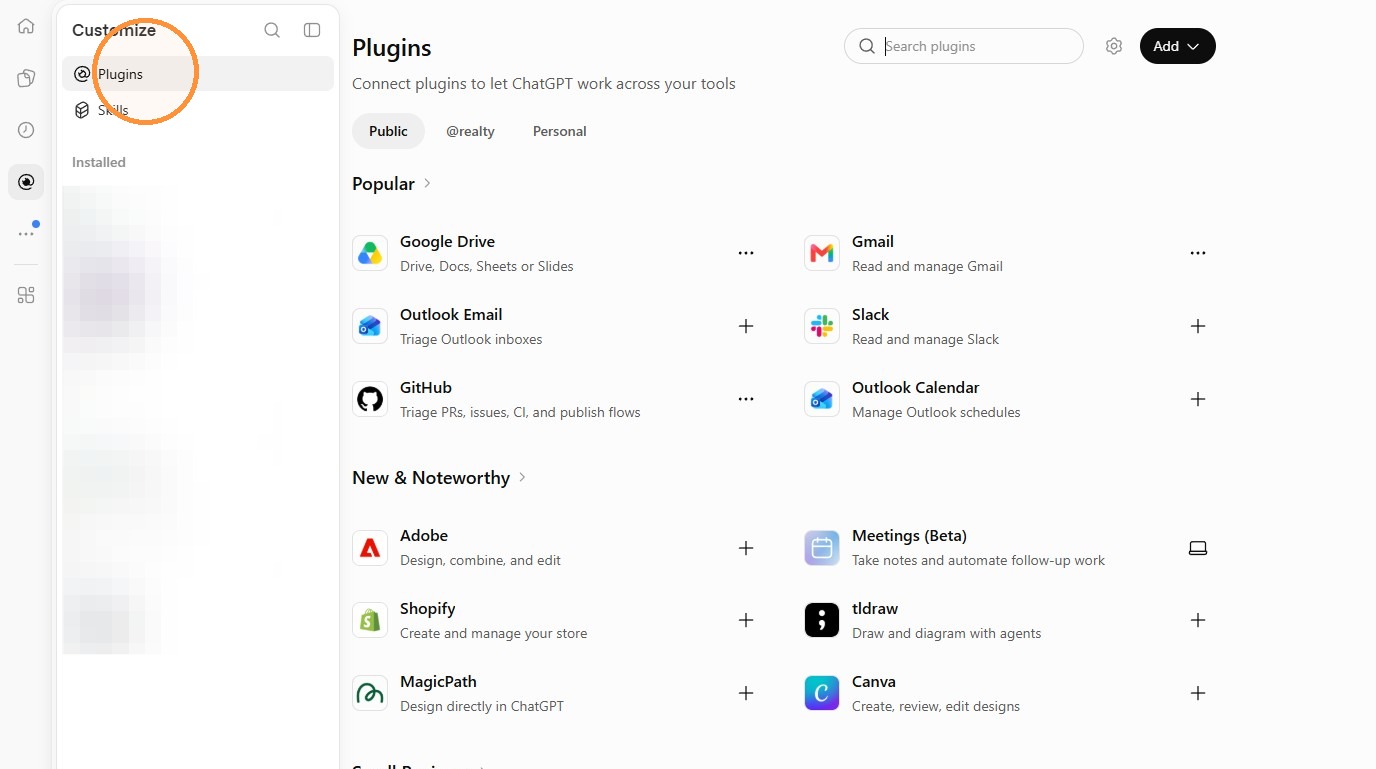
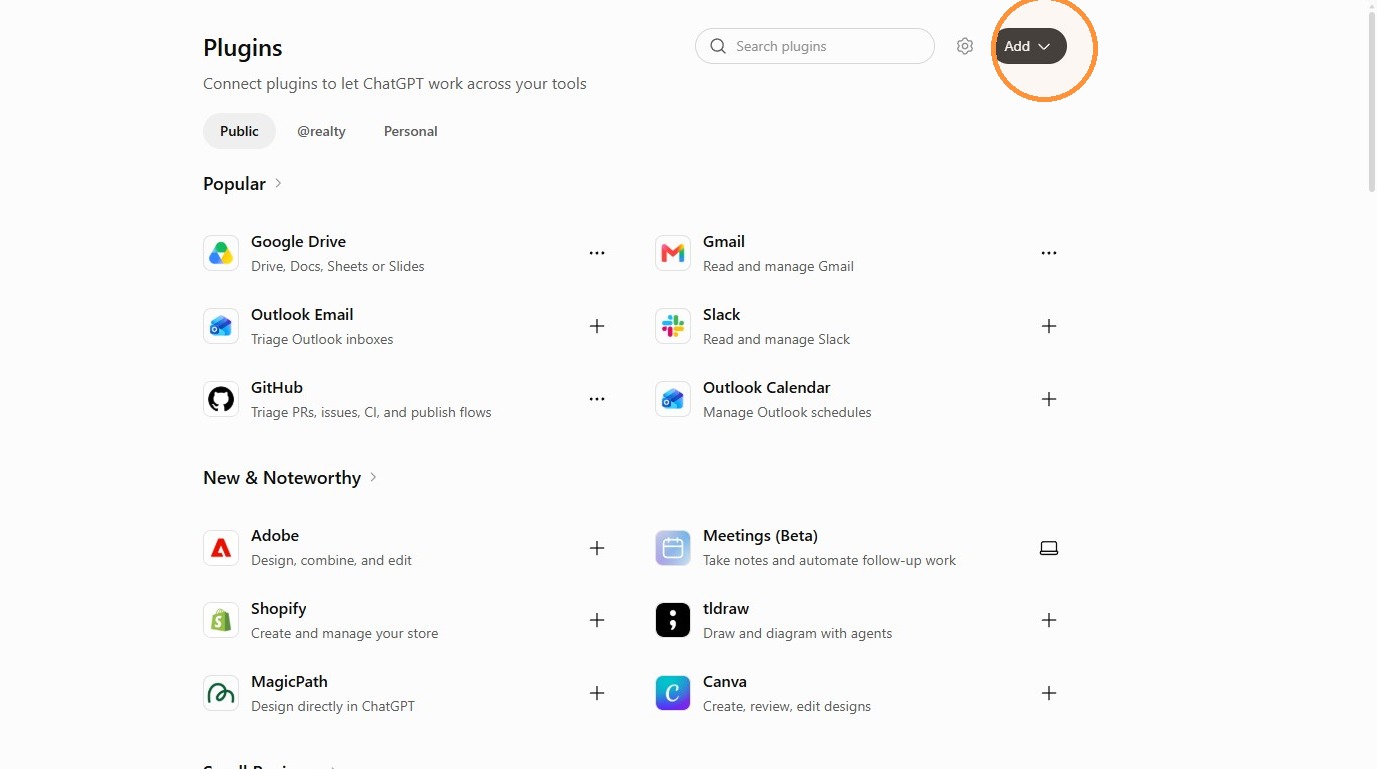
8. Click Add. Open the Add menu.
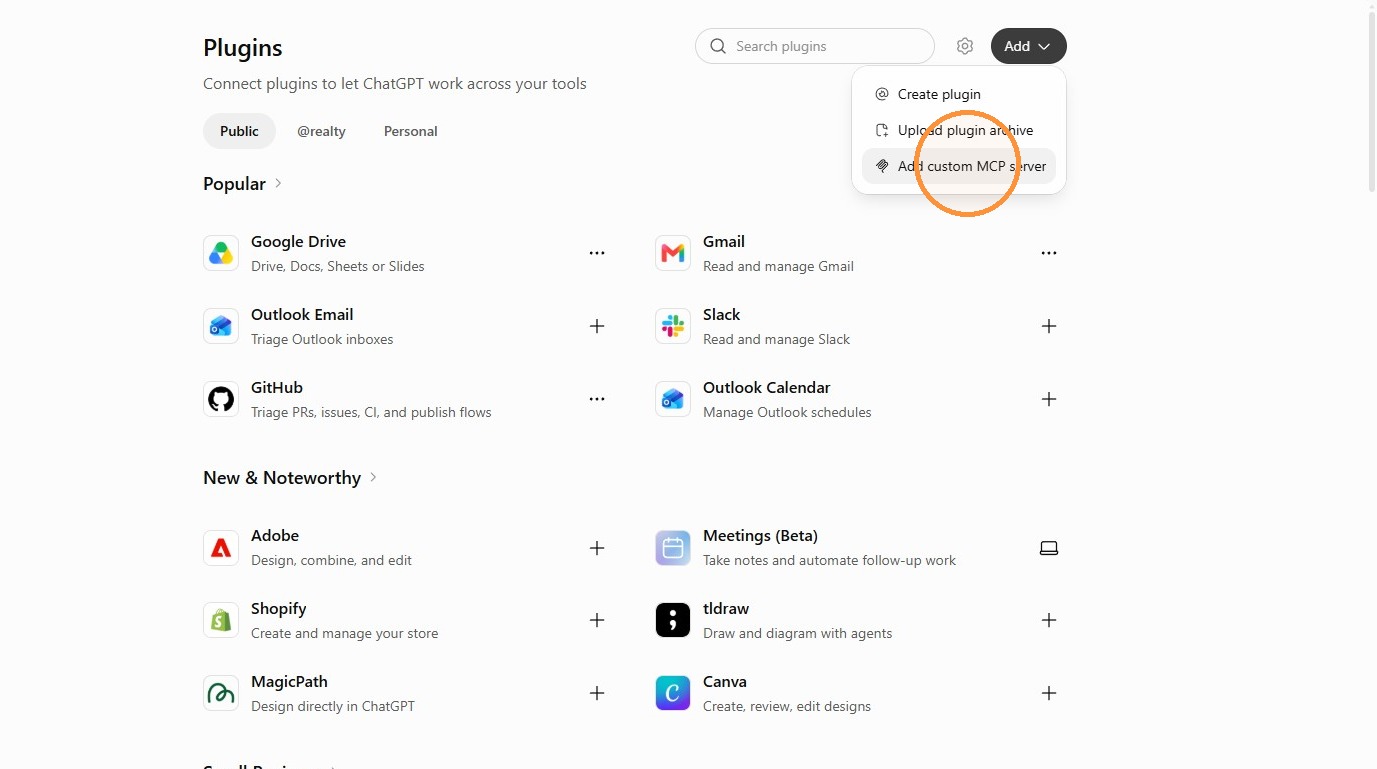
9. Choose Add custom MCP server. Click Add custom MCP server.
Enter the connection details
10. Add an icon if you want one. The icon is optional. Click the icon upload button to add one, or continue to the next step.
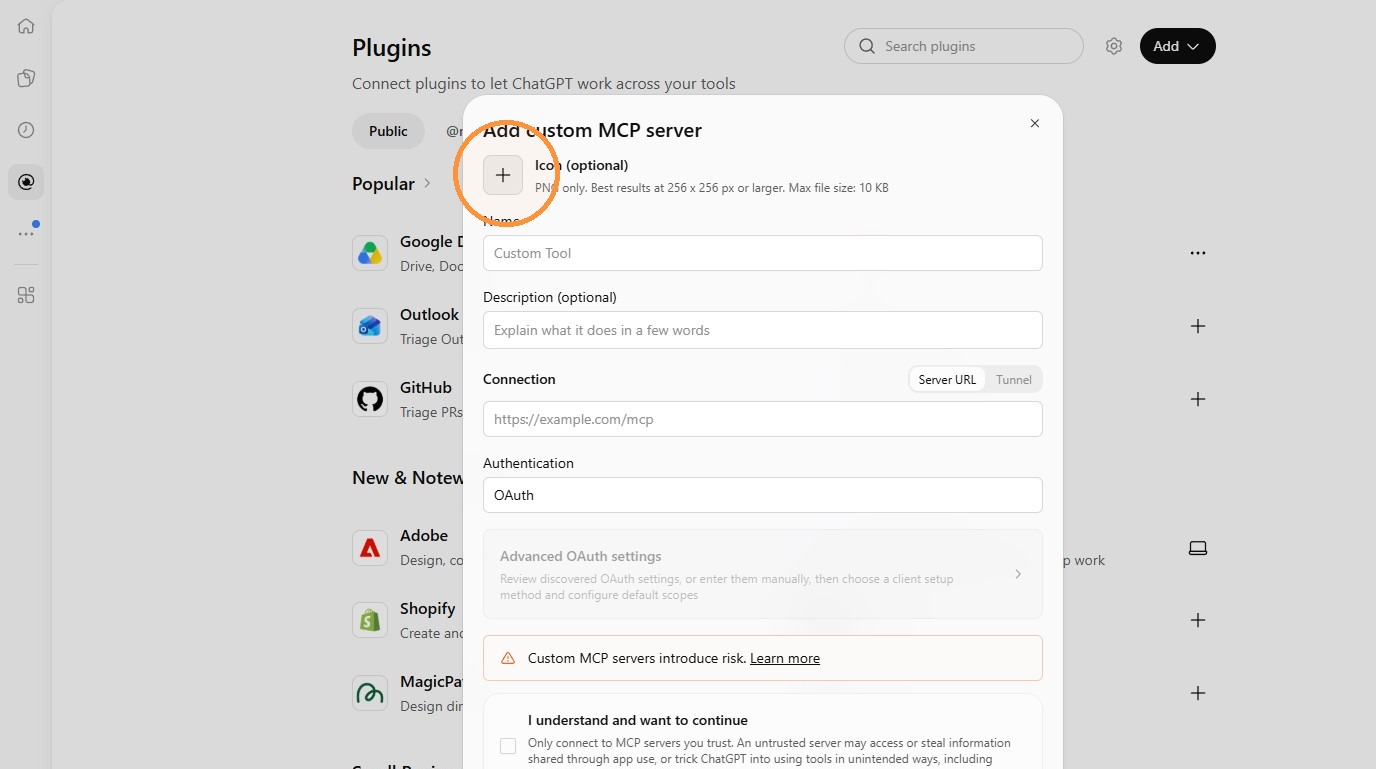
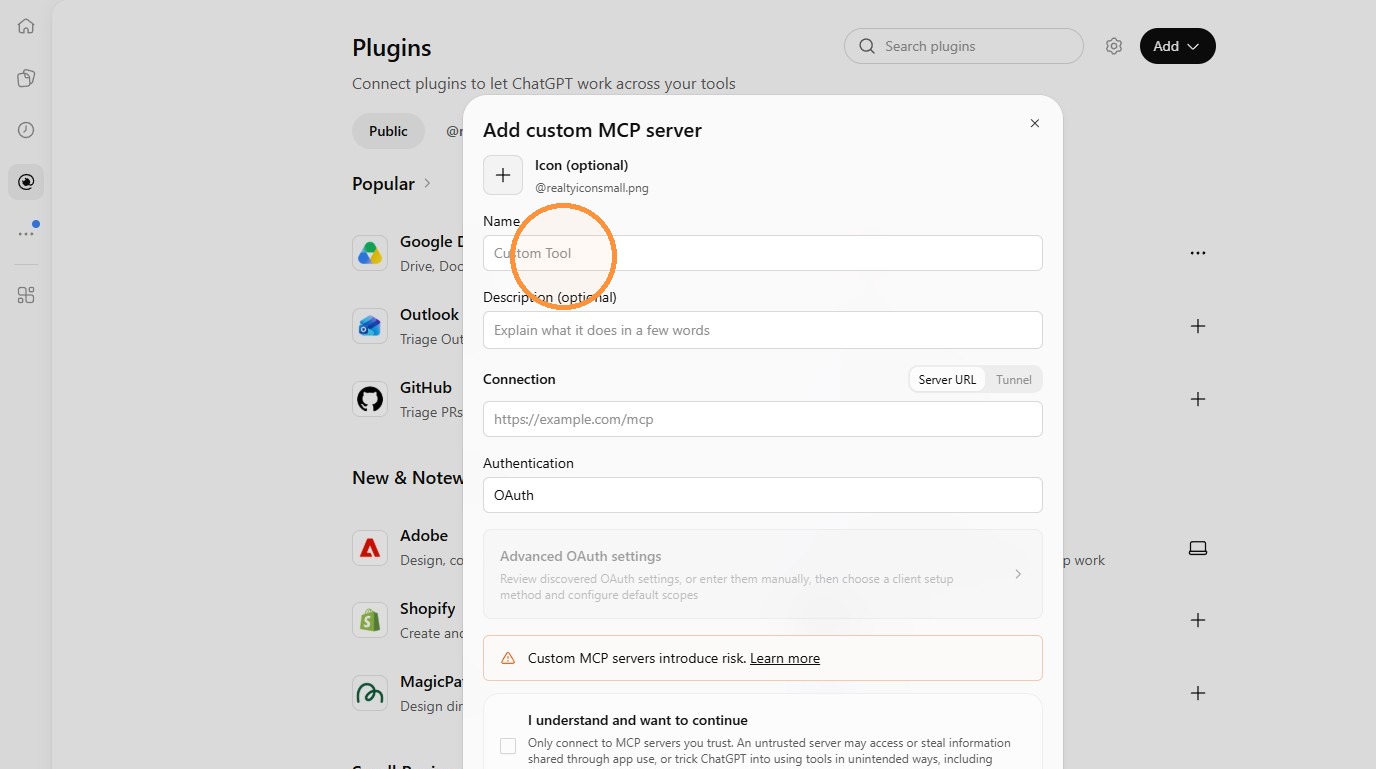
11. Enter the name. Type @realty CRM in the Name field.
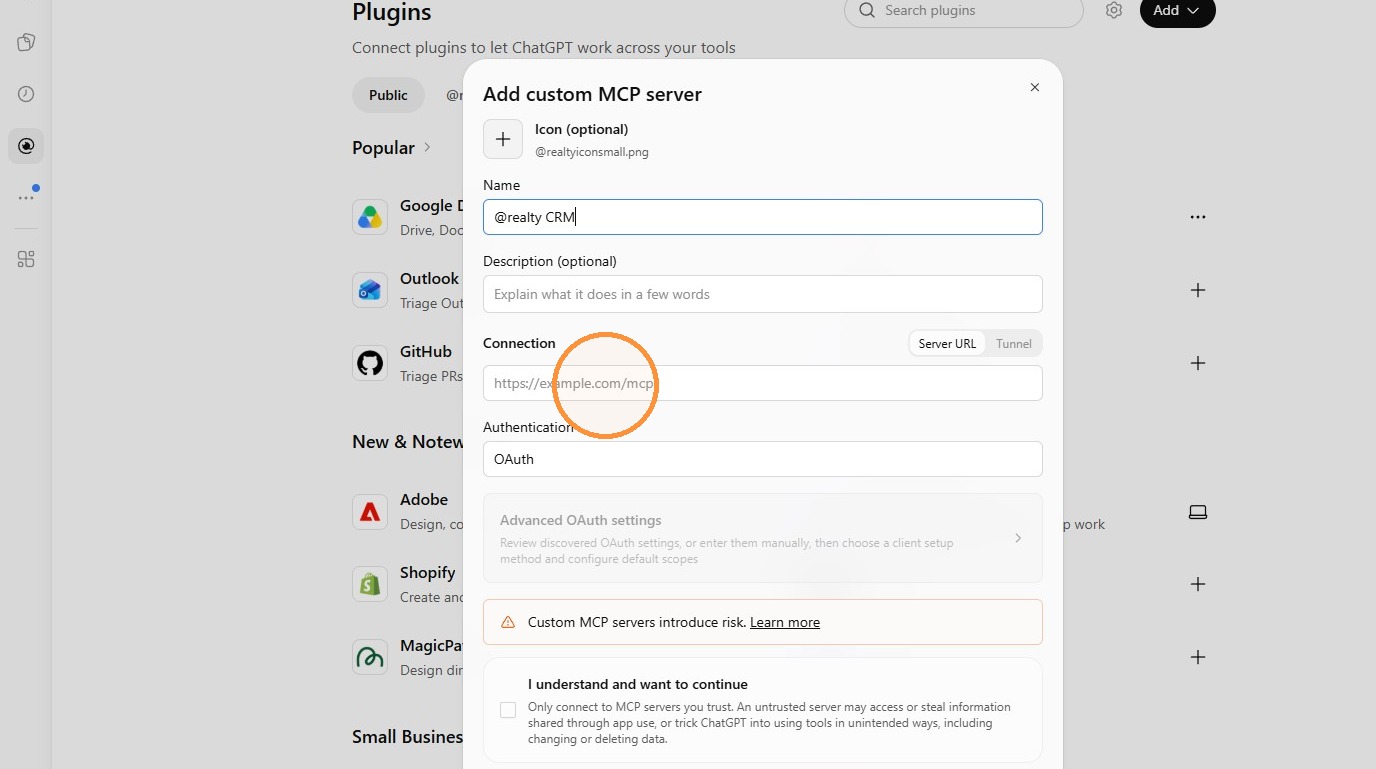
12. Enter the server address. Select Server URL and paste https://apiato.myatrealty.com/mcp into the field. Check that Authentication is set to OAuth.
13. Review the notice. Check the server address and read the access notice. If you want to connect, select I understand and want to continue.
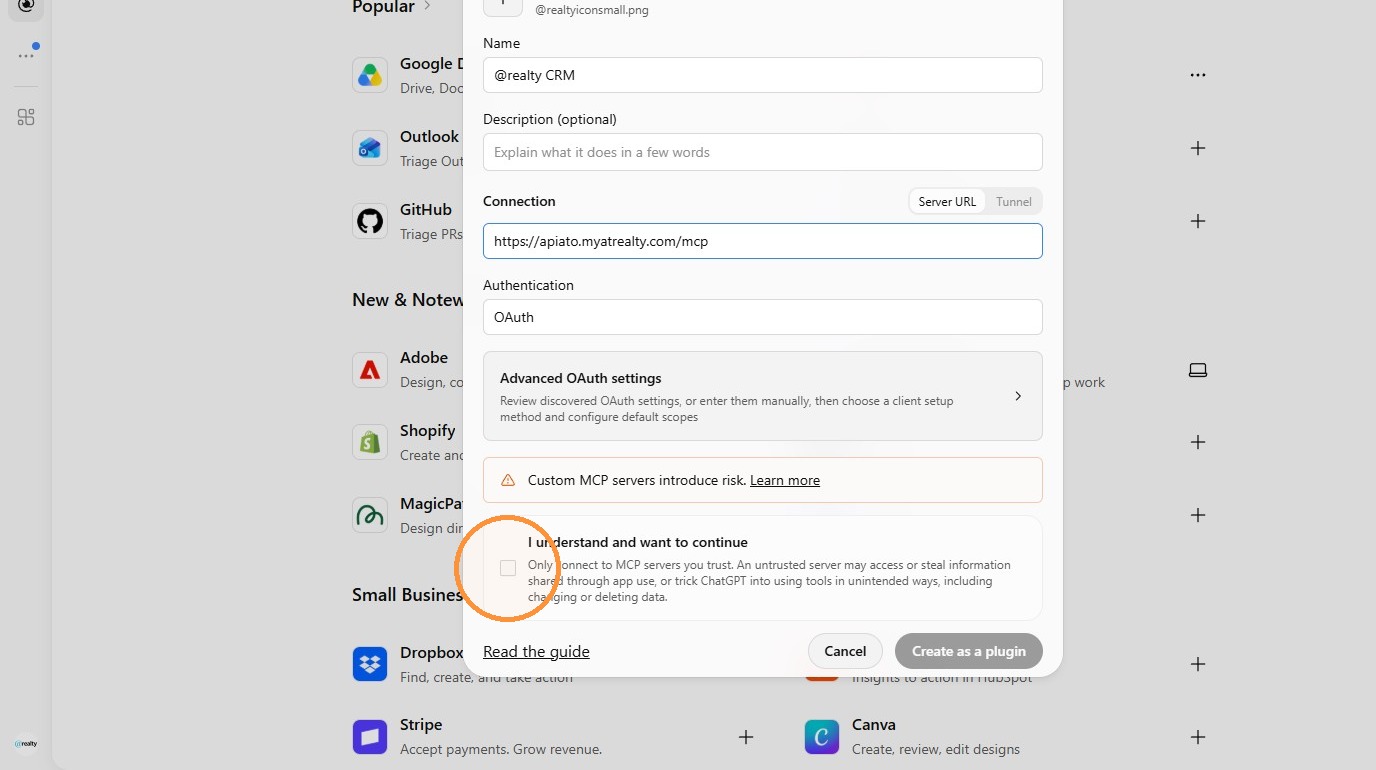
14. Create the plugin. Click Create as a plugin.
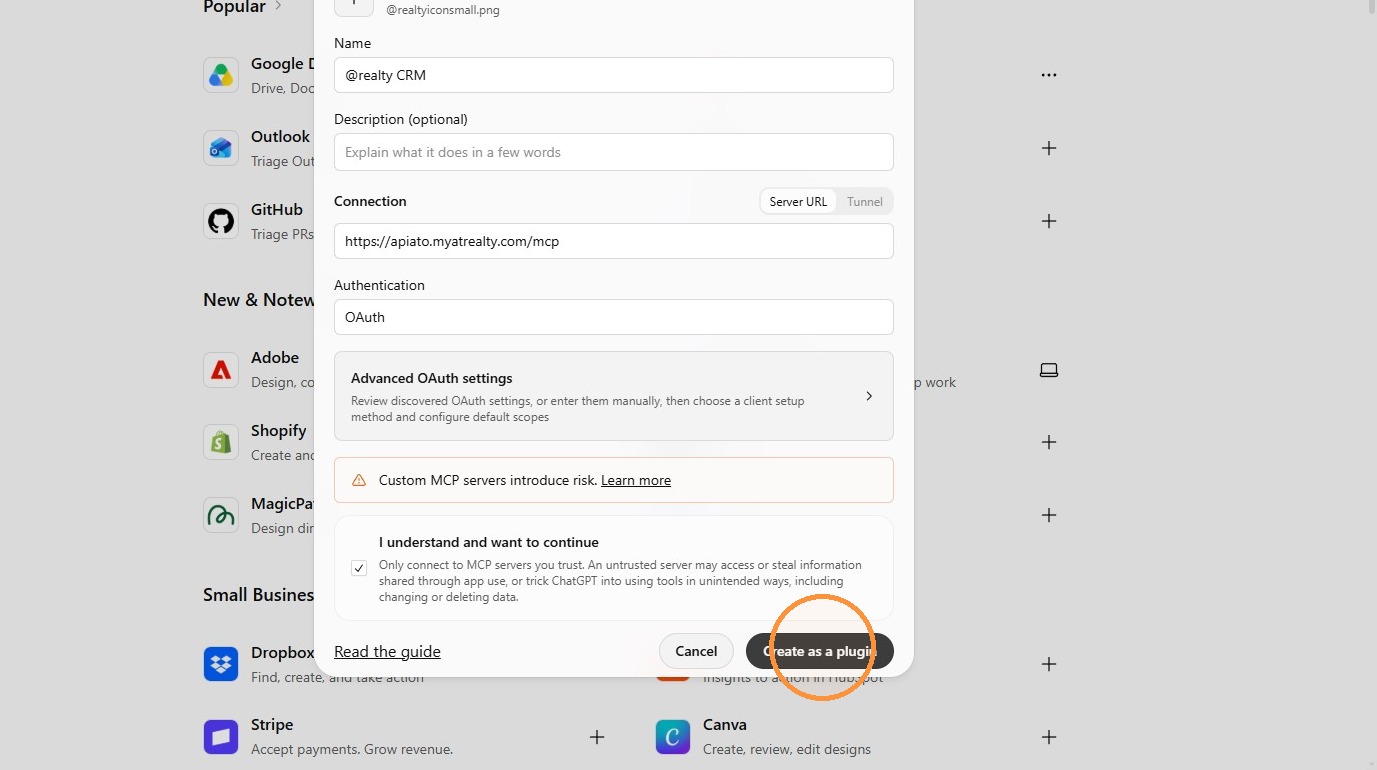
Connect your CRM account
15. Continue to the CRM. Review the connection screen, then click Continue to @realty CRM.
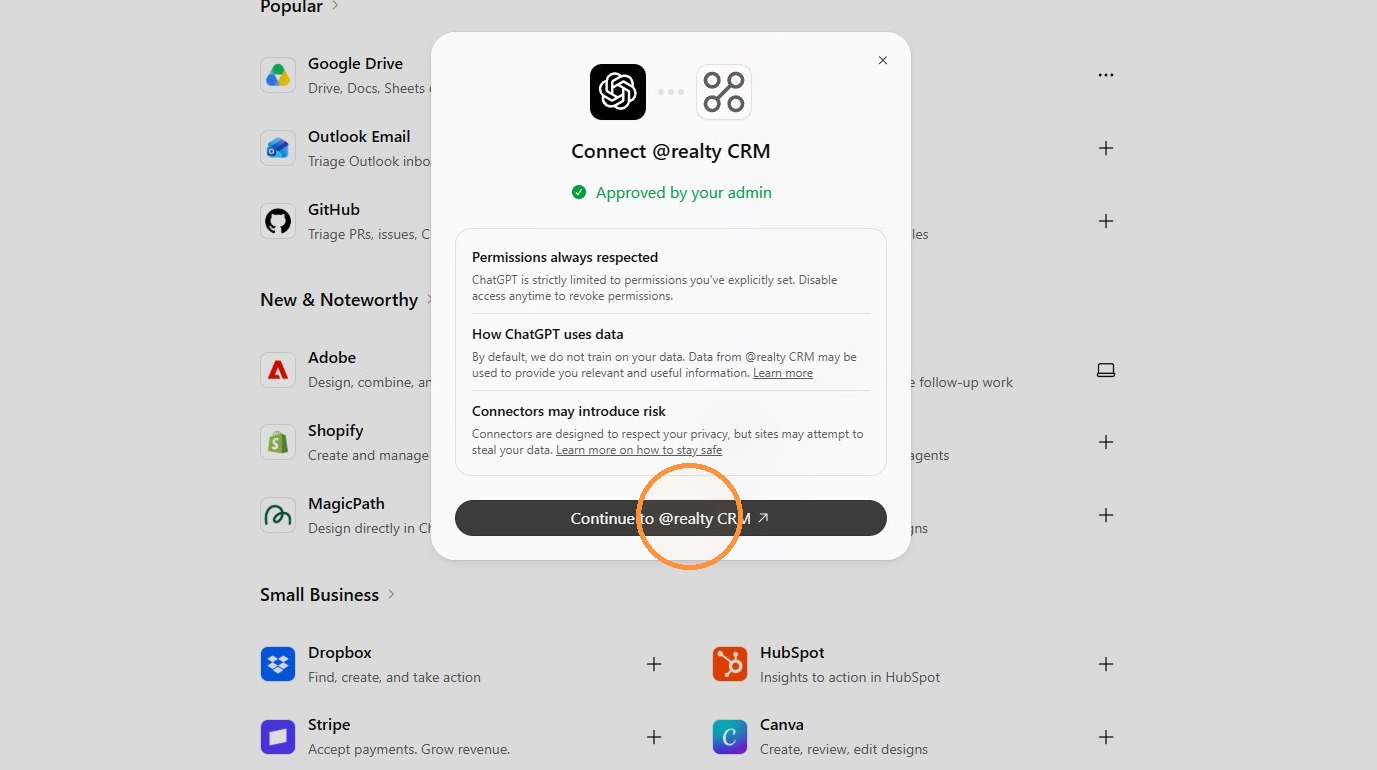
16. Authorise your CRM account. Choose your @atrealty.com.au Google account and complete the Google authorisation. This account determines which CRM information you can access. Return to ChatGPT when it finishes.
Next, follow Try your first question below to check the connection.
Connect an existing @realty app
1. Open ChatGPT. Go to chatgpt.com and sign in to your own account. If you belong to more than one workspace, select the one where the @realty app has been made available.
2. Find the app. Open Apps or Settings → Apps and find the @realty CRM Assistant. Depending on your ChatGPT account, the menu may say Plugins.
The picture below shows the @realty CRM plugin page in the Plugins layout. Open the plugin that your workspace administrator or Support Team has made available to you.
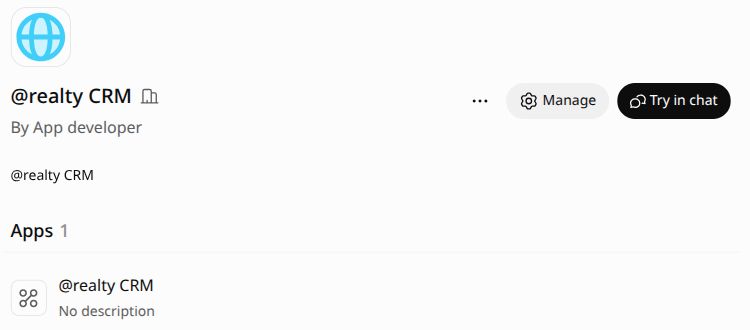
3. Connect. Select the app and click Connect if prompted. Review the access request.
In the Plugins layout, select the @realty CRM app under Apps to view its tools. Read tools retrieve information. Write tools can change records. The tools shown depend on the app and the access enabled for your account.
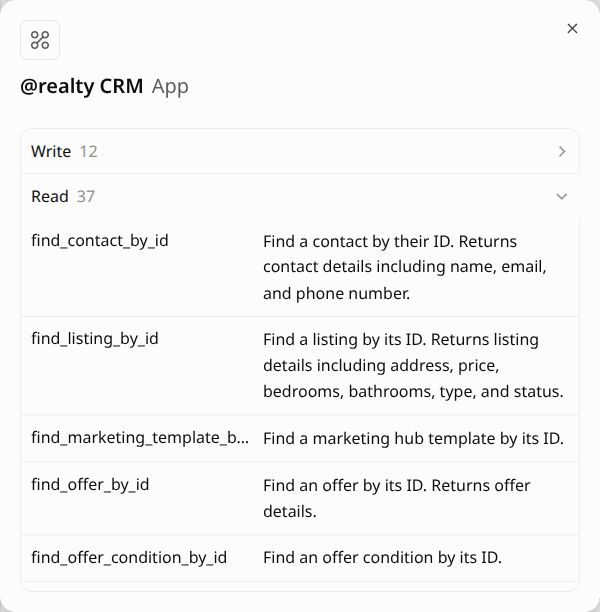
4. Sign in with Google. Choose your @atrealty.com.au Google account and finish the authorisation in your browser. Return to ChatGPT when it completes.
5. Use it in a chat. On the plugin page, click Try in chat to open a chat with the @realty plugin selected. In other layouts, select the @realty app from the + menu or mention it with @ in your message. Some ChatGPT layouts place apps under More. Select the app again when you want a later message to use fresh CRM data.
If you cannot add or find the app
If Add custom MCP server is missing, or you cannot find the @realty app, contact your ChatGPT workspace administrator or the Support Team at support@atrealty.com.au. Tell them your ChatGPT plan or workspace and the options you can see. Availability depends on your plan and workspace permissions.
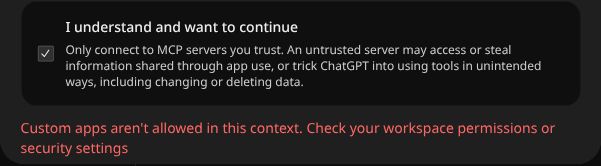
If ChatGPT says custom apps are not allowed
If you see “Custom apps aren’t allowed in this context. Check your workspace permissions or security settings”, ChatGPT has blocked creation before Google authorisation. Contact your ChatGPT workspace administrator or the Support Team to check whether custom MCP connections are allowed for your account.
Try your first question
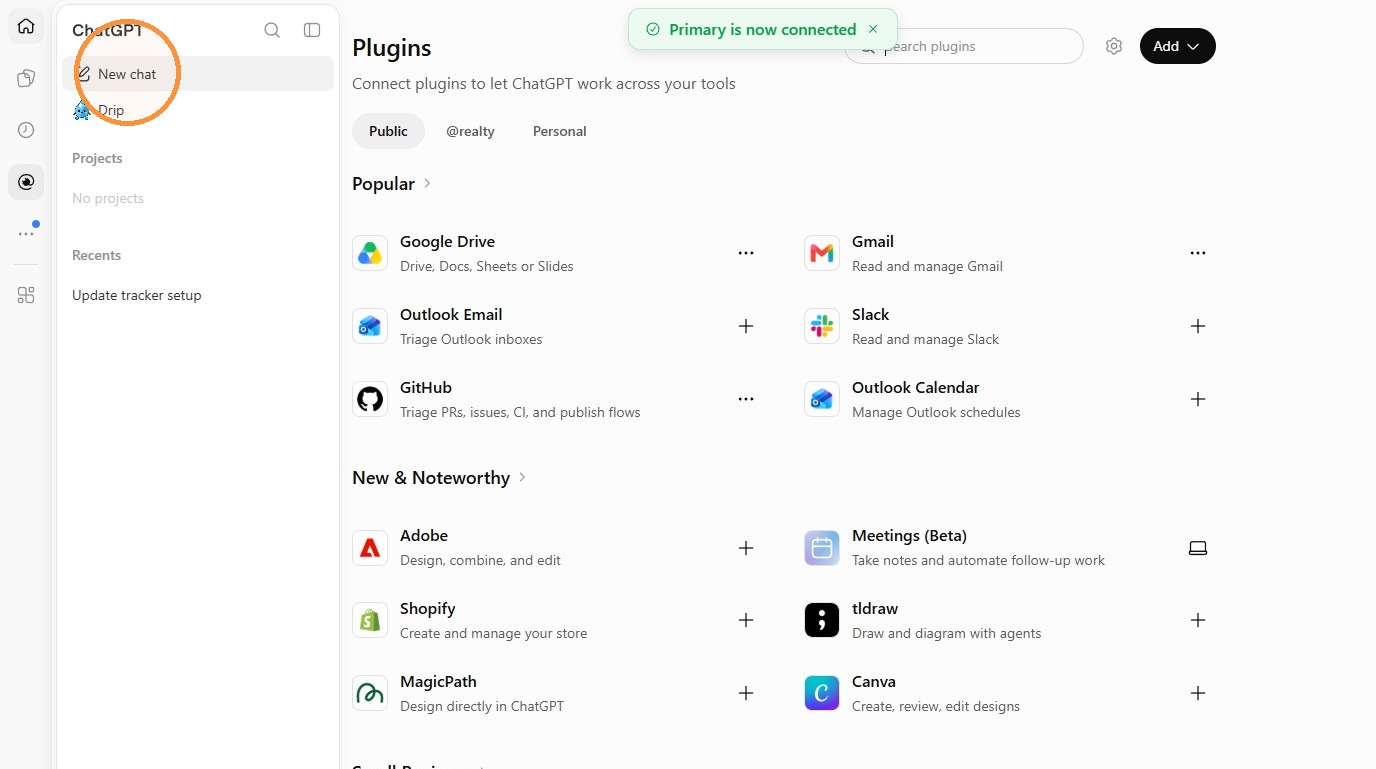
17. Start a new chat. Click New chat.
18. Click the message box. Click the box labelled Work with ChatGPT.
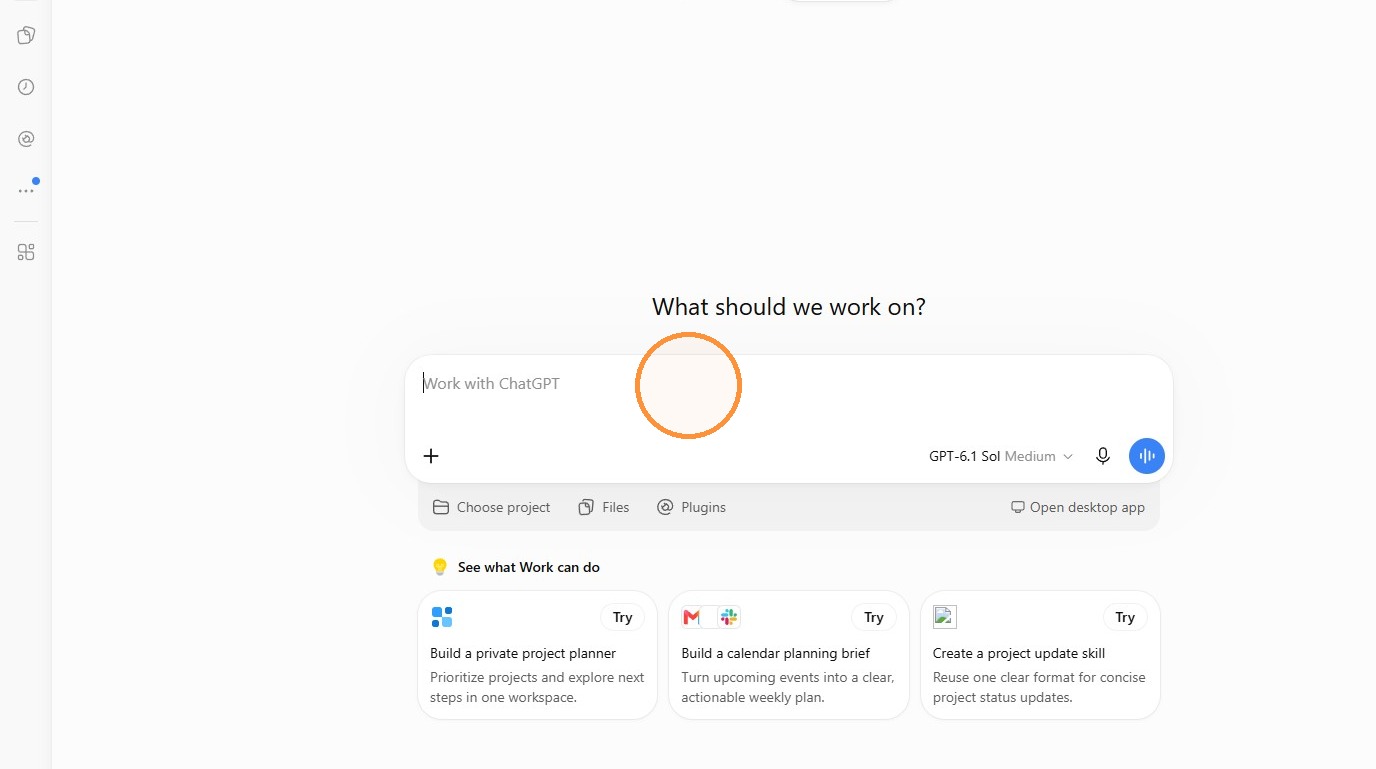
19. Ask about your CRM account. Type “Who am I in the @realty CRM?” Use the @realty CRM plugin mention in your message, then click Send.
20. Example: check your CRM connection
To limit the information in the reply, you can ask:
“Using the @realty CRM connection, who am I in the CRM? Please only look up my account name and role. Do not change any records or display my email address or user ID.”

If ChatGPT asks to use an @realty tool, review the request and approve it if it matches what you asked. A successful reply should identify your own CRM account.
To show only your role, follow up with “Show just my CRM role from the lookup you completed. Omit my name, email address and user ID.” This example shows the reply after that follow-up. Your role will depend on the account you connected.

You can then try:
- “Find my contacts in Southport. Show their names and the CRM details you used.”
- “Show me the listing at 12 Example Street and its current status.”
- “Search my listings in Robina under $700,000.”
Replace the sample name, suburb, address and price with the details you need. For more examples, see How to use the @realty CRM Assistant and its MCP tools.
Frequently asked questions
Do I need an API key?
No. Sign in through the Google authorisation screen with your @atrealty.com.au account.
Why can’t I see the app or a particular tool?
Availability depends on your ChatGPT plan, workspace settings, approved app actions and your CRM access. Contact the Support Team if you think something is missing.
Can ChatGPT change CRM records?
Some approved tools can create, update or delete records. Read the action details carefully and only confirm a change you intend to make.
Why did ChatGPT ask me to sign in again?
Your connection may need reauthorisation. Follow the Google sign-in prompt using your @atrealty.com.au account.
Was this article helpful?
That’s Great!
Thank you for your feedback
Sorry! We couldn't be helpful
Thank you for your feedback
Feedback sent
We appreciate your effort and will try to fix the article