TABLE OF CONTENTS
- What is it?
- Before you start
- What the tools can do
- How to ask
- Using Claude
- Earlier Claude examples: account, offers and properties
- Using ChatGPT
- Check before changing anything
- Frequently asked questions
What is it?
MCP stands for Model Context Protocol. It is the connection between an AI assistant and the @realty CRM. A tool is a specific job the assistant can do through that connection, such as searching contacts, showing a listing or creating a task. You ask a question in normal language and the assistant chooses an available tool to get the information.
The @realty CRM Assistant can be used through a supported AI app after you connect it. You do not need to memorise tool names or write code.
Before you start
Connect the @realty CRM Assistant in your AI app and sign in with your @atrealty.com.au Google account. The tools you see depend on your account, the AI app and which actions have been enabled for you.
For connection steps, click the link for your AI app below:
Connecting Claude to the @realty CRM
Connecting ChatGPT to the @realty CRM
What the tools can do
These are examples of MCP tool groups. Your app may show fewer tools or different names.
| What you need | Examples of available tools | What to ask |
|---|---|---|
| Contacts | Search contacts, list contacts, find a contact by ID | “Find my contact Jane Citizen and show the contact details I can access.” |
| Properties and listings | Search properties, search listings, get listing details | “Show the status and details for the listing at 12 Example Street.” |
| Offers and appraisals | List offers, find an offer by ID, list appraisals | “Show the recent offers I can access for this listing.” |
| Tasks and notes | List tasks, list contact notes, list property notes | “Show my tasks due this week.” |
| Reference information | List tags, marketing templates, countries and states | “Which tags are available to me?” |
| Changing records | Create contacts, properties, offers, tasks and notes; update or delete certain tasks and notes | “Show me the proposed task first. Wait for my confirmation before saving it.” |
The assistant can only use tools enabled in the app you have connected. If a tool is missing, ask the Support Team what is available for your account.
How to ask
Start your message with “Using the @realty CRM connection…” or select the @realty app in the chat. Include the record you mean, such as a full contact name, property address or listing ID. Say what information you want and whether you want the assistant to only look or prepare a change.
If you get more than one match, ask the assistant to show the matches so you can choose the right record. If it cannot find a record, try a more complete name or address.
Using Claude
First follow Connecting Claude to the @realty CRM. Open a chat with the @realty CRM connector enabled.
The walkthrough below was run with the connected CRM on 9 October 2026. It shows the actual prompt, tool permission and returned results. Your results depend on your account and the records available when you ask.
Example 1: Show recent listings
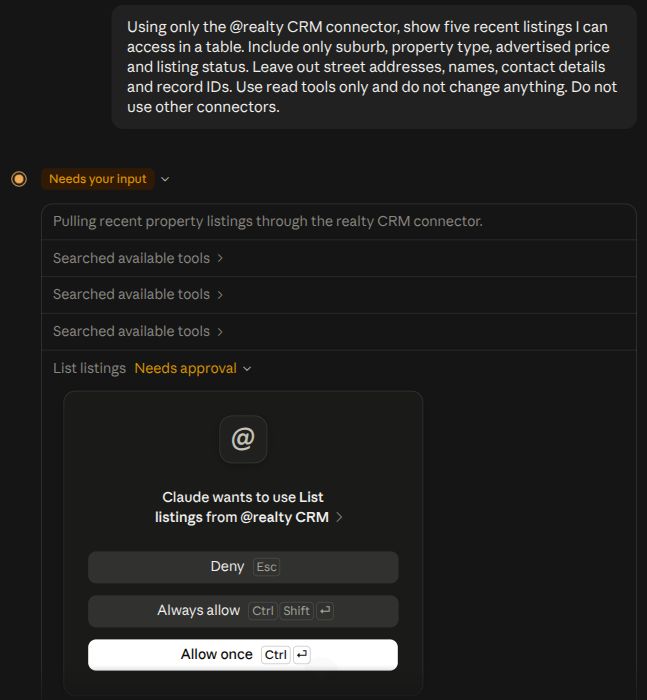
1. Send this message.
“Using only the @realty CRM connector, show five recent listings I can access in a table. Include only suburb, property type, advertised price and listing status. Leave out street addresses, names, contact details and record IDs. Use read tools only and do not change anything. Do not use other connectors.”
2. Review the tool request. In this example, Claude selected List listings from @realty CRM. Check that the request matches your question, then click Allow once to let this lookup run.
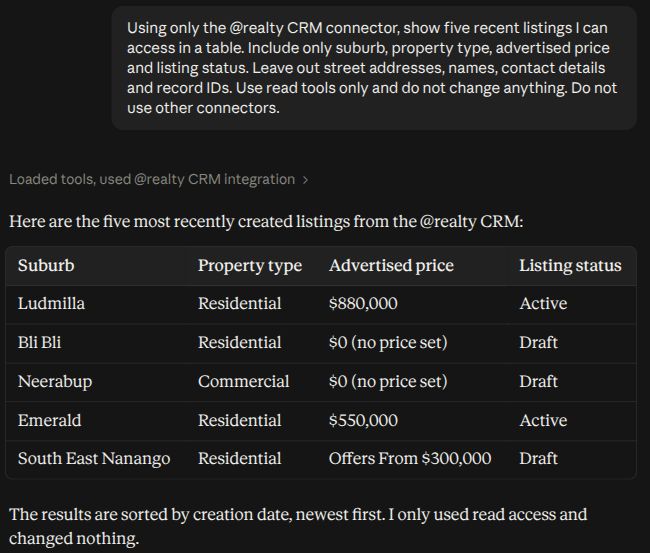
3. Read the result. Claude returned five recent listings in a table. The result included two Active listings and three Draft listings. Where no price was set, the response showed $0 (no price set); this does not mean the property is advertised for free.
Example 2: Narrow the results with a follow-up
In the same conversation, send:
“From those five listings, show only the Active ones advertised at $600,000 or less. Keep the same columns and do not change any CRM records.”
Claude narrowed the five results to one Active residential listing in Emerald at $550,000. This follow-up filters the results already shown. To search all accessible listings again, ask for a new CRM search and state your suburb, price and status criteria.
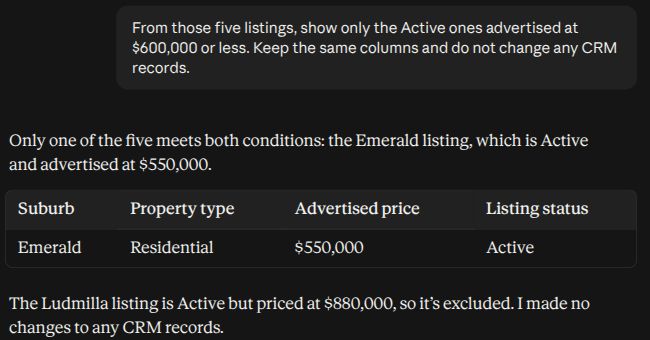
What this demonstrates: you can start with a broad question, approve the matching read tool and refine the answer in ordinary language.
More Claude examples from the original guide
These earlier examples show the account lookup, tool permission requests and offers, listings and properties results from the original Claude guide. They are retained here alongside the live walkthroughs above.
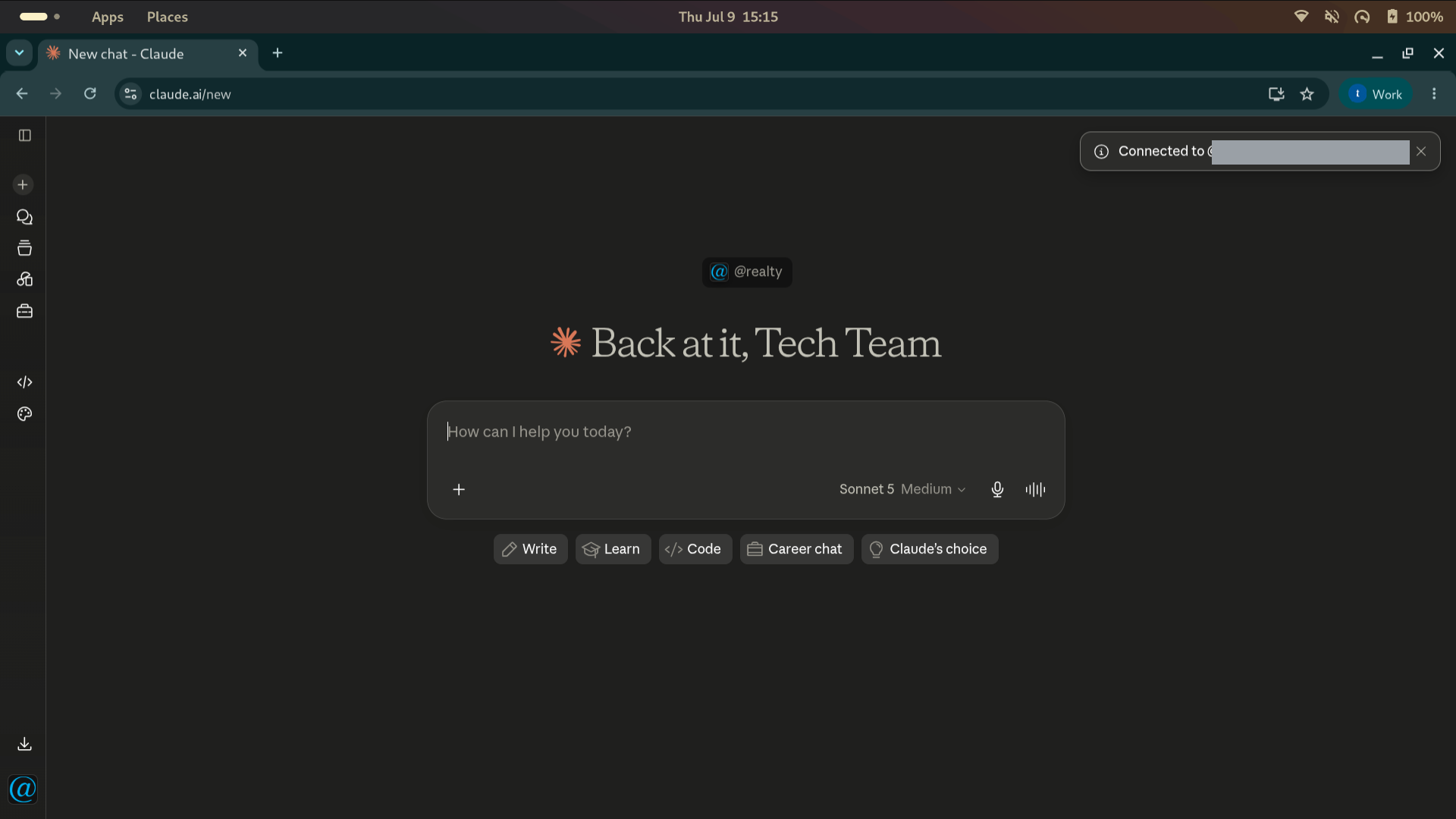
1. Enter your question
Once connected, enter your message in the chat box shown below.
2. Check your connection and tool permissions
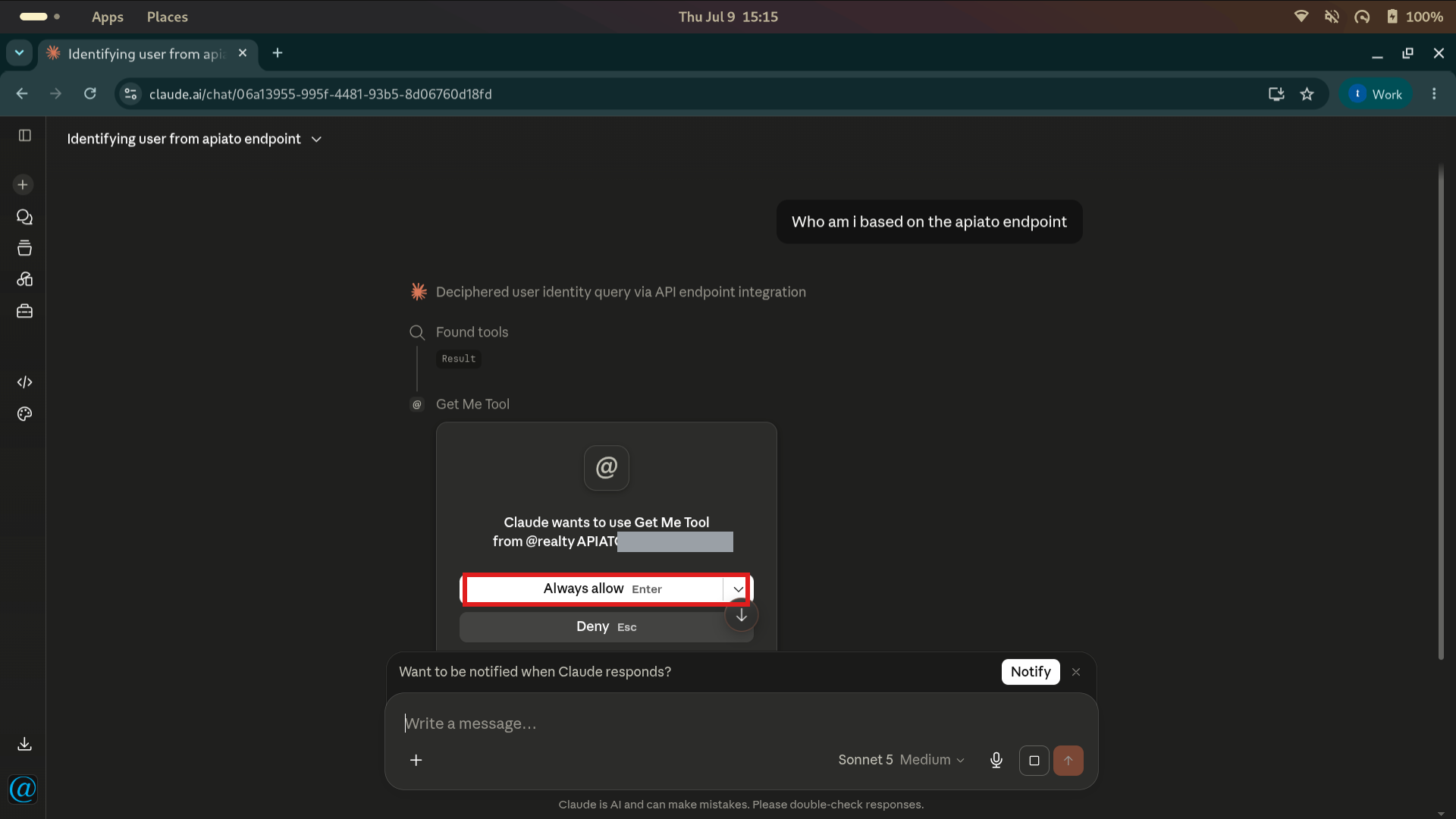
Try “Who am I based on the @realty CRM connection?” This checks which CRM account the assistant is using.
Claude example: first tool permission. Claude may ask permission to use Get Me Tool. Check the tool and connection before allowing it. Other AI apps may show a different permission screen.
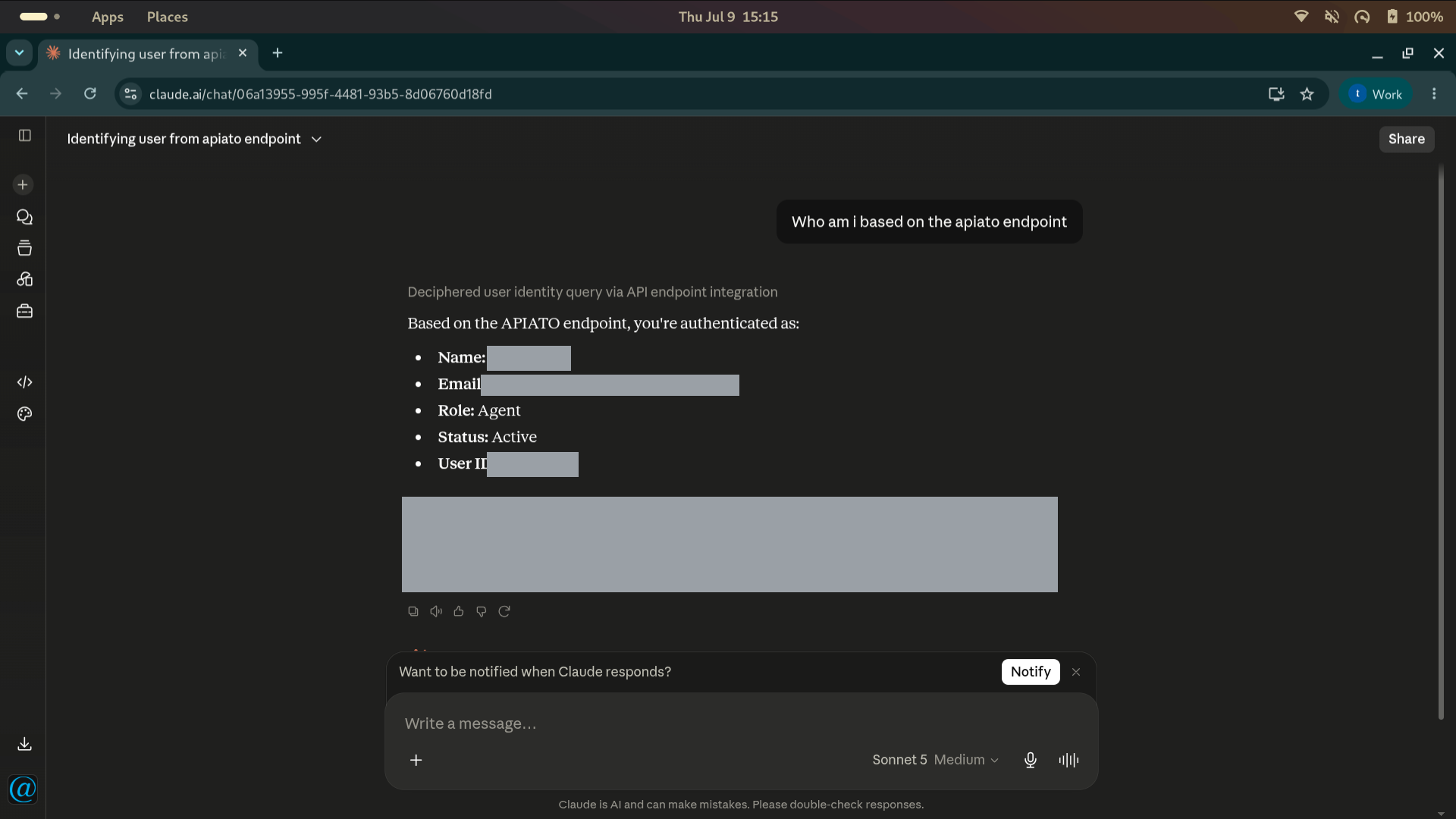
The assistant then replies with your account details. In this example, personal details have been hidden.
3. Try these messages in Claude
- “Using the @realty CRM connection, what mobile number is recorded for Jane Citizen? If there is more than one match, show me the options. Do not change anything.”
- “Find my contacts in Southport. Show their names and the matching contact records.”
- “Show me the listing at 12 Example Street, Robina. Include its current status and key details.”
- “Search my sale listings in Robina under $700,000. Put the address, price and status in a table.”
- “List the five most recent offers I can access for the listing at 12 Example Street. Do not change any offers.”
- “Show my tasks due this week, grouped by due date.”
- “Show the recent notes for the property at 12 Example Street. Include the date of each note.”
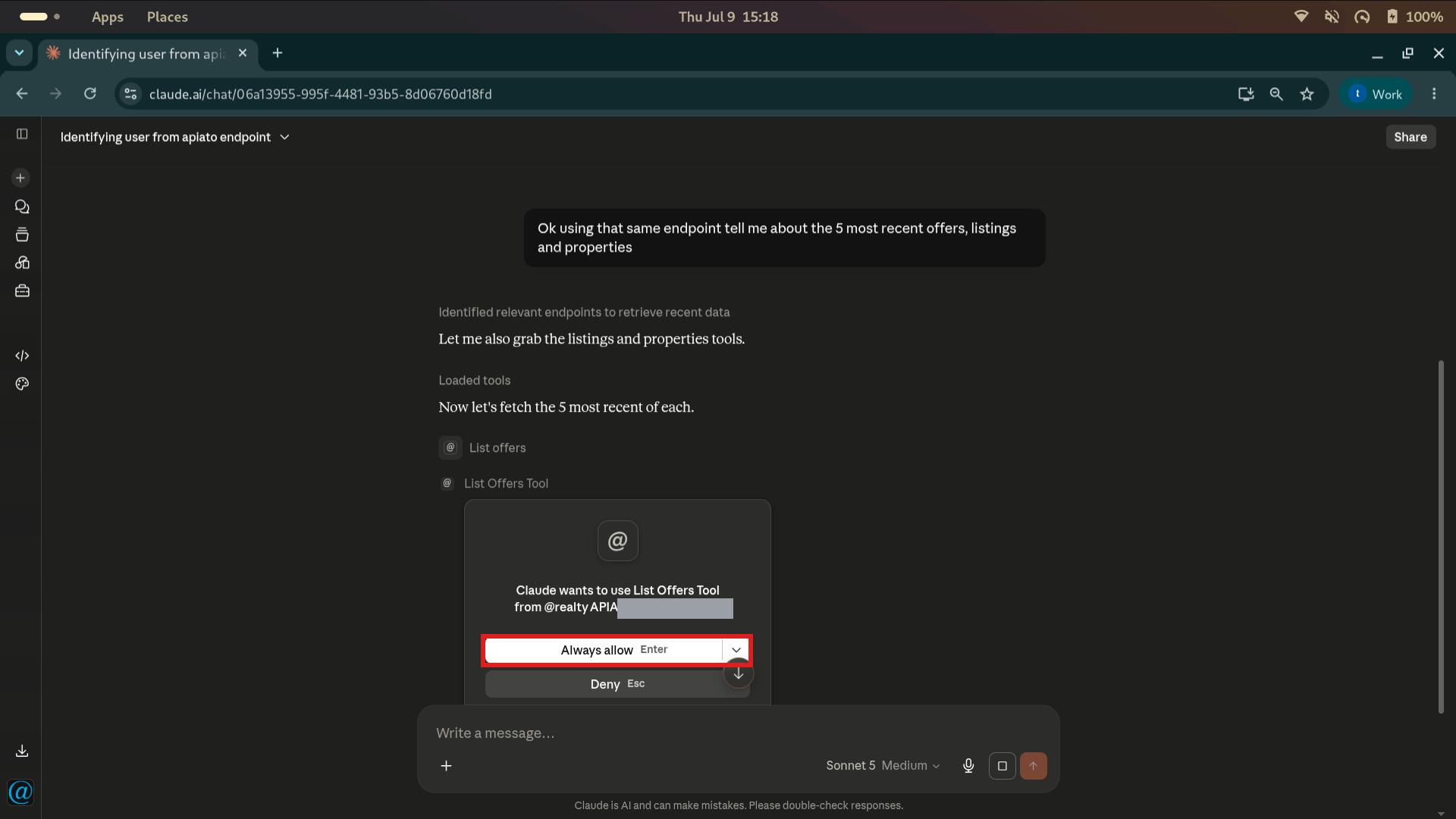
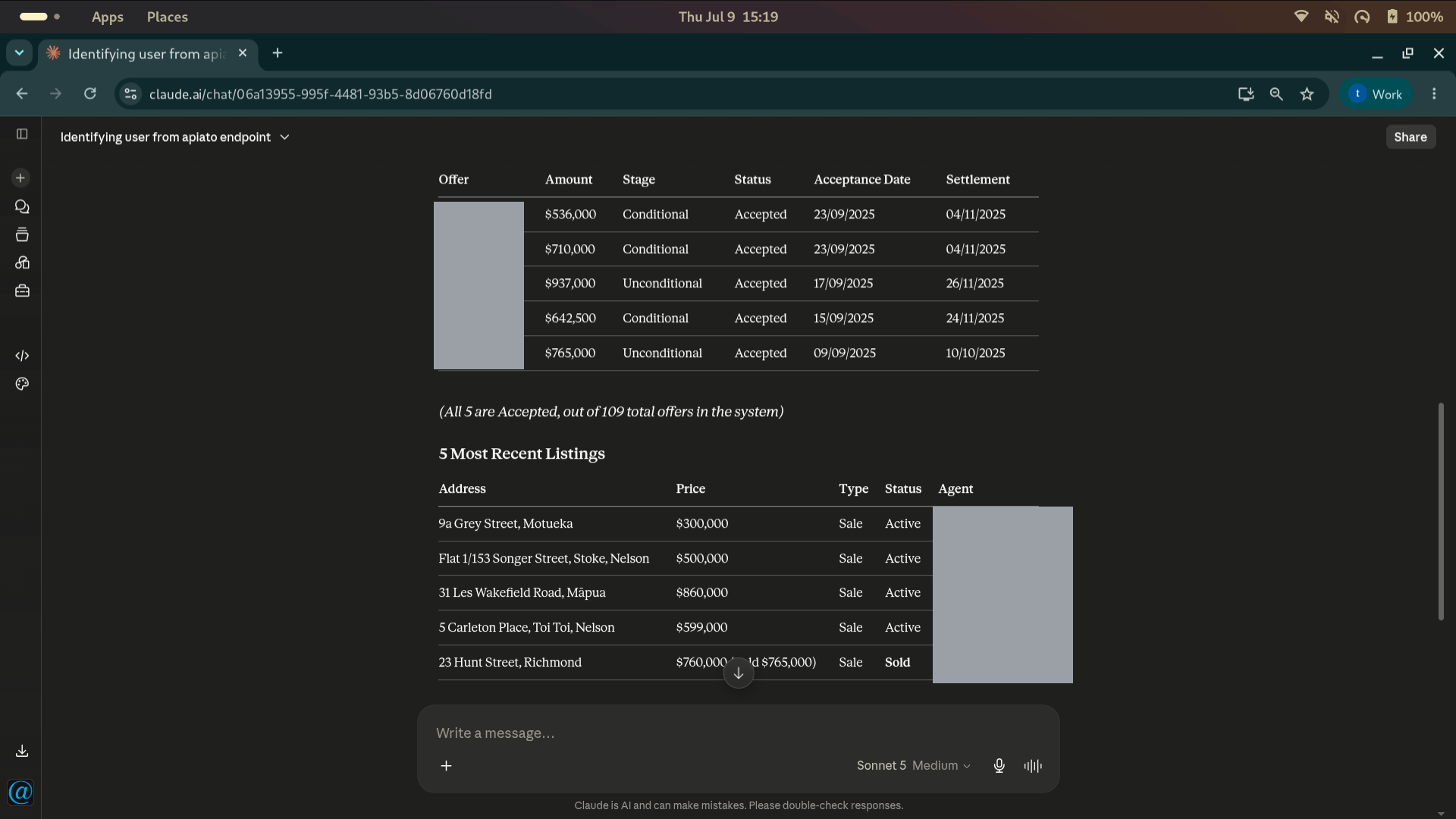
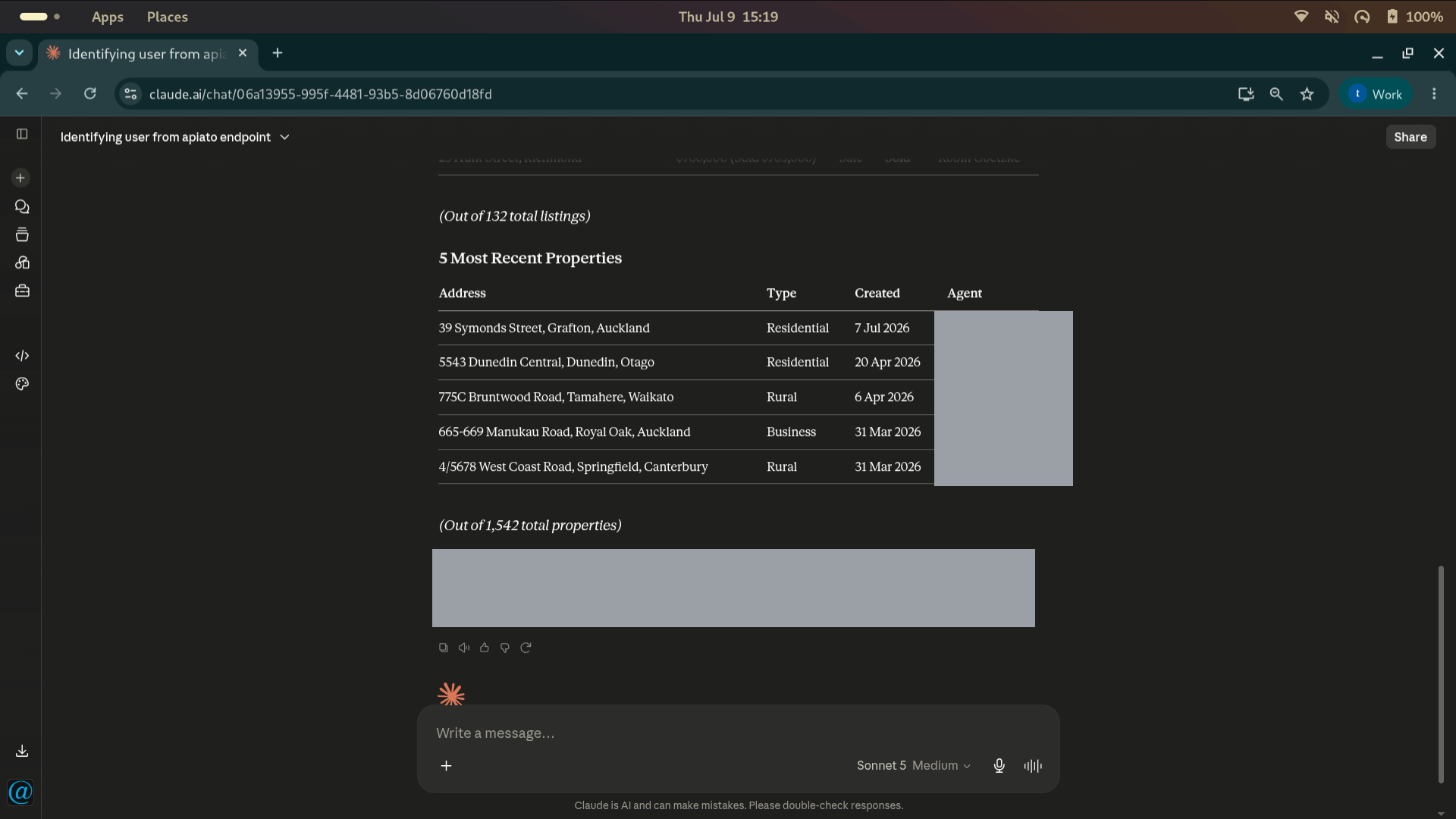
- “Using the same @realty connection, show me the five most recent offers, listings and properties I can access.”
Claude example: one question can use several tools. For the question about recent offers, listings and properties, Claude selects the matching tools and may ask permission for each one before retrieving the results.
These screenshots from the existing Claude guide show an example of the CRM results returned for the final question. The same style of question can be used in another supported AI app once its @realty connection is available.
4. Prepare a change in Claude
- “Prepare a new task to call Jane Citizen next Tuesday about the appraisal. Show me the task details and wait for my confirmation before creating it.”
- “Prepare a contact record for Jane Citizen using the details I provide. Check for an existing match, show me what will be saved and wait for my confirmation.”
- “Find the property note dated 10 September for 12 Example Street. Show me the existing note and the proposed correction. Wait for my confirmation before updating it.”
Replace the sample details with the real record you want. You can also ask for a shorter answer, a table or a summary.
Using ChatGPT
First follow Connecting ChatGPT to the @realty CRM. Use your own ChatGPT account and authorise the connection with your @atrealty.com.au Google account.
1. Select the @realty CRM app
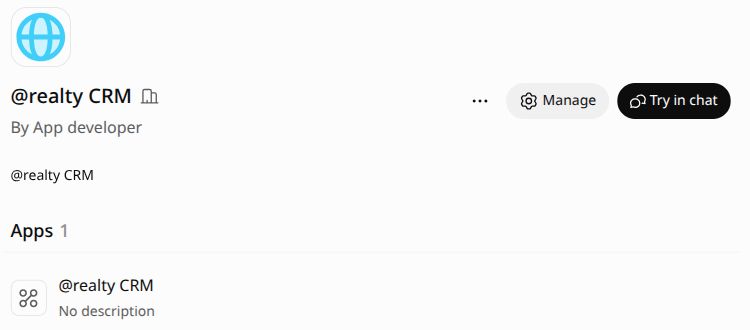
Open the @realty CRM plugin and click Try in chat. This opens a chat with the plugin selected. In other ChatGPT layouts, select the app from the + menu or mention it with @.
2. Check which tools are available
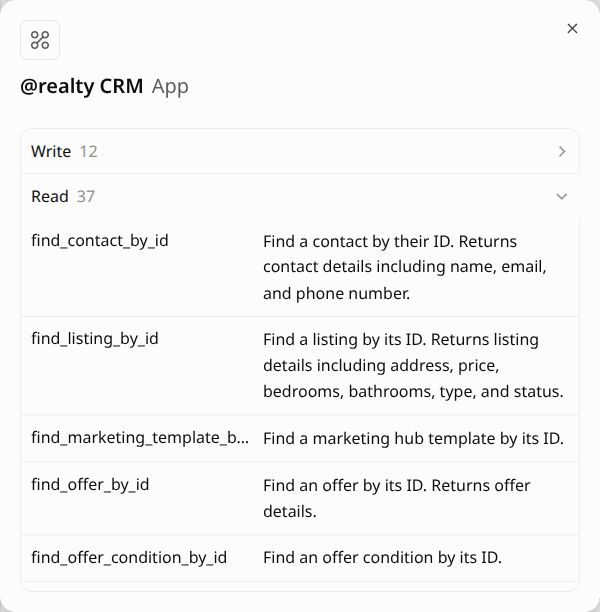
Open the @realty CRM app under Apps in the plugin page to view its tools. Read tools retrieve information. Write tools can change records. Your available tools depend on the app and your account.
3. Ask your first question
With the @realty app selected, send:
“Using the @realty CRM connection, who am I in the CRM? Please only look up my account name and role. Do not change any records or display my email address or user ID.”

If ChatGPT asks to use a tool, check that the request matches your question before approving it. A successful reply should identify your own CRM account.
To display only your role, follow up with “Show just my CRM role from the lookup you completed. Omit my name, email address and user ID.” The example below shows that follow-up reply. Your role depends on the account you connected.

Example 1: Show recent listings
The following examples were run with the connected CRM on 9 October 2026. With the @realty app selected, send:
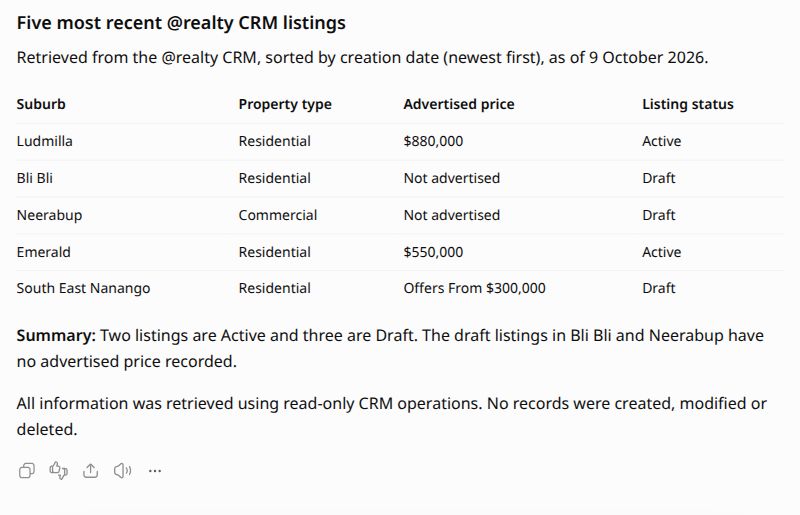
“Using the @realty CRM connection, show five recent listings I can access in a table. Include only suburb, property type, advertised price and listing status. Leave out street addresses, names, contact details and record IDs. Use read tools only and do not change anything.”
ChatGPT retrieved five recent listings and returned the four requested columns. In this test, two listings were Active and three were Draft. It showed Not advertised where the returned listing had no advertised price recorded.
Example 2: Search by suburb, price and status
Ask for a new CRM search with specific criteria:
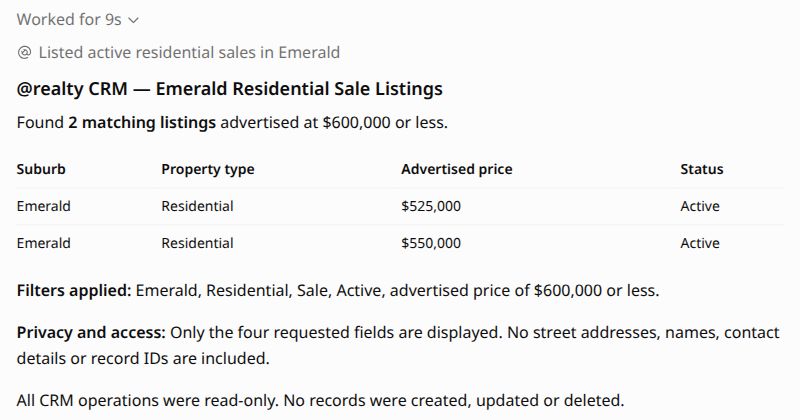
“Using the @realty CRM connection, find active residential sale listings in Emerald advertised at $600,000 or less. Show suburb, property type, advertised price and status only. Leave out street addresses, names, contact details and record IDs. Use read tools only and do not change anything.”
ChatGPT showed the activity Listed active residential sales in Emerald and returned two matching Active listings, advertised at $525,000 and $550,000. This was a fresh CRM lookup, so it found an additional match beyond the five recent listings in the first example.
Example 3: Check tasks due this week
Send:
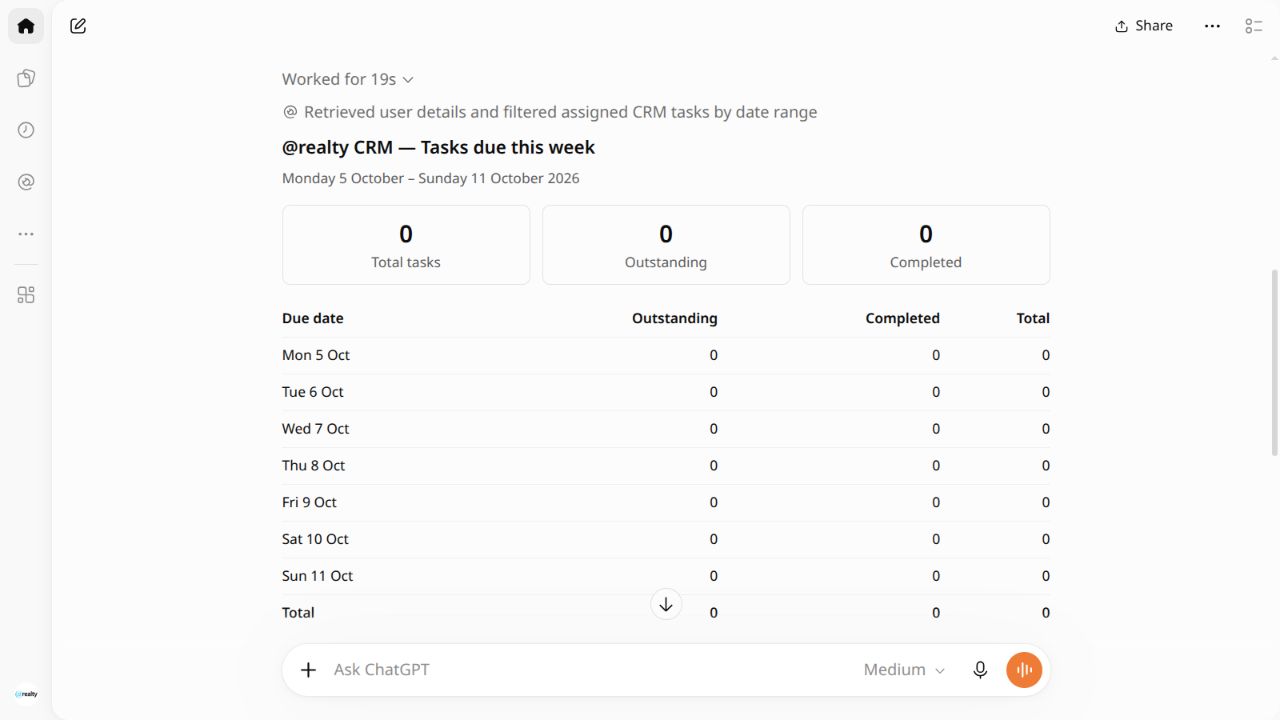
“Using the @realty CRM connection, show my tasks due this week, grouped by due date and status. For this documentation example, show counts only, without task titles, names, contact details or record IDs. Use read tools only and do not change anything.”
ChatGPT retrieved the connected user details and filtered CRM tasks by date. For the account used in this test, the result was zero tasks for 5–11 October 2026. This is an example of an empty result. It does not mean every account has no tasks. Check the date range and connected account if the result is unexpected.
Try it with your own records: replace Emerald, the price limit or the date range with what you need. These examples omit identifying details so the results can be shown in this guide. Your available records and results will differ.
Check before changing anything
Creating, updating and deleting tools can change live CRM records. Check that the assistant found the right contact, property, listing, offer or task. Ask it to show the proposed change first and only approve an action that matches your request. After a change, ask it to show the saved record so you can confirm the result.
IMPORTANT: Do not paste your Google password, an API key or an access token into an AI chat. Sign in through the Google window opened by the connection.
Frequently asked questions
Do I have to use exact tool names?
No. Ask in everyday language. The assistant selects from the tools available to it.
Why can’t it find a record?
Check the name, address or ID and ask to see possible matches. Your account or app may not have access to that record or tool.
Can I use the same prompts in ChatGPT and Claude?
Yes, once the @realty CRM connection is available and connected in that app. The tool list and approval prompts may differ.
Can it see every agent’s data?
The connection uses the account you sign in with. The information you can retrieve depends on the access granted to your account and the tools enabled in your app.
Was this article helpful?
That’s Great!
Thank you for your feedback
Sorry! We couldn't be helpful
Thank you for your feedback
Feedback sent
We appreciate your effort and will try to fix the article