Summary
The Action Plans List is available in the new CRM at crm.myatrealty.com/action-plans. It gives the User a centralised view of every action plan they have access to: both the action plan templates and the running instances created from them. The page provides four views, a search box, filters, and row-level actions, with the total number of results shown at the bottom.
Who Can Access the Action Plans List
Access to the Action Plans List mirrors the existing (old CRM) Action Plans permissions. It is not extended to the Org Admin or Manager roles.
| Role | Access | Notes |
|---|---|---|
| Admin | ✓ | Full access, including the Admin-only Display For, Access Type and Organisation columns, the Organisation filter and the Display For choice when duplicating. |
| Agent | ✓ | Access to action plans within their own scope. Admin-only columns, the Organisation filter and the Display For choice are hidden. Agents still confirm before duplicating. |
| Org Admin | ✗ | Access is not extended to this role. |
| Manager | ✗ | Access is not extended to this role. |
Why Can’t I See X?
Some parts of the Action Plans List are only available to Admins. If a User cannot see a feature described on this page, the table below explains why.
| Feature / Option | Visible To | Why it might not appear |
|---|---|---|
| Display For column and duplicate option | Admin only | The column and the Display For choice in the Duplicate dialog are available to Admins. Display For is not a list filter. |
| Access Type column | Admin only | The column is hidden for non-admin Users. The filter panel shows the options available for your role. |
| Organisation column and filter | Admin only | Hidden for all non-admin Users. |
| Display For selection when duplicating | Admin only | Agents and Admins both confirm before a copy is created. Only Admins choose Display For in the confirmation window. |
| The Action Plans page | Admin, Agent | Access mirrors the old CRM Action Plans permissions and is not extended to the Org Admin or Manager roles. |
How to Navigate to the Action Plans List
- Log in to the new CRM at crm.myatrealty.com.
- Open Marketing in the top navigation, then click Action Plans. The page can also be opened directly at /action-plans.
- The Action Plans List loads on the Templates view.
Views
The four tabs at the top of the page switch between four views of the action plan data. Each view shows a different set of columns. The number of results for the current view is shown at the bottom of the page.
Templates
The Templates view lists the action plan templates that can be duplicated and used. This is the view shown when the page first opens.
| Column | Description |
|---|---|
| Name | The action plan template name |
| Trigger | What starts the plan, for example "Auto: New Website Enquiry" |
| Display For | Which agents the template is displayed for (Admin only) |
| Access Type | The template's access level, for example Only me, @realty Only, or All (Admin only) |
| Activities | The number of activities in the plan |
| In Use | How many instances of the template are currently running (links to the In Use view) |
| Finished | How many instances have completed (links to the Finished view) |
| Created By | The User who created the template |
| Created Date | The date the template was created |
| Status | An on/off toggle that activates or deactivates the template directly from the list |
| Organisation | The organisation the template belongs to (Admin only) |
| Action | The row action menu (see Row Actions) |
In Use
The In Use view lists the action plan instances that are currently running against Contacts. A row can be expanded to show more detail.
| Column | Description |
|---|---|
| Name | The Contact the plan is running for |
| Property | The associated property |
| Plan | The action plan name |
| Activity | The current activity |
| Triggered | The date the plan was triggered |
| Status | Whether the running plan is Active or Inactive |
| On/Off | A toggle that turns the running plan on or off |
Finished
The Finished view lists the action plan instances that have completed.
| Column | Description |
|---|---|
| Name | The Contact |
| Property | The associated property |
| Plan | The action plan name |
| Activity | The activity |
| Assigned | The date the plan was assigned |
| Status | The instance status |
| Action | The row action menu |
Errors
The Errors view lists the action plan instances that could not complete. It uses its own set of columns and shows the reason each one failed.
| Column | Description |
|---|---|
| Date | The date the error occurred |
| Plan | The action plan name |
| Name | The Contact |
| Property | The associated property |
| Activity | The activity that failed |
| Error | The reason it failed, for example "Contact not found", "Contact has no primary email address", or "SMS was not send due to error" |
| Action | The row action menu |
Filters
A Search box and a Filter button sit above the table. The Search box is always visible; the Filter button opens a panel with the filters available for your role and the current view. Clear filters resets them.
| Filter | Type | Options / Behaviour | Roles |
|---|---|---|---|
| Search | Text search | Free-text search by action plan name, Contact, or listing address | All |
| Access Type | Single-select | Filter by the template's access type | Where available for your role |
| Active | Single-select | Filter by active or inactive | All |
| Created Date | Date | Filter by the date the action plan was created | All |
| Organisation | Single-select | Filter by organisation | Admin only |
Row Actions
Each row has an Action menu at the end of the row. In the Templates view, the Status column also shows an on/off toggle that activates or deactivates a template without opening it.
| Action | Description |
|---|---|
| View | Opens the action plan for viewing. This opens the existing page in the old CRM (myatrealty.com/v2/action-plans). |
| Duplicate | Creates a copy of the action plan (see Duplicating an Action Plan below). |
| Edit | Opens the action plan for editing. This opens the existing page in the old CRM (myatrealty.com/v2/action-plans). |
| Delete | Removes the action plan. |
Duplicating an Action Plan
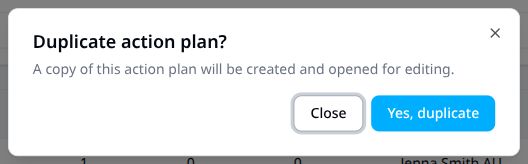
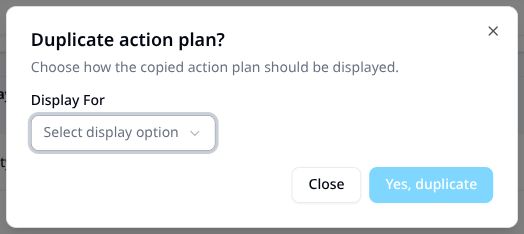
Select Duplicate from the row's Action menu to open the Duplicate action plan? window. Selecting Close cancels without copying.
Agents: the confirmation explains that a copy will be created and opened for editing. Select Yes, duplicate to continue.
Admins: choose how the copied plan should be shown in Display For, then select Yes, duplicate. The confirmation button stays disabled until a display option is chosen.
Revert to Previous Version
A Revert to Previous Version button is available on the Action Plans List page. Clicking this button switches back to the action plans list in the old CRM at myatrealty.com/v2/action-plans.

The Revert to Previous Version button on the Action Plans List page.
Was this article helpful?
That’s Great!
Thank you for your feedback
Sorry! We couldn't be helpful
Thank you for your feedback
Feedback sent
We appreciate your effort and will try to fix the article