Summary
The Offers List is available in the new CRM at myatrealty.com/offers. It provides the User with a centralised view of all offers they have access to, with filters, sortable columns, and a sticky footer showing the server-computed total amount across all matching offers. The User can also perform actions on individual offers directly from the list.
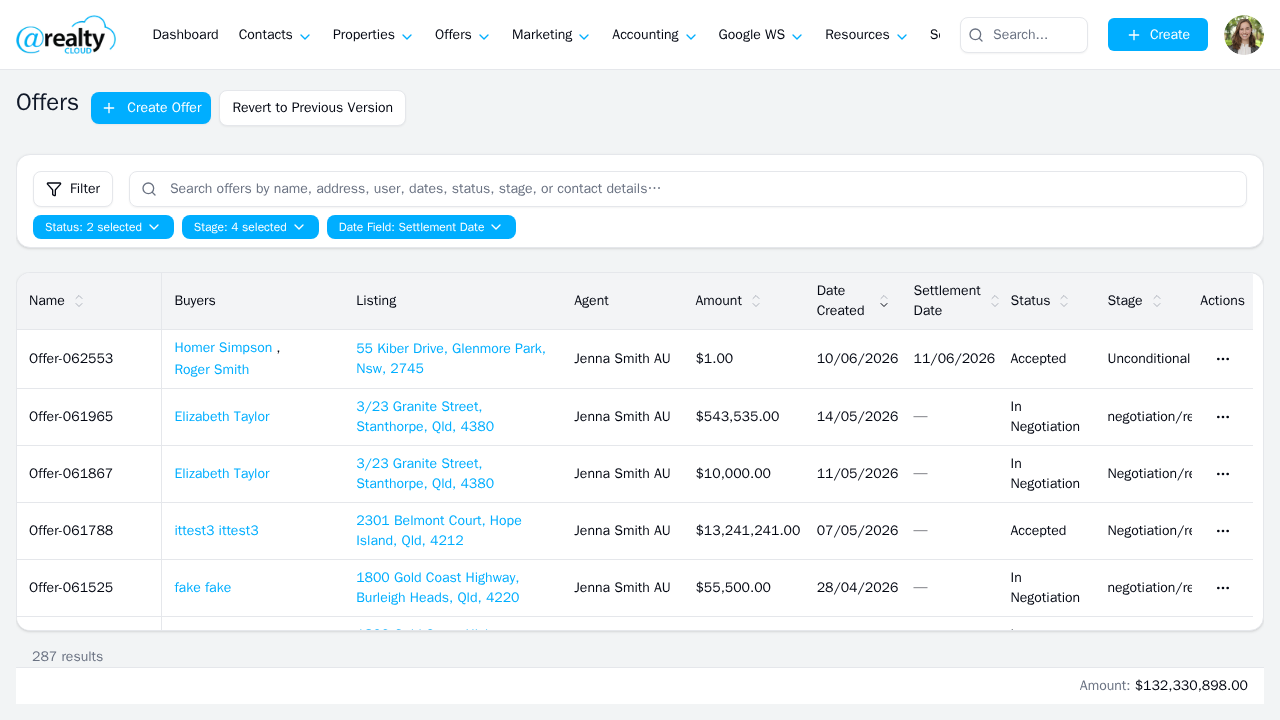
The Offers List showing the filter toolbar at the top and the offer table below with all visible columns.
Who Can Access the Offers List
Access to the Offers List is role-based. The Manager and Vendor roles cannot access the page and will receive a 403 error.
| Role | Access | Notes |
|---|---|---|
| Admin | ✓ | Full access including Admin-only Organisation column and Organisation / Country filters |
| Org Admin | ✓ | Access to offers within their organisation |
| Agent | ✓ | Access to their own offers, subject to row-level security |
| Assistant | ✓ | Limited access; can delete offers under specific conditions (see Row Actions) |
| Manager | ✗ | No access — receives a 403 error |
| Vendor | ✗ | No access — receives a 403 error |
Why Can’t I See X?
Some features on the Offers List are only available to specific roles or when certain conditions are met. If a User cannot see a feature described on this page, the table below explains why.
| Feature / Option | Visible To | Why it might not appear |
|---|---|---|
| The Offers List page (/offers) | Admin, Org Admin, Agent, Assistant | Manager and Vendor roles cannot access the page — it returns a 403 error and will not load. |
| Organisation column | Admin only | Not visible to Agents or Org Admins. The column is hidden for all non-Admin roles. |
| Organisation filter | Admin only | Not visible to Agents or Org Admins. |
| Country filter | Admin only | Not visible to Agents or Org Admins. |
| Edit (row action) | Admin, Org Admin, offer owner | Only visible to the Admin, Org Admin, or the Agent who owns the offer. Other Agents and Assistants will not see the Edit action. |
| Delete (row action) | Assistant only | Only visible to the Assistant role when all three of the following are true: the offer status is not In Negotiation; the offer has no attachments; and the User is an Assistant. |
| Download REI PDF (row action) | All roles with access | Only appears when the offer has an associated REI form. This applies to QLD offers only. |
| Backup Offer 1 / Backup Offer 2 (Status filter) | Admin only | These status values only appear in the Status filter for the Admin role. Agents see the standard status list without these values. |
How to Navigate to the Offers List
- Log in to the new CRM at crm.myatrealty.com.
- Click Offers in the left navigation, or navigate directly to /offers.
- The Offers List loads with the default filters applied for the User’s role (see Filters below).
Columns
The table displays 11 columns on desktop. On mobile, the table switches to a card view (see Mobile View). The default sort is newest first (Created descending).
| Column | Description | Notes |
|---|---|---|
| Name | The offer name or reference | |
| Status | The current offer status | Displayed as plain text (no colour badges) |
| Stage | The current offer stage | Displayed as plain text (no colour badges) |
| Type | The offer type | |
| Buyers | Names of buyers associated with the offer | Shows the first 2 names; additional buyers shown as +N more |
| Address | The property address | |
| Agent | The agent responsible for the offer | |
| Amount | The offer amount | |
| Settlement Date | The anticipated settlement date | Displays — when no settlement date is set |
| Created | The date the offer was created | Default sort column |
| Organisation | The organisation the offer belongs to | Admin only — not visible to other roles |
Filters
The Offers List includes 9 filters. The default filter state is role-dependent: for Agents, all active statuses and stages are pre-selected with Settlement Date as the default date field; for Admins, all active statuses and stages are pre-selected with Created Date and a last-12-months date range. Applying any filter resets the list to the first page.
| Filter | Type | Options / Behaviour | Roles |
|---|---|---|---|
| Status | Multi-select | In Negotiation, Accepted, Rejected, Withdrawn, Exchanged, Settled, Lapsed. Admin also sees: Backup Offer 1, Backup Offer 2. All active statuses pre-selected by default. | All (Backup Offer 1/2: Admin only) |
| Stage | Multi-select | Standard stage values plus Other (catchall for stages not in the main list). All active stages pre-selected by default. | All |
| Type | Multi-select | Available offer types | All |
| Date From / Date To | Date range | Filters by the selected Date Field. Admin defaults to last 12 months. | All |
| Date Field | Single-select | Settlement Date or Created Date. Settlement Date is default for Agents; Created Date is default for Admins. | All |
| Agent | Multi-select | All, Me, Partners, Team, or specific agents. Subject to row-level security. | All |
| Organisation | Single-select | Filter by organisation. Non-Admin users receive a 403. | Admin only |
| Country | Single-select | AU or NZ. Non-Admin users receive a 403. | Admin only |
| Search | Text search | Free-text search across offers | All |
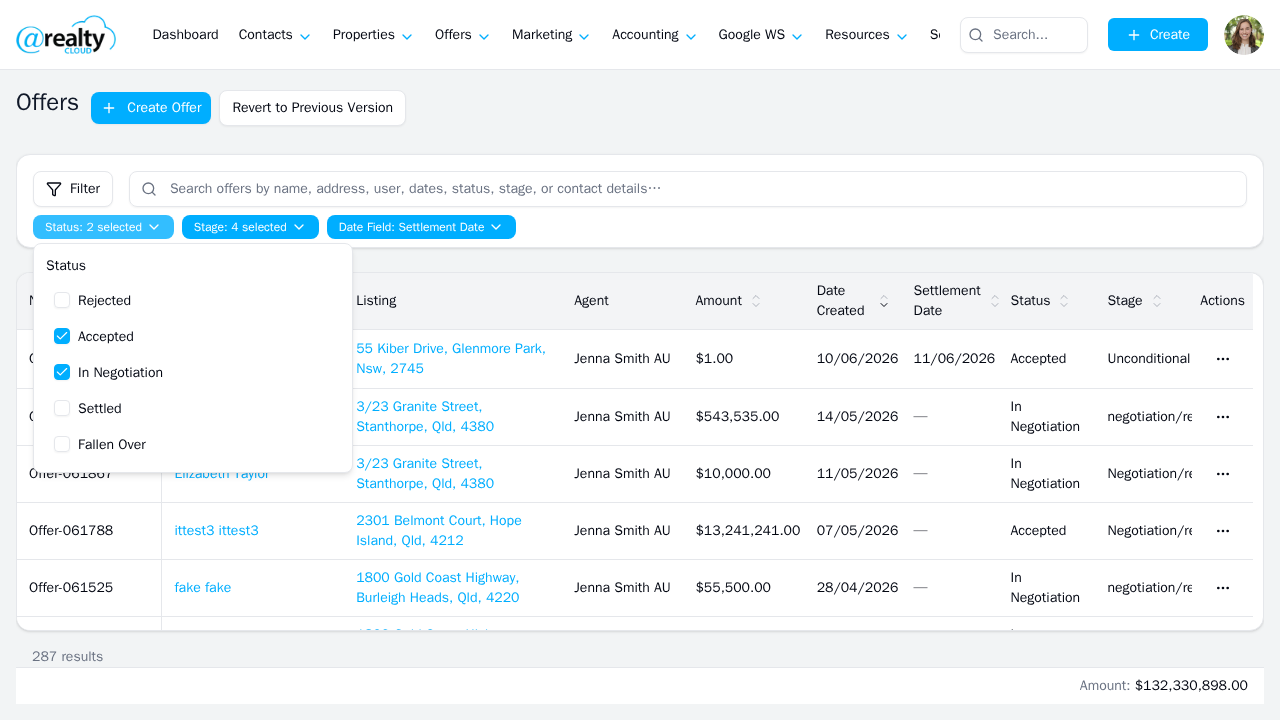
The Status filter dropdown expanded, showing the available status options for the current user’s role.
Row Actions
Each offer row has an action menu. The available actions depend on the User’s role and the offer’s current state.
| Action | Who Can See It | Conditions |
|---|---|---|
| View | All roles with access | Always visible |
| Edit | Admin, Org Admin, offer owner (Agent) | Always visible for eligible roles |
| Download REI PDF | All roles with access | Only visible when the offer has a REI form attached. QLD offers only. Opens the legacy CRM URL to generate the PDF. |
| Delete | Assistant | Only visible when the offer status is not In Negotiation AND the offer has no attachments |
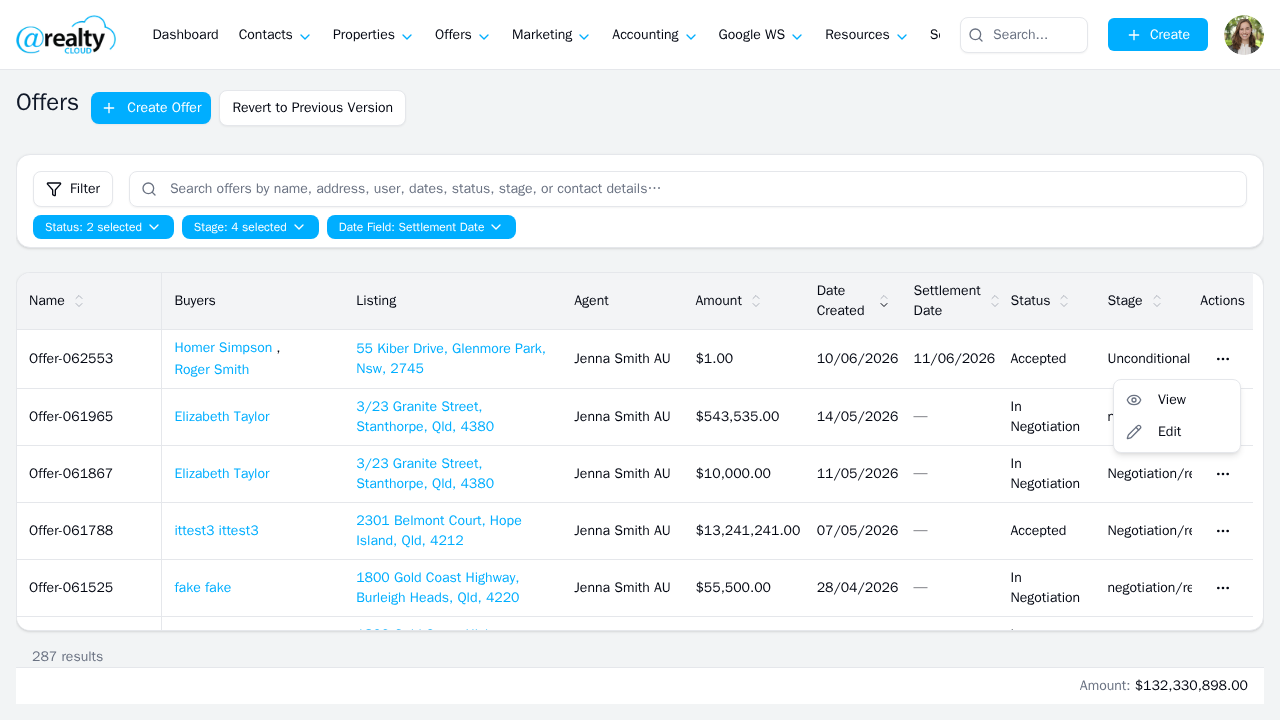
The row action menu open on an offer, showing the available actions for the current user’s role.
Sticky Footer — Total Amount
A sticky footer is pinned to the bottom of the Offers List page. It displays the Total Amount — the server-computed sum of the Amount field across all offers matching the current filters and the User’s row-level security scope. The total is calculated before pagination is applied, so it does not change as the User scrolls to load more offers; it always reflects the full filtered result set.
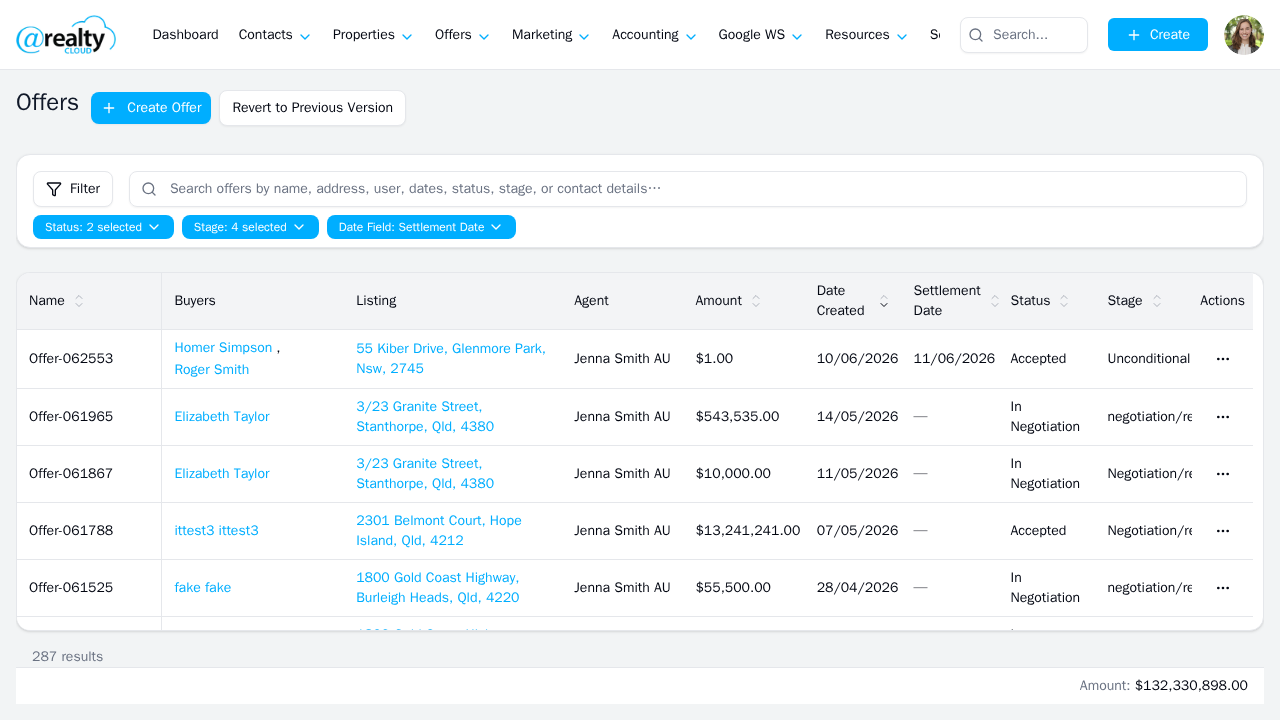
The sticky footer at the bottom of the Offers List showing the server-computed total amount for all matching offers.
Notes on the Total Amount
- The total reflects the full filtered result set — not just the rows currently visible on screen.
- The total respects all active filters and row-level security; it only includes offers the User is authorised to see.
- Offers with multiple buyers are not double-counted in the total.
Mobile View
On mobile devices, the table switches to a card view. The filter toolbar is replaced by a Filter button that opens a slide-over panel containing all available filters for the User’s role.
Revert to Previous Version
A Revert to Previous Version button is available on the Offers List page. Clicking this button switches back to the Offers list in the old CRM at myatrealty.com/v2/offers. This button appears on all new CRM list pages during the transition period to the new CRM.
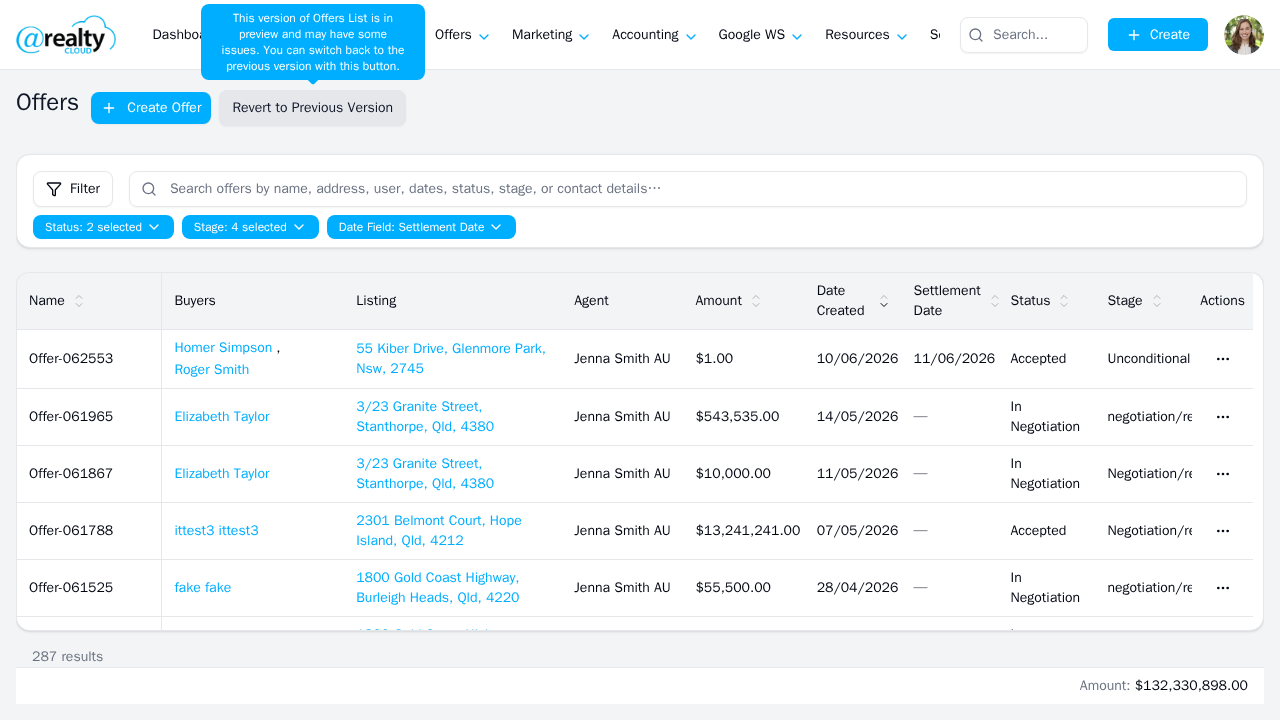
The Revert to Previous Version button on the Offers List page.
Was this article helpful?
That’s Great!
Thank you for your feedback
Sorry! We couldn't be helpful
Thank you for your feedback
Feedback sent
We appreciate your effort and will try to fix the article