TABLE OF CONTENTS
You have the ability to create forms in the CRM. This feature is integrated with your REA forms. All forms created through the Cloud can then be accessed through REA forms as a draft.
Creating a Form
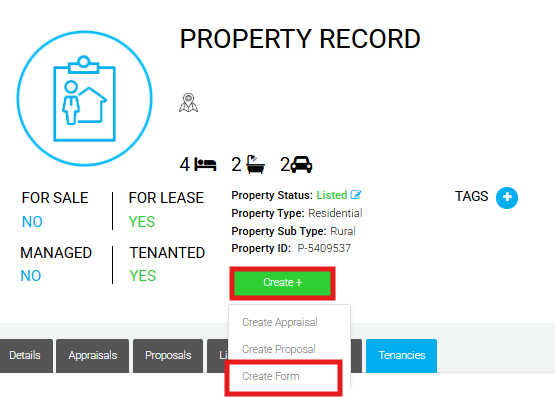
To create a form, you can either click Create Form through the Property Record:
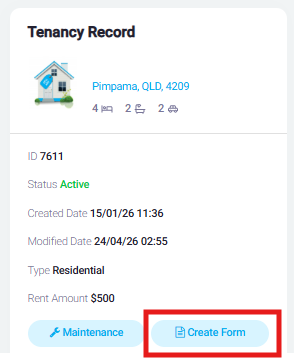
Or you can click the Create Form button in the Tenancy Record:
Selecting a Form
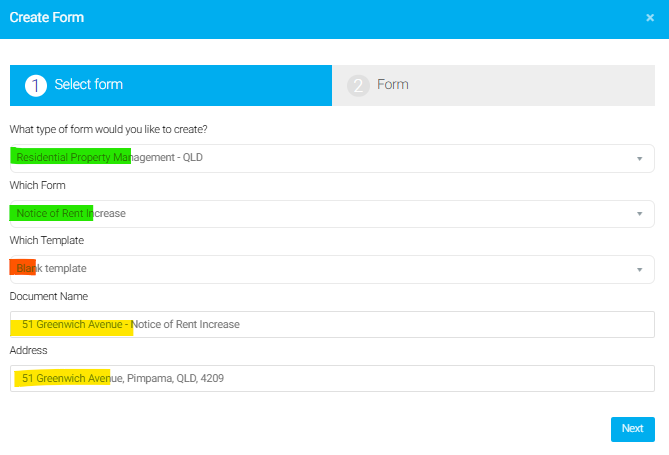
Once you have clicked Create Form, it will display a pop up window
Green - You will need to select the 'type of form' (category) for Rentals, this will be 'Residential Property Management'. You will then need to click the 'Which Form' box and choose the specific form you want to use from the drop down.
Red - If you have saved REA templates, you will have the option to apply the template to the form you are creating. If not, it will simply display as 'Blank Template'.
Yellow- Both the 'Document Name'& 'Address' box will pre-populate but you can edit both boxes.
Completing a Form
Section 2 Form will display the form with editable fields. You will fill the form out with all the required details & you have the option to click the agent's signature box in order to sign.
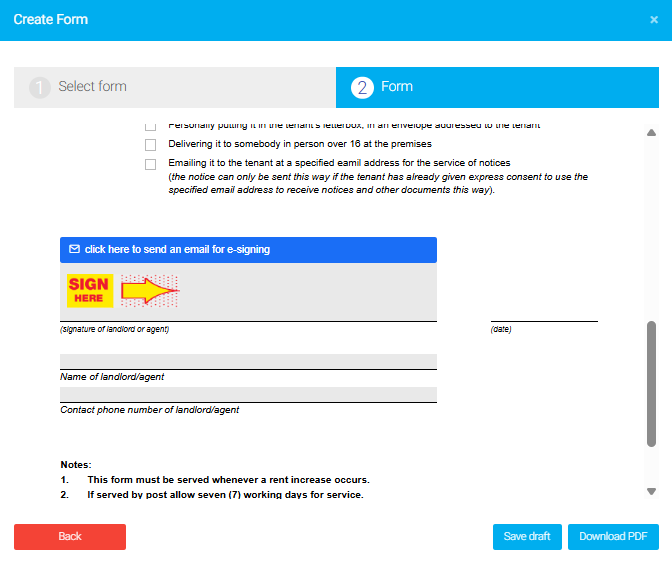
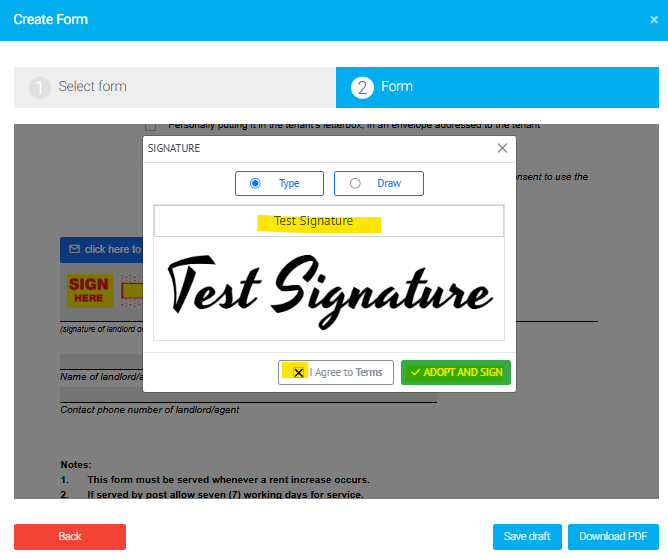
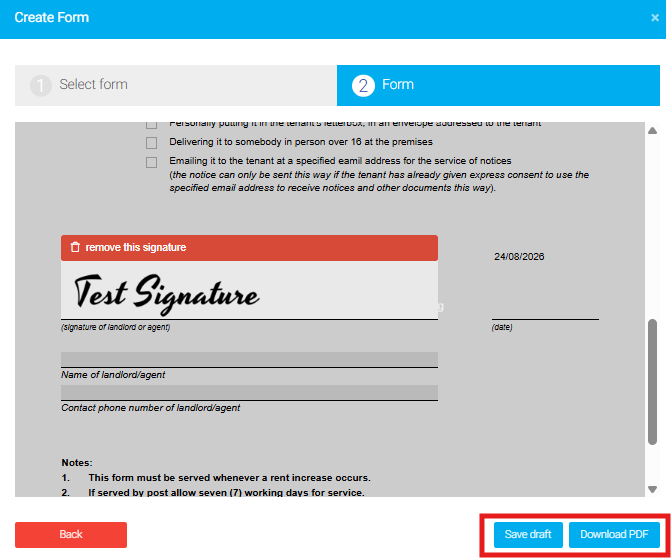
Once filled out & signed, you can click 'Save Draft' to save a draft version of this document to your REA forms account or you can click 'Download PDF' to save the document to your files.
Was this article helpful?
That’s Great!
Thank you for your feedback
Sorry! We couldn't be helpful
Thank you for your feedback
Feedback sent
We appreciate your effort and will try to fix the article