Rental Applications are accessible to All agent Users regardless of whether the Agent is operating their Own Rent Roll or set up as an @realty Property Manager.
Rental Application Link
Users can provide potential tenants with a link to apply for properties that are advertised for lease.
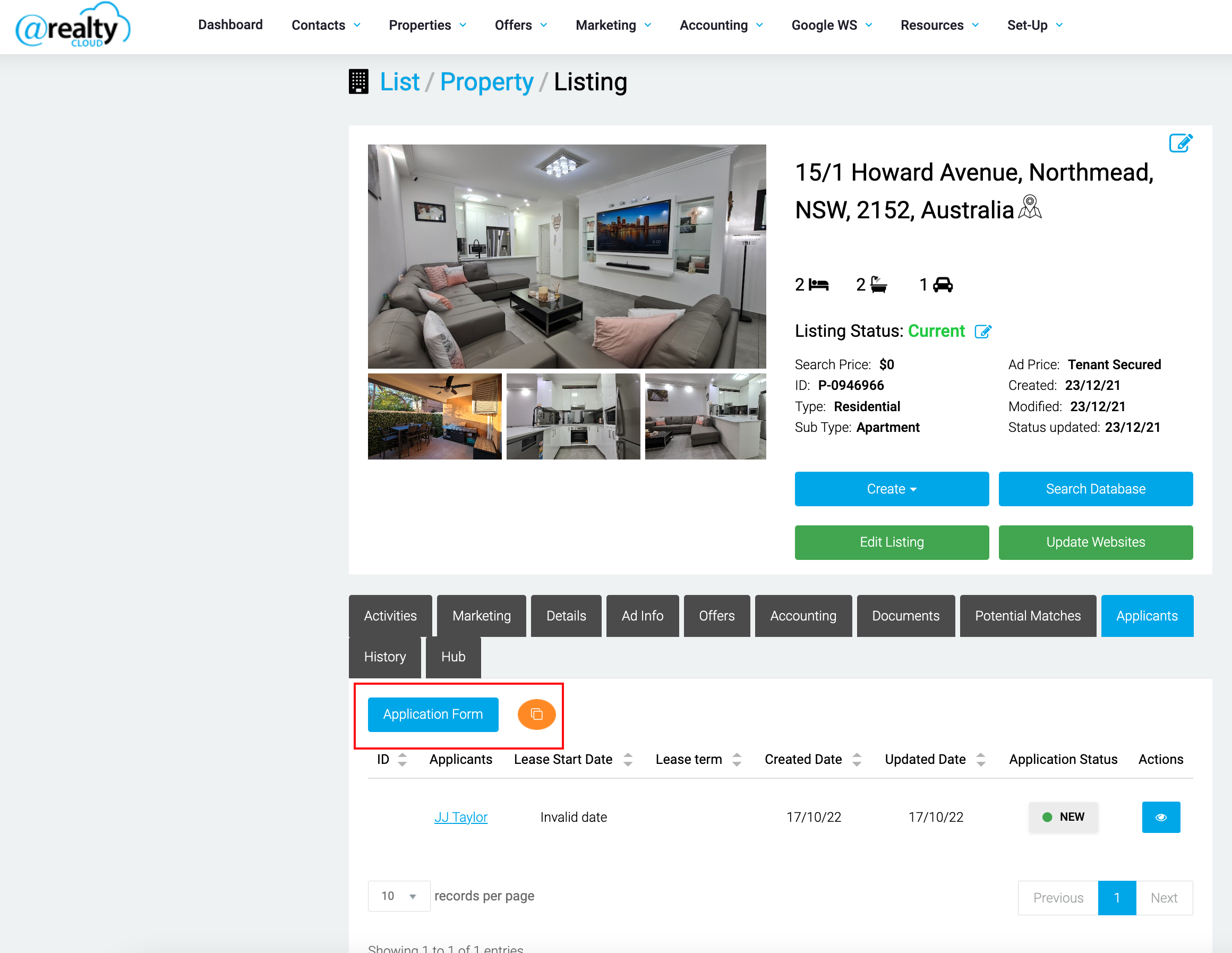
To do this the User will need to create a For Lease Residential Listing Record, then click on the Applicants tab. There will be a button that will open the Application screen, or the User can click on the Copy link button. https://atrealtycloud.atlassian.net/browse/REAL-4622
The User can also create an email or SMS template with the Rental Application Merge field https://atrealtycloud.atlassian.net/browse/REAL-5149
When the User is creating the Residential For Lease listing record, the link will be automatically inserted in the Application Link field. https://atrealtycloud.atlassian.net/browse/REAL-5862
How to Apply
Apply Buttons on Websites
The rental application link will display on the atrealty.com.au/atrealty.co.nz website on the listing page.
It will also display on the agent's website if @realty has built the website. https://atrealtycloud.atlassian.net/browse/WEB-147
Enquiry Action Plan
There is also an Action Plan template that will send an email to enquiries that contains the Application Link.

Rental Application Landing Page
Also, there is a Rental Application Landing Page that contains all of the User's currently active rental listings.
Either the landing page of the listing specific application link can be turned into QR codes and printed and displayed on the counter at open for inspections.
Rental Application QR Codes
The User can download a property specific QR codes from the Applicants tab in the Listing Record. https://atrealtycloud.atlassian.net/browse/REAL-5240

Listing Description Instructions
When the User creates a RESIDENTIAL FOR LEASE listing, the following message will automatically be inserted in the description of the ad:
TO INSPECT OR APPLY:
It's important to register your interest in any upcoming and advertised open homes or inspections. Failing to register may result in not being informed of any unforeseen or unplanned changes to inspection times. To register (or apply) for this property please click on the get in touch button and send your details to our agency. You'll receive an email back with instructions on how to register and apply via our website and booking service.
We do NOT accept 1Form, Ignite, 2Apply or any other online type of tenancy application form. You must apply using the the provided application link sent to you once you enquire.
It is an agency and owner policy that each person over the age of 18yrs old wishing to live at the property is required to apply and provide identification and supporting documents.
To inspect this property, you will be required to provide the agent onsite with your name, best contact number and email address. Failing to provide this information for security and safety reasons may result in being refused entry.
https://atrealtycloud.atlassian.net/browse/REAL-6457
Rental Application
Applicant's Experience:
https://vimeo.com/804947055/a24e70ac47
Joint Applicant's Experience:
https://vimeo.com/804949305/01c705efb6
Rental Referee's Experience:
https://www.loom.com/share/976055345fde4a8c8237f48af9425c6b
Employment Referee's Experience:
https://vimeo.com/804951363/92ae9c2416
Application Completion
When the application is complete, the Agent will receive an email. If it is a Joint Application, the email will send when Both applicants have completed the application.

Re-send Joint Application Request
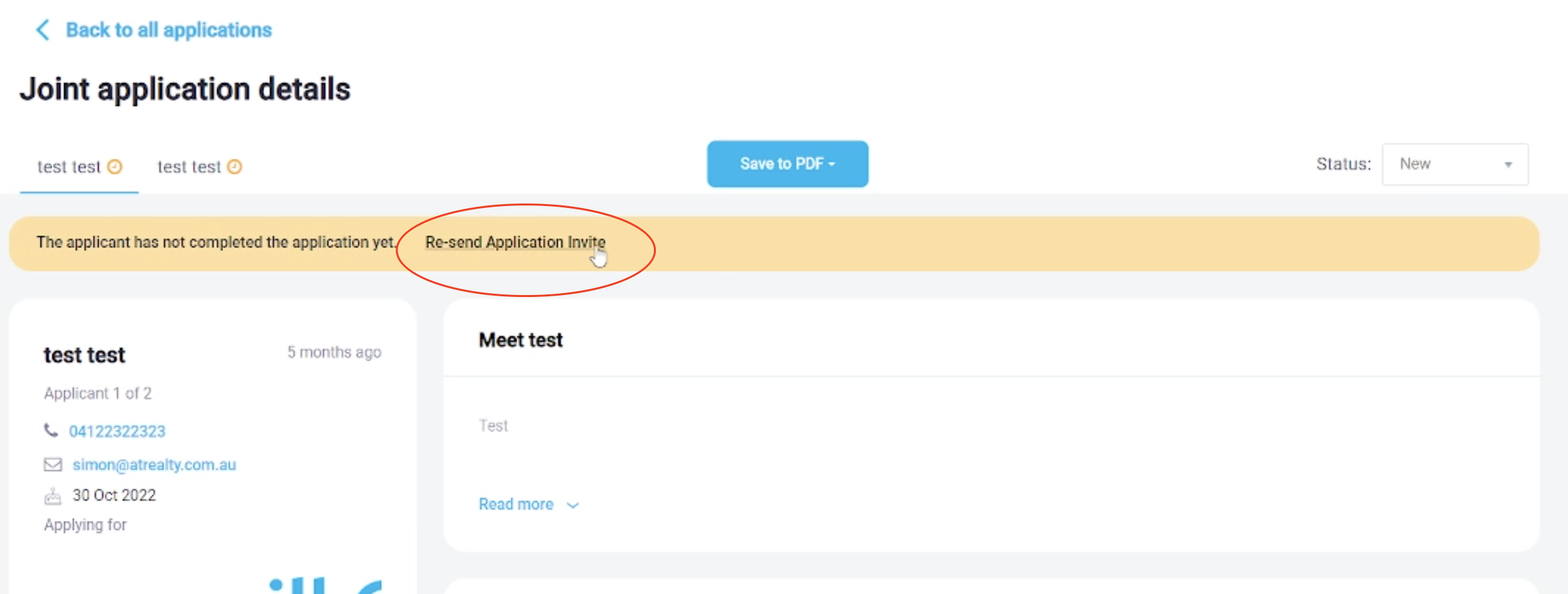
If the joint-applicant does not receive the initial Joint Application request, the User can resend the request by viewing the application and clicking on Re-send Application Invite.
Re-send Reference Requests
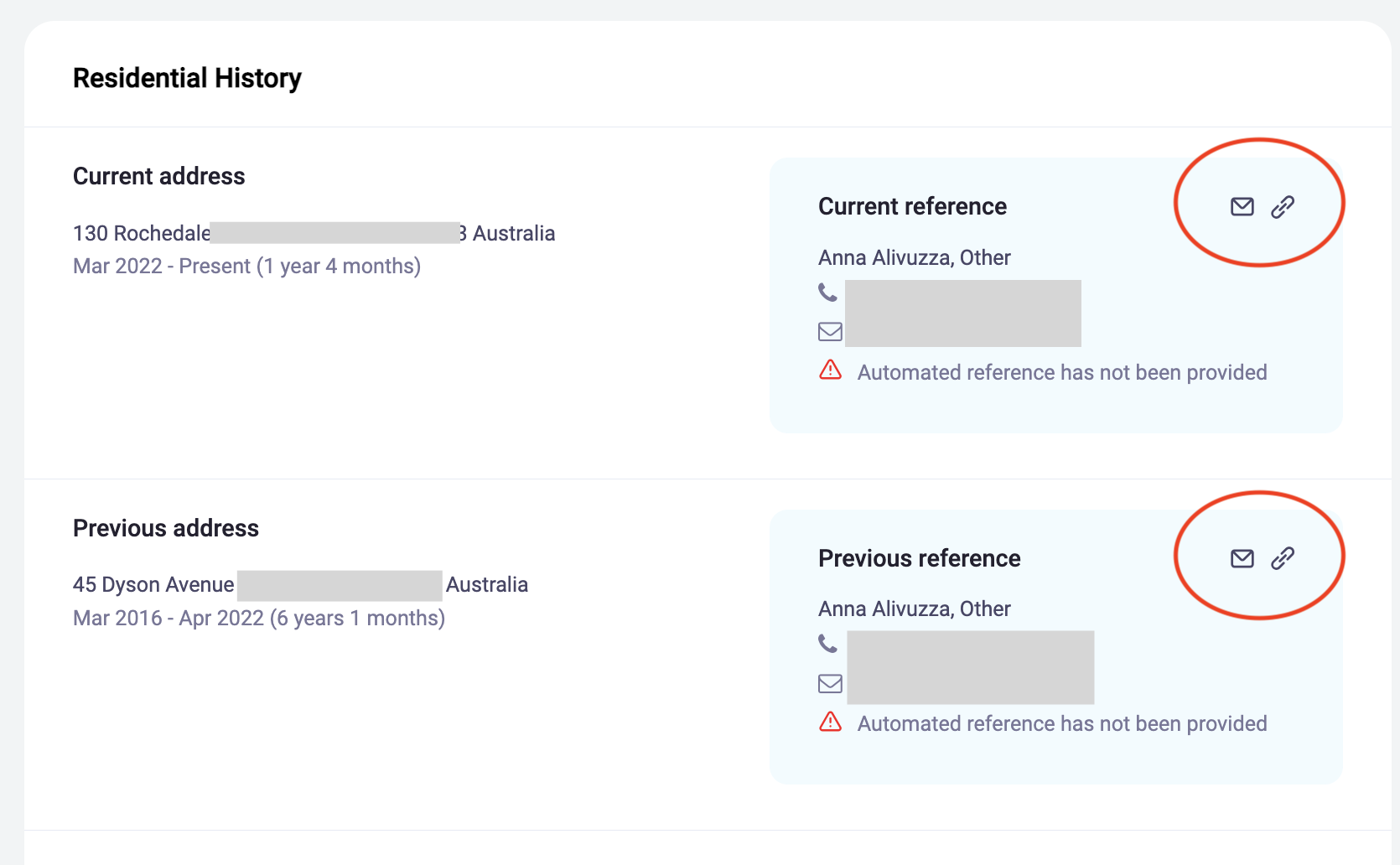
If the User needs to re-send the residential or employment reference request, they can do so by clicking the Re-send (envelope) icon next to the reference, or by clicking the Copy link (chain) icon to copy the link and send it themselves.
These icons will not display if the reference has been provided.
Edit Reference Details
If a reference contact's details (such as their email address) need to be corrected after the application has been submitted, the User can edit them using the Edit (pencil) icon on the reference card.
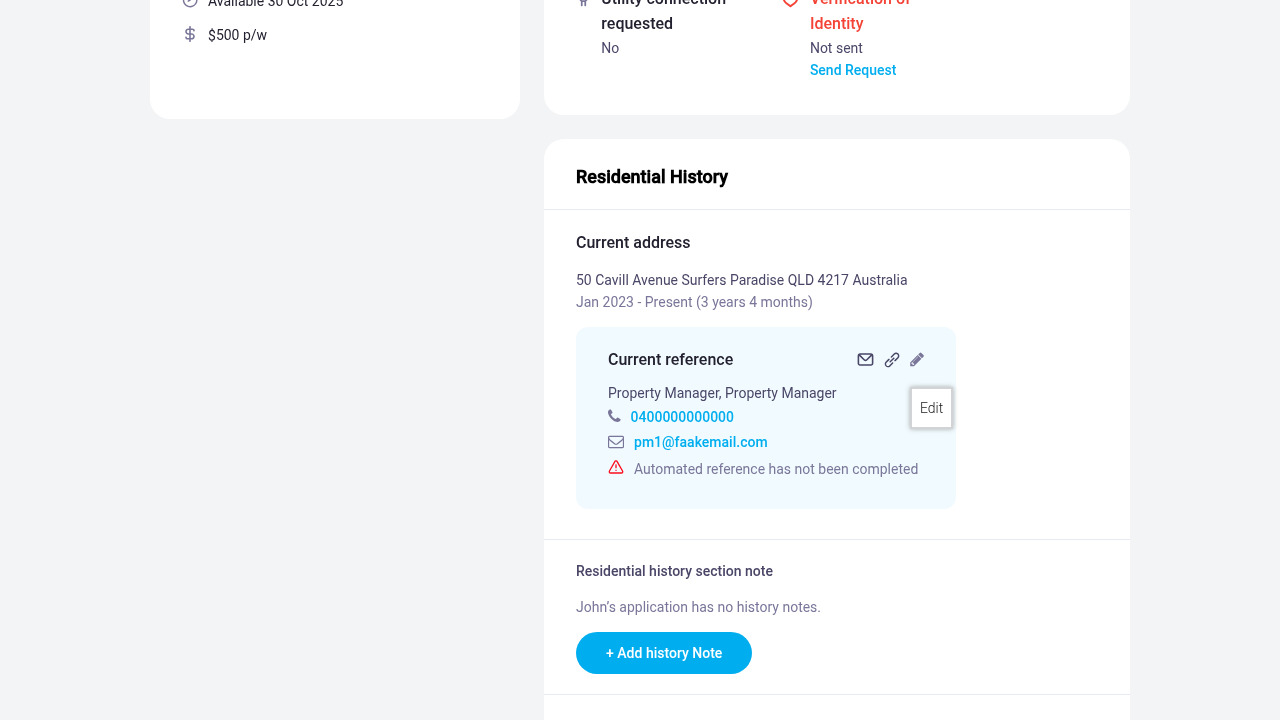
The three action icons on a reference card: Re-send (envelope), Copy link (chain), and Edit (pencil).
Clicking the Edit icon opens the Edit reference details modal. The User can update the following fields:
- Full name
- Reference type
- Phone number
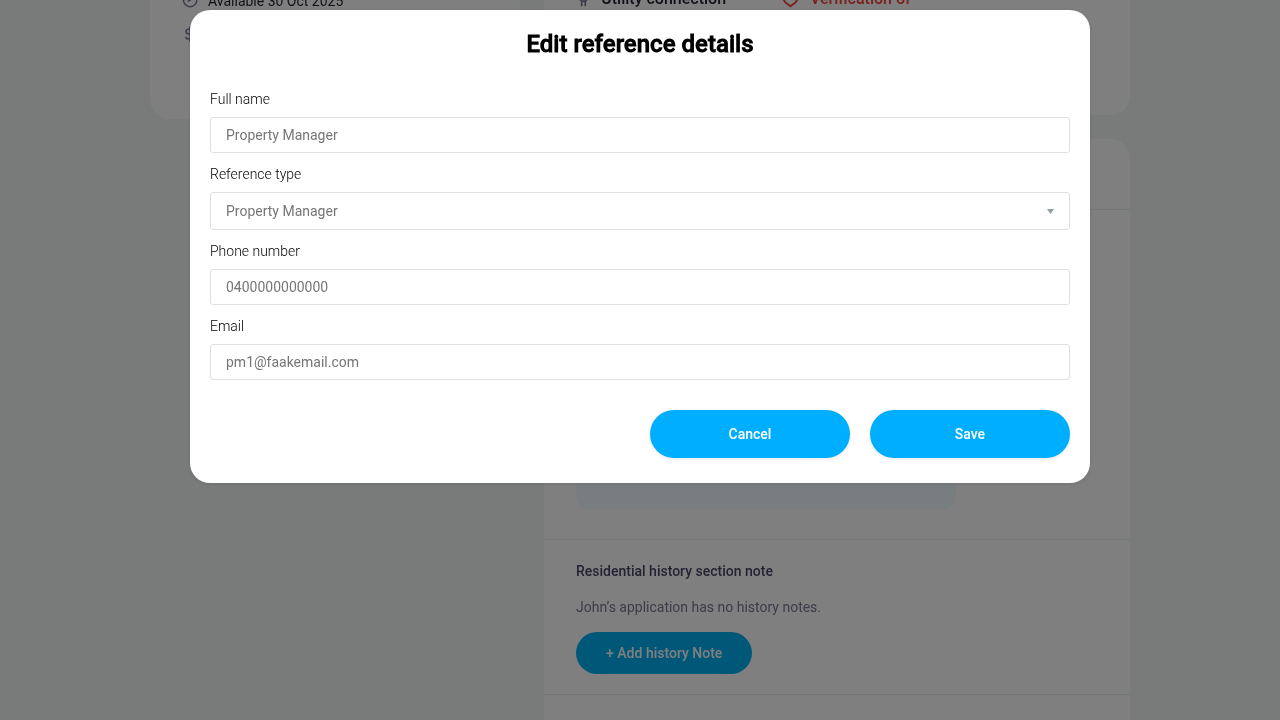
The Edit reference details modal showing the editable fields.
After saving, the reference contact's details are updated. The User can then click the Re-send (envelope) icon to re-send the Privacy Statement and reference request to the corrected email address.
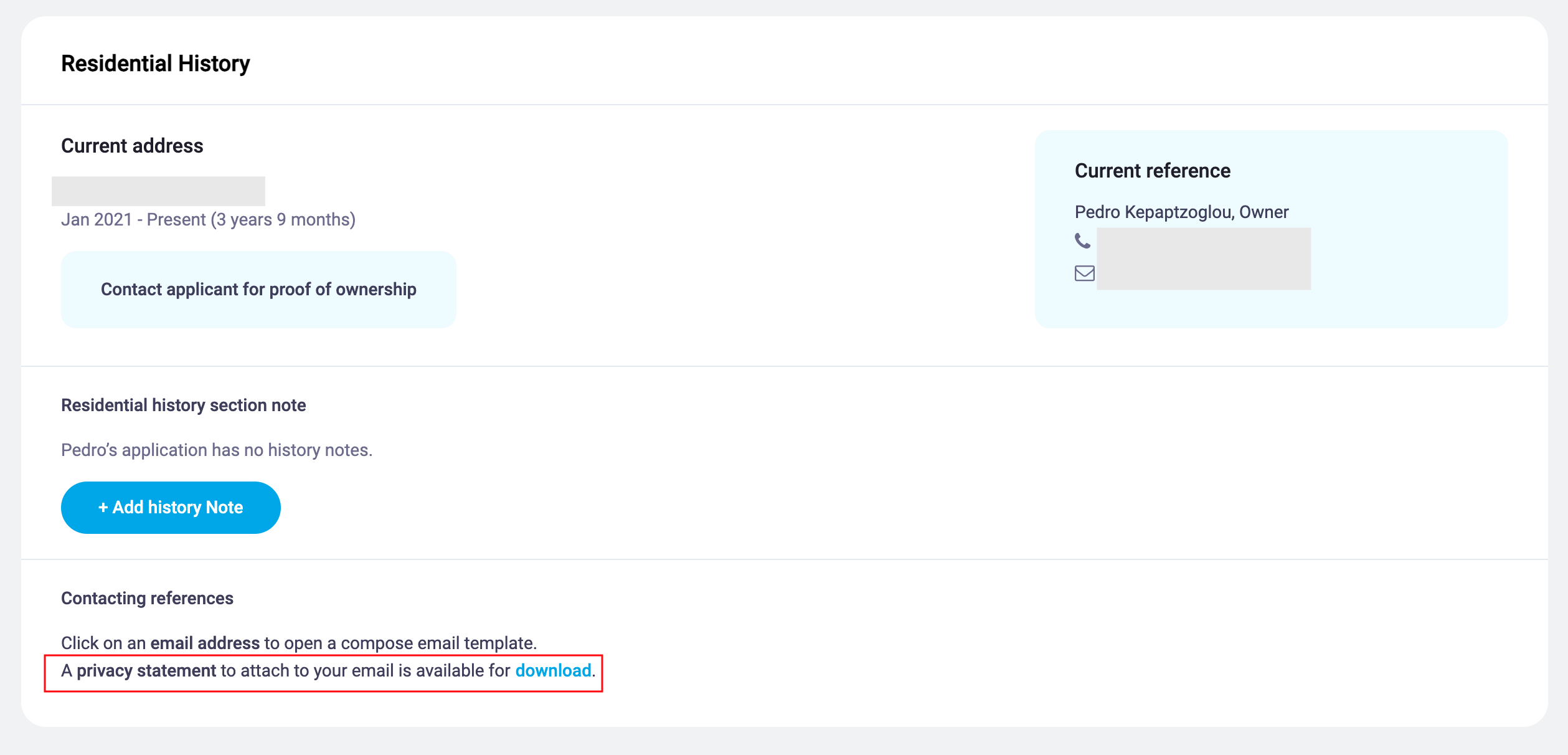
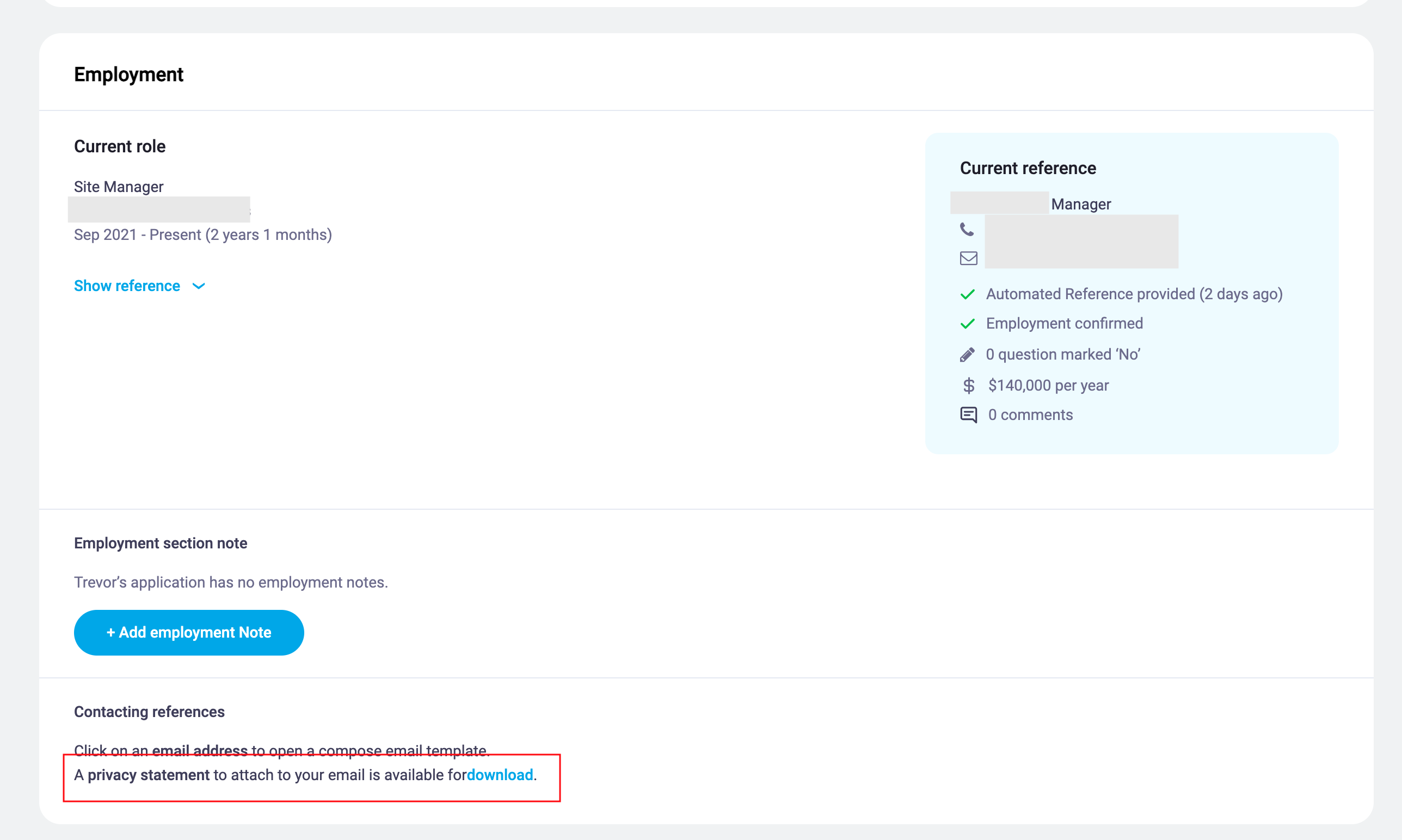
Privacy Consent Form for Tenant Reference
The Privacy Consent form can be found in the completed application in the Residential History and Employment sections.
Was this article helpful?
That’s Great!
Thank you for your feedback
Sorry! We couldn't be helpful
Thank you for your feedback
Feedback sent
We appreciate your effort and will try to fix the article