TABLE OF CONTENTS
In the @realty Cloud, you can generate a templated Rental Proposal to present to an owner.
The Rental Proposal includes:
- An overview of the property management process
- Recent property management data of comparable properties
- A proposed marketing plan for the property
- Your agent details, fees & other relevant information
Creating the Rental Proposal
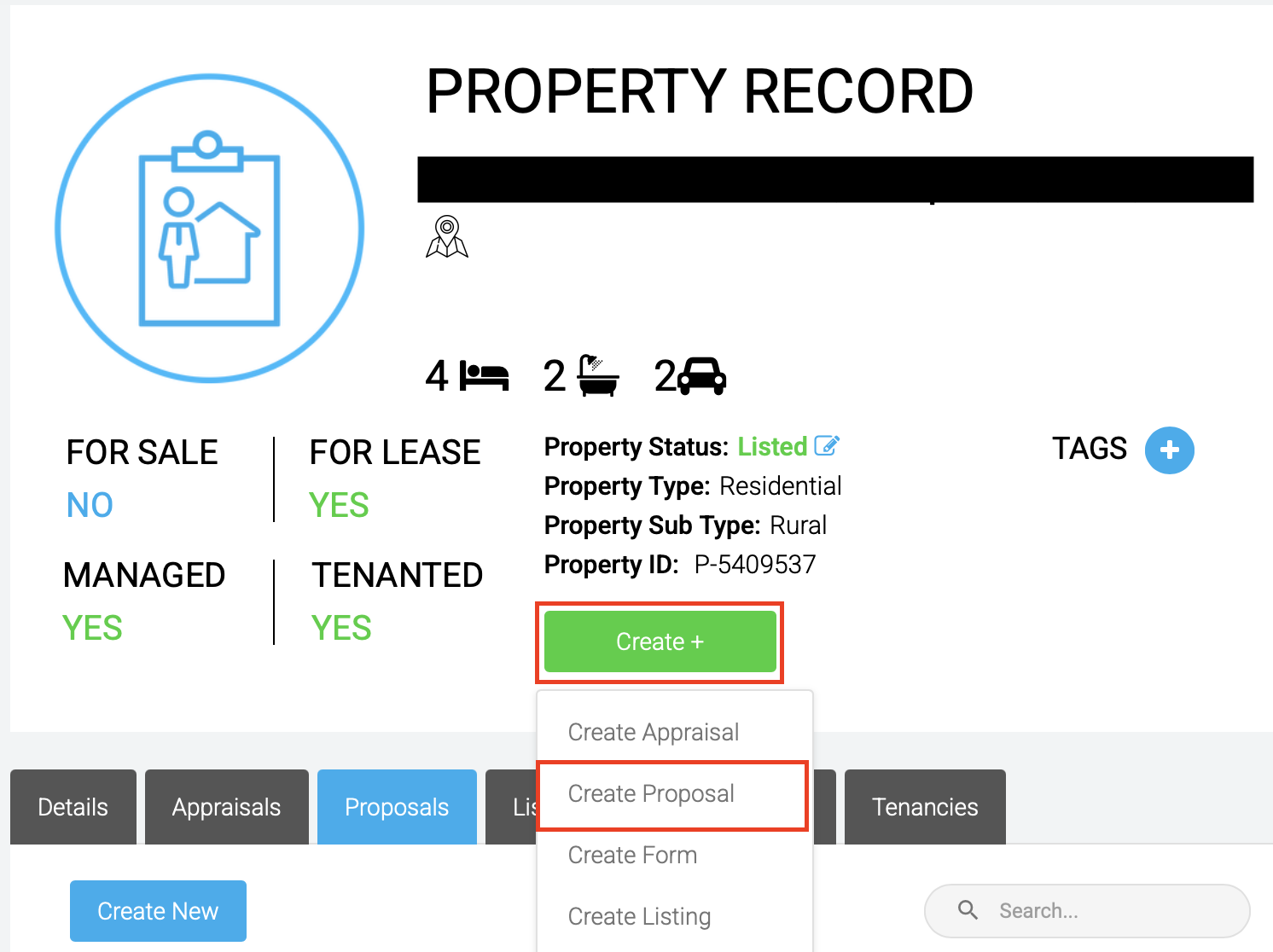
To create the proposal, you can do so by navigating to the Property Record page > clicking Create > clicking 'Create Proposal'
Section 1 - Details
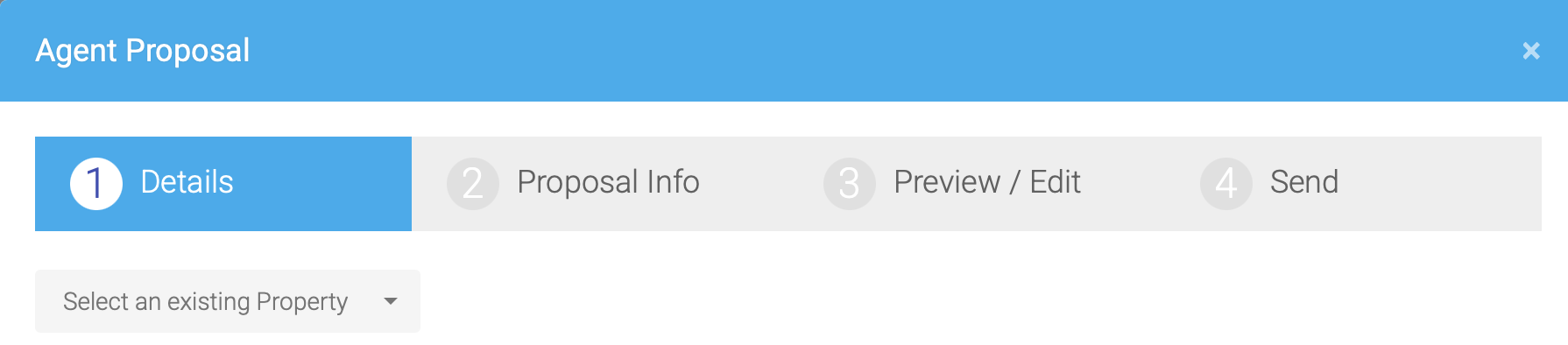
In section 1 'Details', click 'Select an existing Property' from the drop down. This will populate section 1 with property details from the Property Record including the owner contact, property features & photos. The information can be edited as required before proceeding to section 2.
Section 2 - Proposal Info
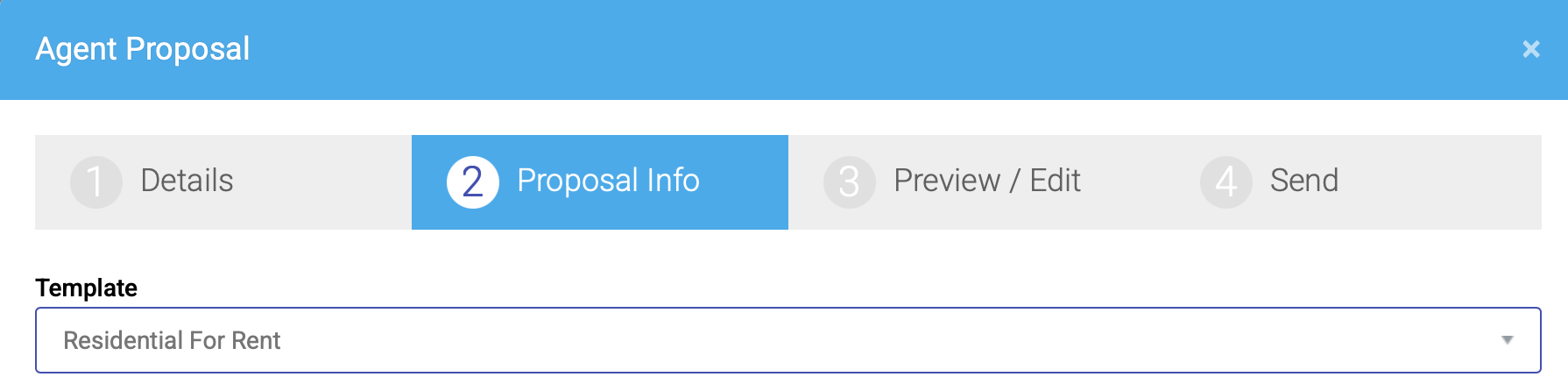
In section 2 'Proposal Info' select 'Residential For Rent' in the Template dropdown. This will create template headings & information that are relevant to a residential management proposal.
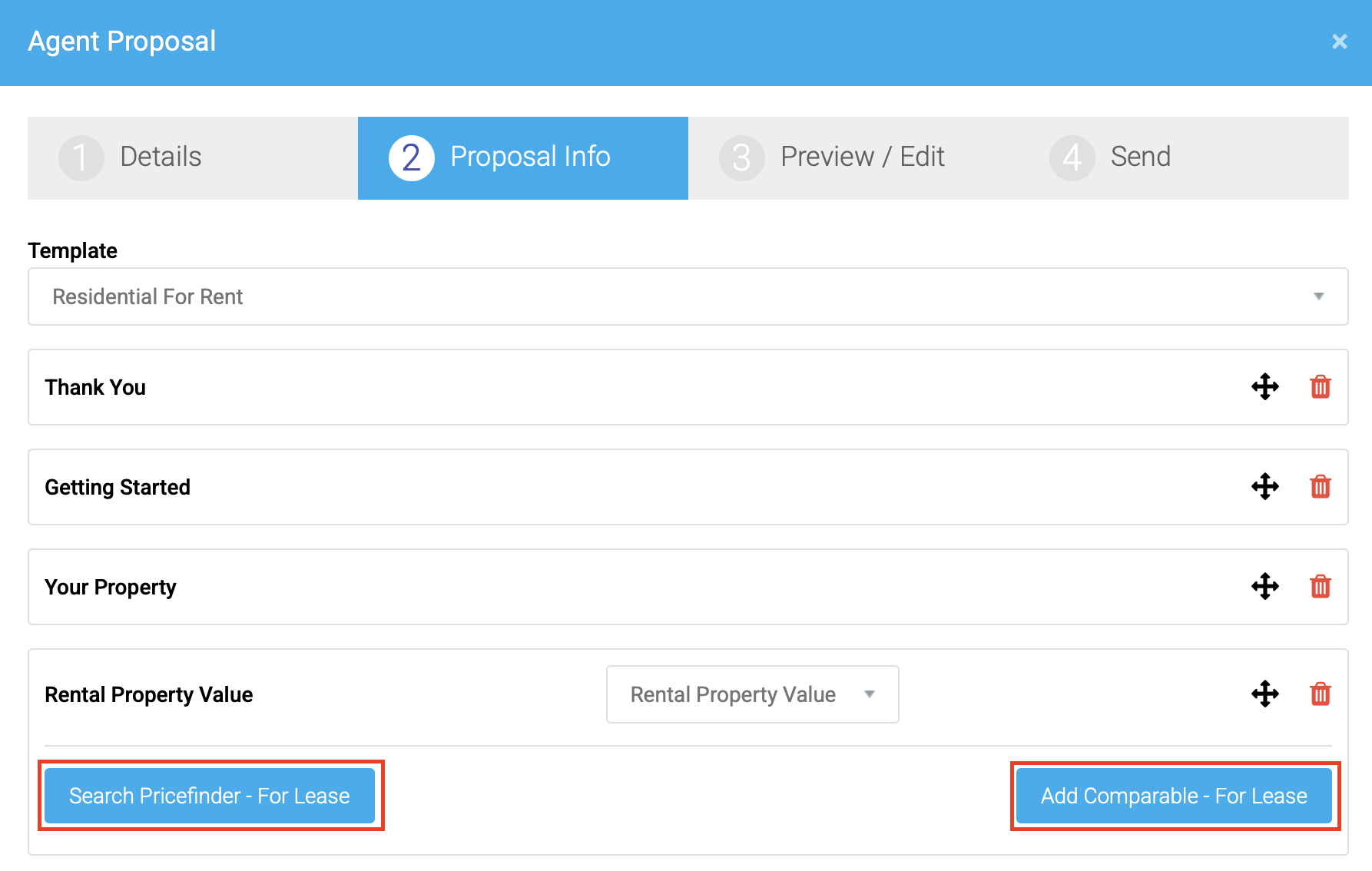
To add comparable Rental properties, you have the option to add them through a Pricefinder search (by clicking 'Search Pricefinder - For Lease' or you can manually add a comparable property by clicking 'Add Comparable - For Lease'
Searching Pricefinder for Comparable Properties
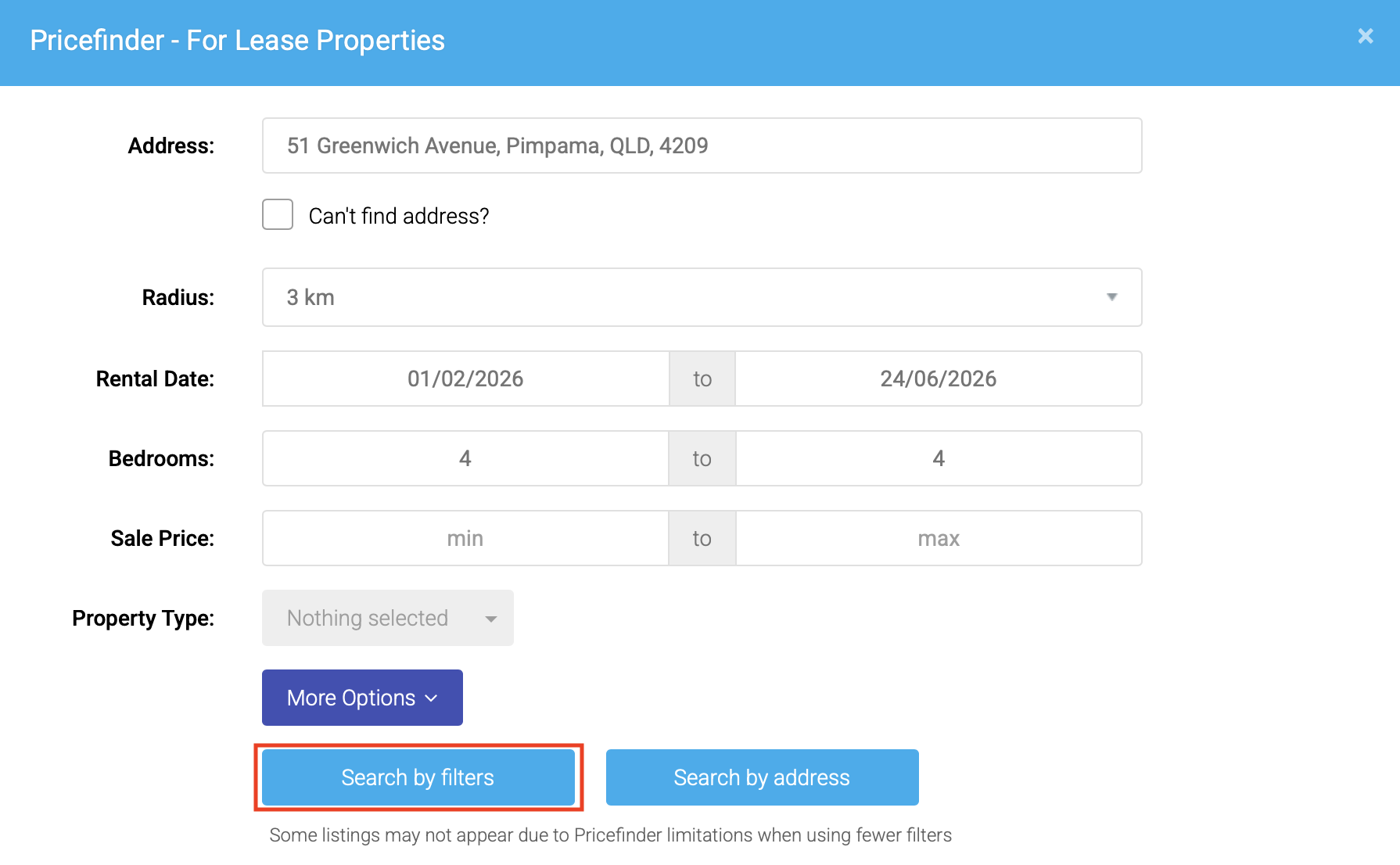
Once you have clicked 'Search Pricefinder - For Lease', it will pop up with a search window. You will fill in the search filters for finding comparable properties (distance, rental date, bedrooms).
Once you have filled in the search filters, click 'Search by filters'
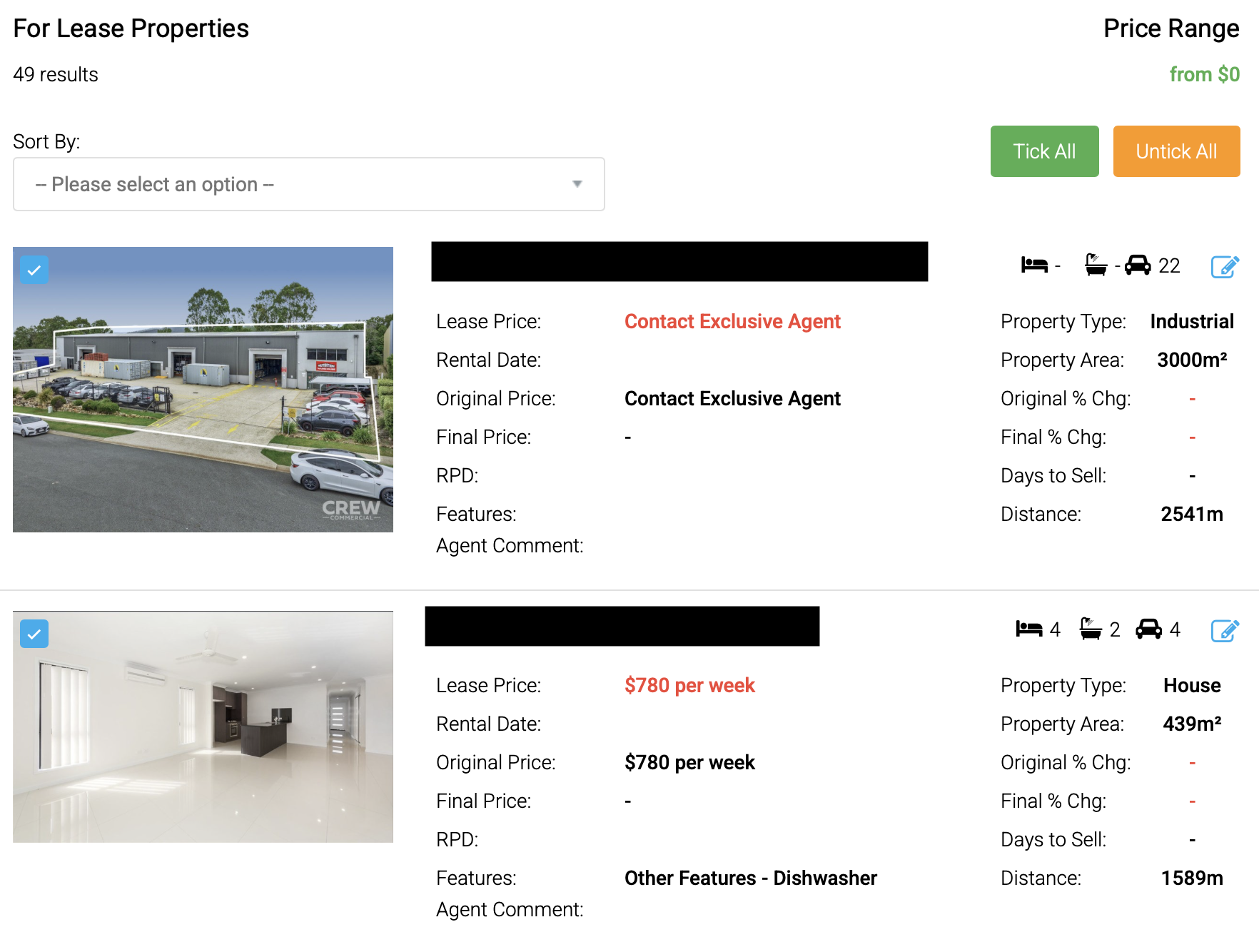
The search will show a list of comparable properties that fit within your search parameters. You can then sort the listings by distance, date or price by clicking the 'Sort By' drop down. An example is below:
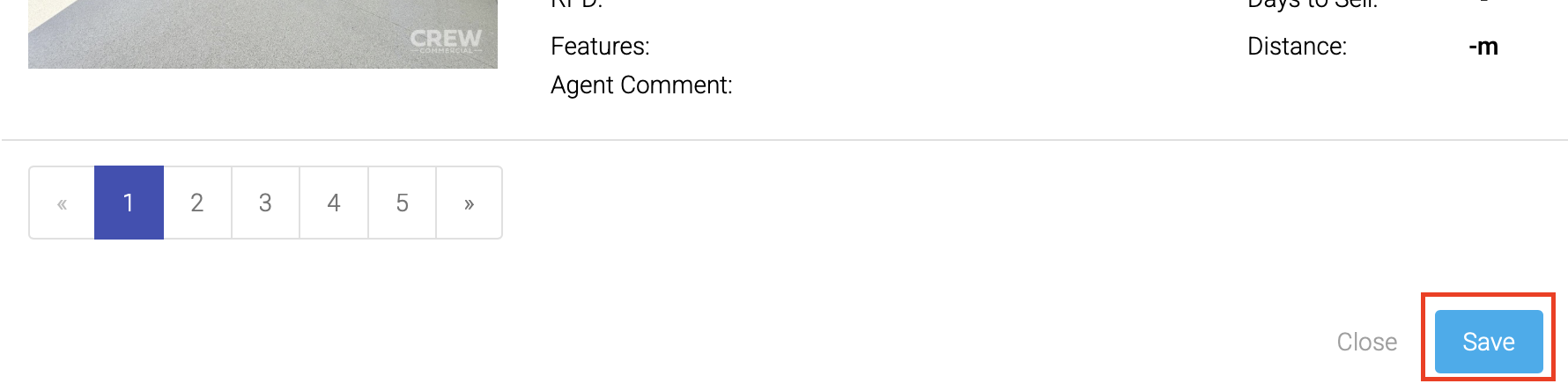
Once you have ticked all of the comparable properties you want included in the Comparative Market Analysis in the Proposal, click 'Save' near the bottom of the window
Adding a Comparable Property Manually
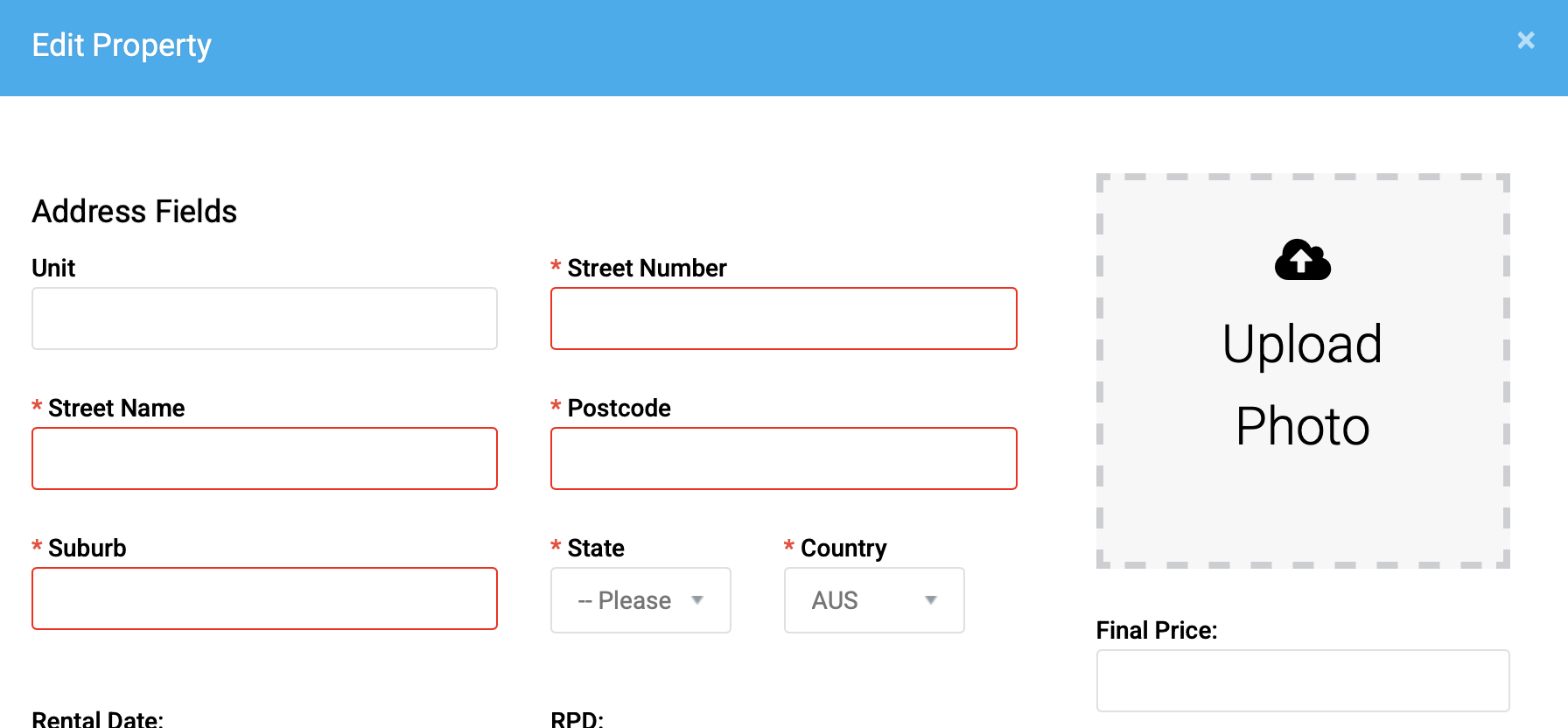
Once you have clicked 'Add Comparable - For Lease', you can add a comparable property manually. You will fill in the property details & upload photos. Once complete, you can click 'Save' to add the property to the proposal.
Creating a Marketing Campaign for Proposal
You can create a Marketing Campaign that will be shown on the Proposal so a marketing invoice can be generated once the owner accepts the proposal.
To create a marketing campaign, click 'Create Campaign' button under Marketing Campaign - Rental section

You will then create a Marketing Campaign & add products required for marketing (internet advertising, photography, signboards etc.). Please click here for steps to add the $99.00 inc. GST advertising package for @realty Rentals agents.
Once you have selected all required products, click Finish. This will create the marketing invoice that will be sent after the acceptance of the proposal.
Making Changes to Proposal Sections
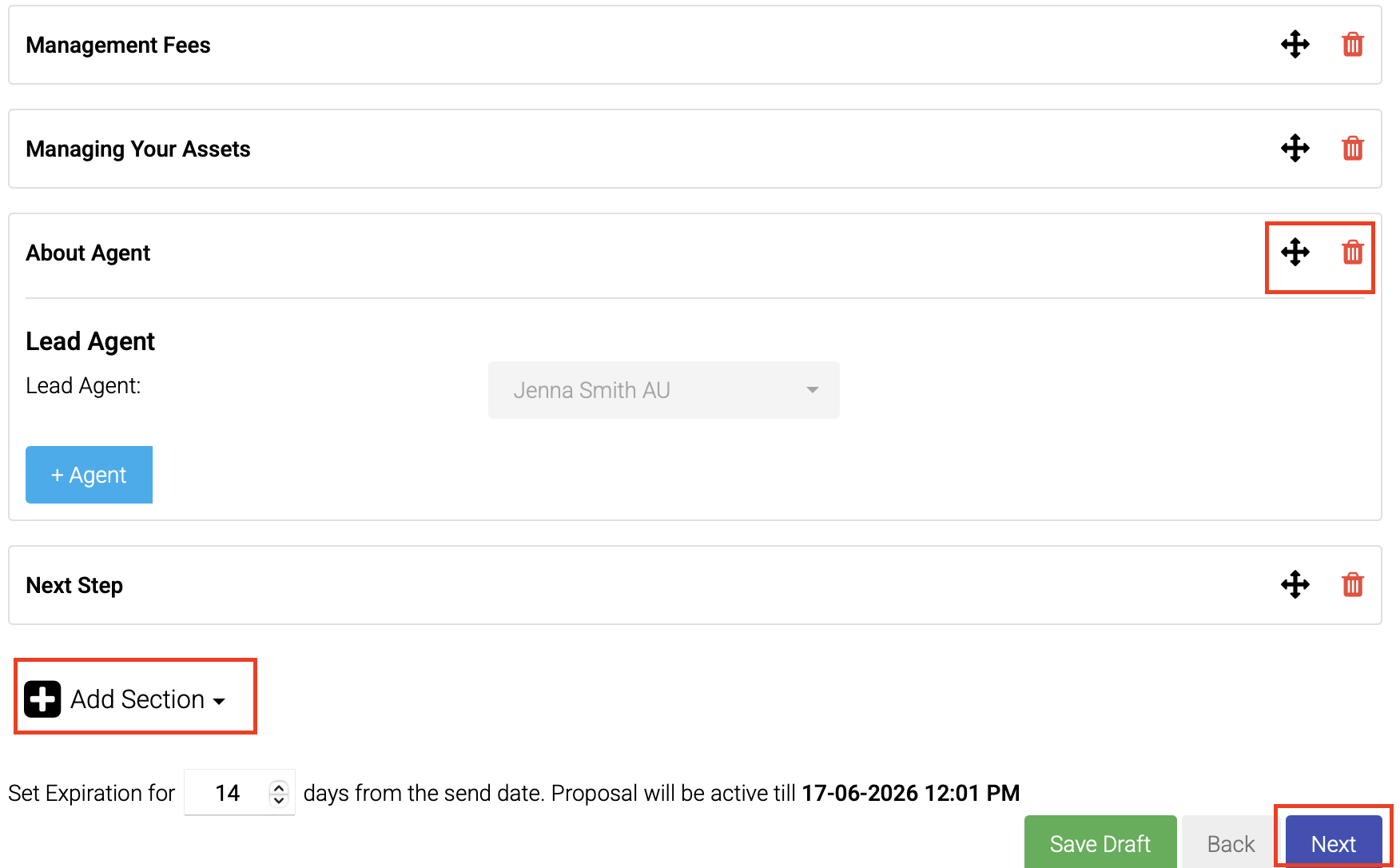
You can adjust the order of the proposal sections by clicking & dragging the arrow icon pictured below. A section can also be deleted by clicking the red bin icon pictured below.
If you would like to add a section to the proposal, please click 'Add Section' (pictured in red below)
When the comparative market analysis has been completed & you have all relevant sections completed, please click 'Next'. Alternatively, you can click 'Save Draft' to re-visit this proposal in future.
Section 3 - Preview & Edit
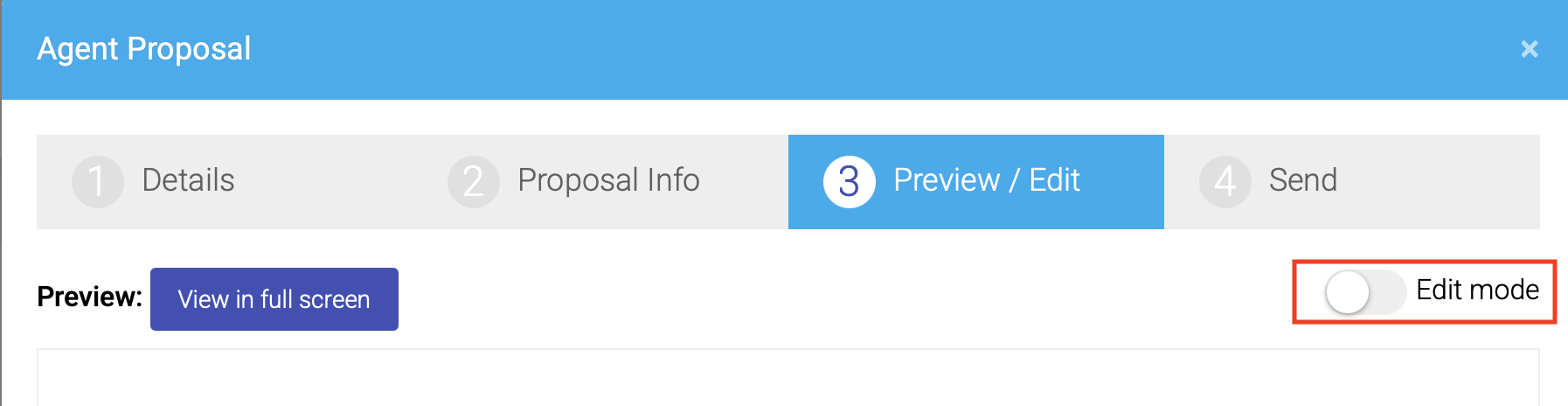
In section 3, you will be shown a preview of the management proposal. If any changes are required, such as changing the management fees, you can click the 'Edit Mode' toggle to edit the contents of the proposal.
You then have the option to 'Save Draft' so you can re-visit the proposal in future or you can choose to continue to 'Next' to finalise & send the proposal to the property owner.
Section 4 - Send
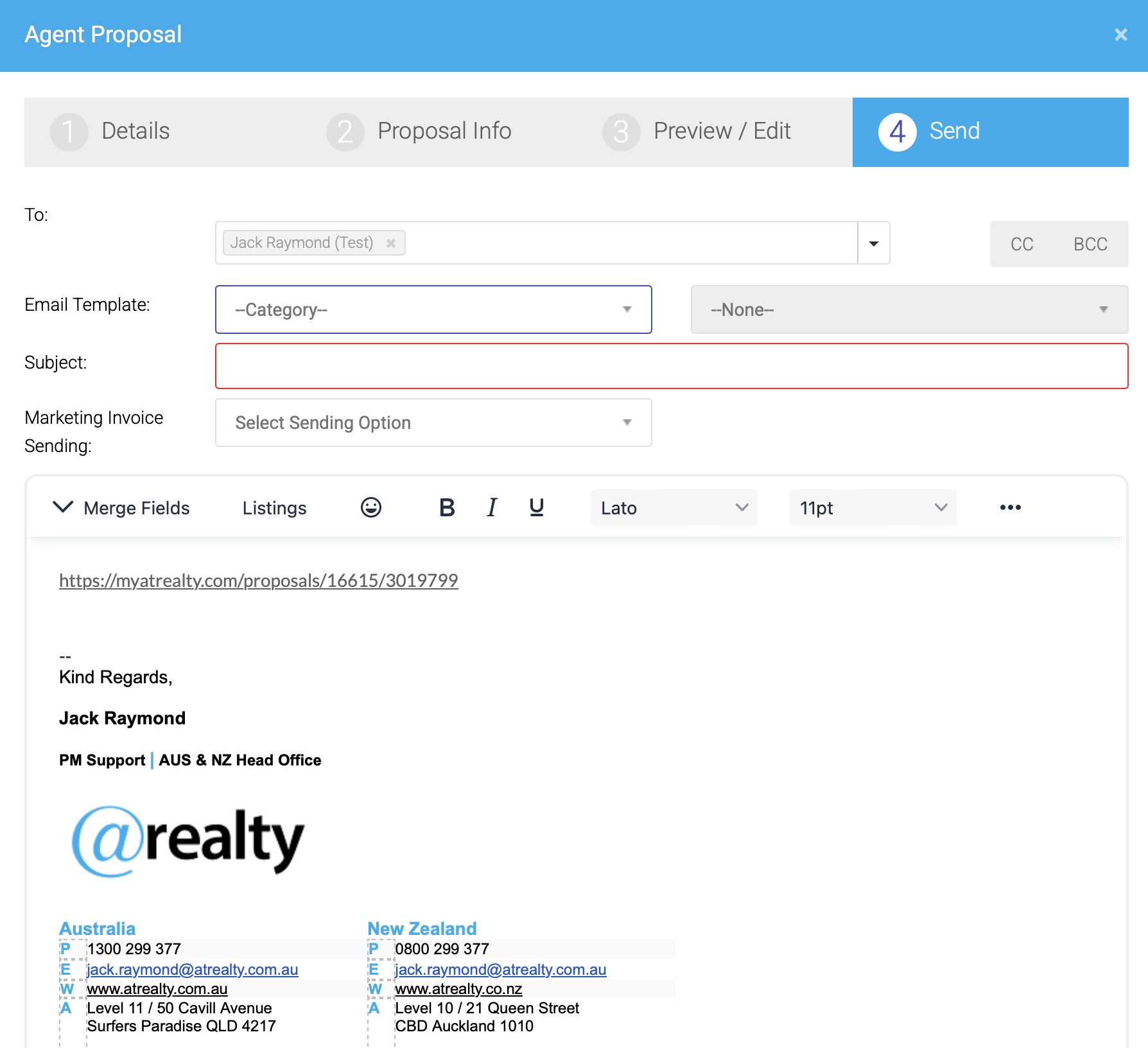
To send it to the owner, you will need to fill in a subject line, email body & choose an option for sending the Marketing Invoice. You can create your own custom Email Template in the Cloud for future use.
Please ensure, when editing the email body, to keep the pre-filled proposal link intact.
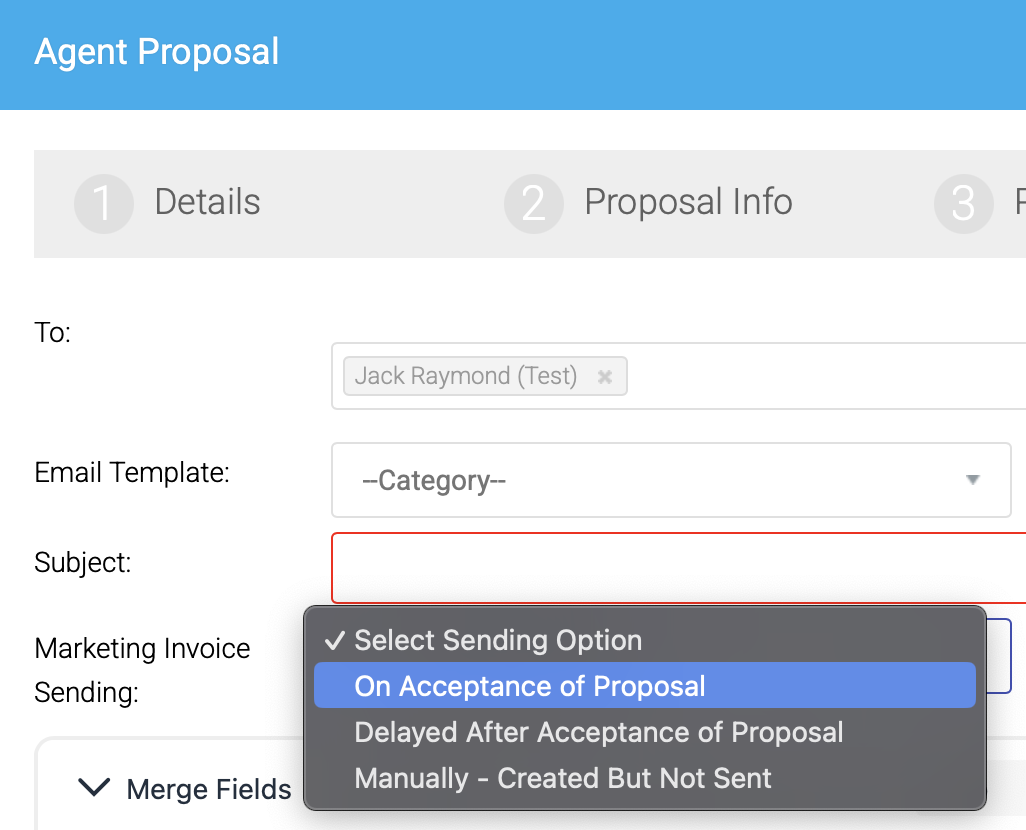
You have three options for the Marketing Invoice:
- On Acceptance of Proposal
- Delayed After Acceptance of Proposal
- Manually - Created But Not Sent
Was this article helpful?
That’s Great!
Thank you for your feedback
Sorry! We couldn't be helpful
Thank you for your feedback
Feedback sent
We appreciate your effort and will try to fix the article