You must have a Management Record created first in order to be able to proceed with creating a Tenancy Record. Learn more about creating a Management Record here: https://www.atrealtysupport.com.au/a/solutions/articles/14000148410
TABLE OF CONTENTS
Converting a Rental Application to a Tenancy Record
When the owner has approved an application, the next step is to create the tenancy record.
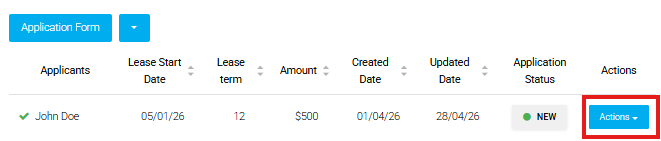
You can create the tenancy record with pre-filled information from the rental application by navigating to the Listing Record > clicking 'Applicants' > clicking 'Actions' next to the approved application
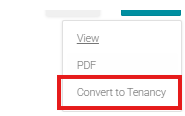
Click 'Convert to Tenancy'
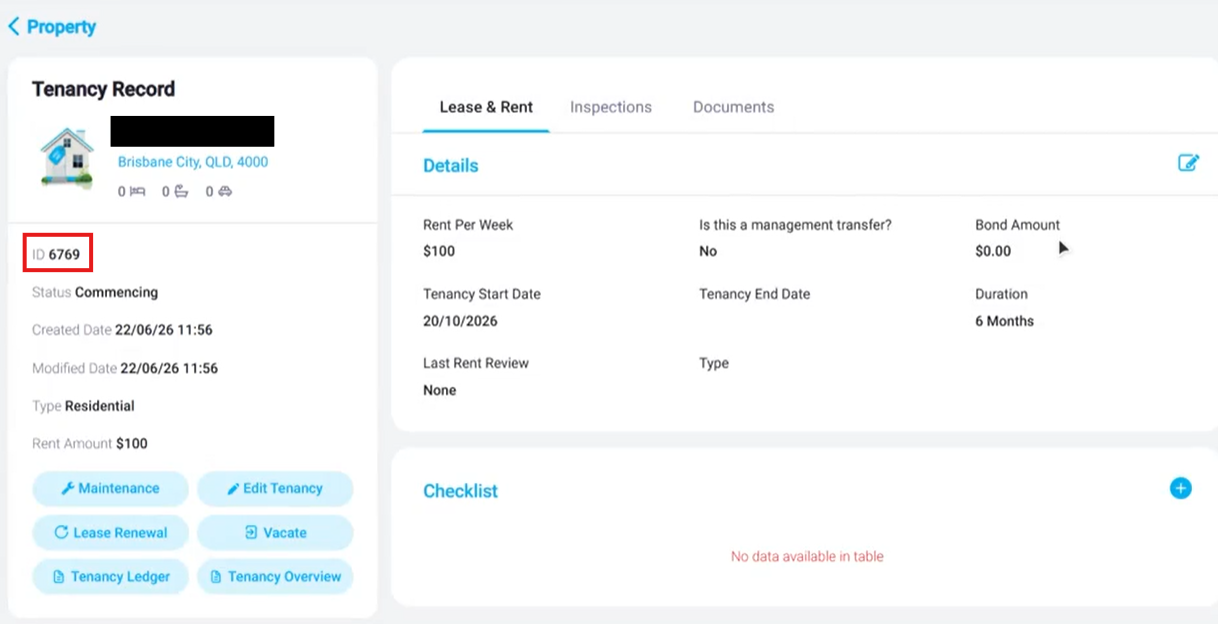
This will create the new tenancy record that can be viewed by going into the Property Record & navigating to the Tenancies tab. Alternatively, you can also find it in your Tenancies list by clicking 'Properties' at the top of the CRM > 'Property Management' > 'Tenancies'
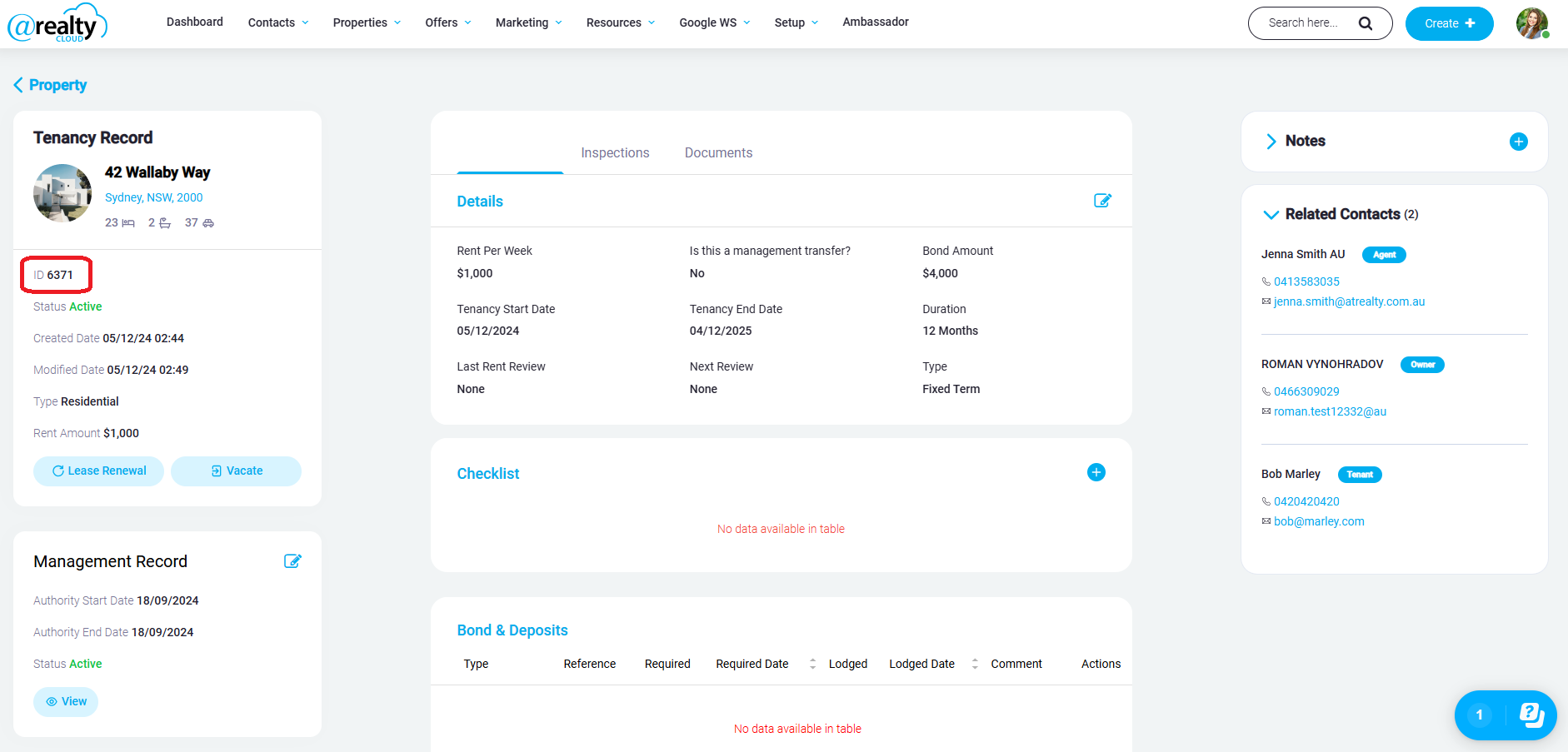
Once created, the tenancy record will show the tenant's 4 digit ID number they will require for rent & bond payments.
Once you have the signed tenancy agreement, you will need to update the tenancy record with the agreement details & documents.
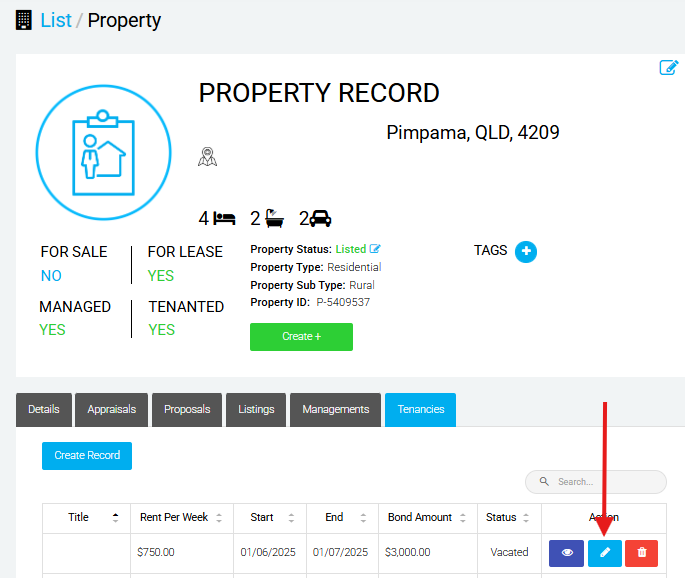
To do so, navigate to the Property Record > click 'Tenancies' > click the Pencil icon on the new tenancy record. This will open an edit page where you can enter agreement details & upload documents.
Creating the Tenancy Record Manually
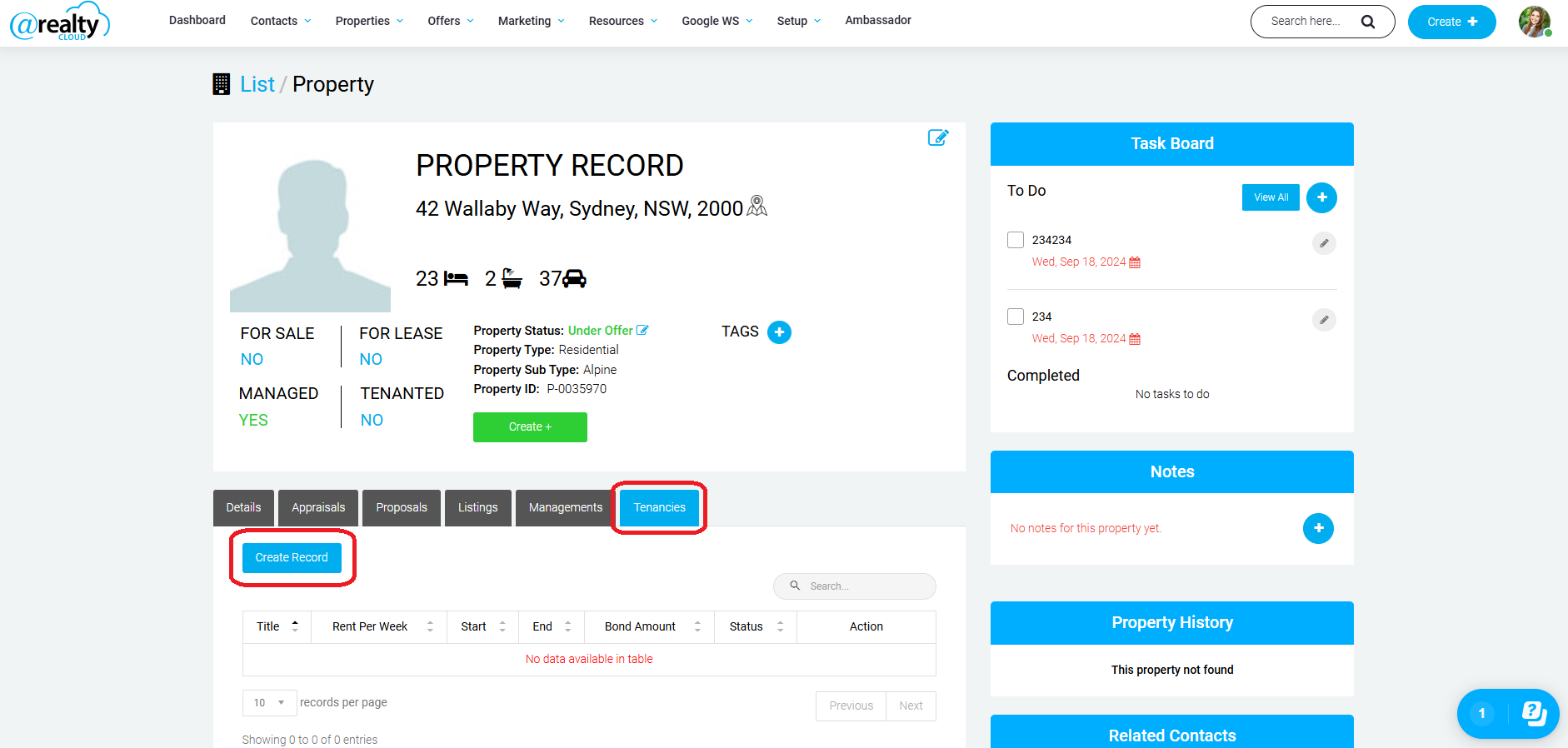
When in the Property Record click on Tenancies -> Create Record:
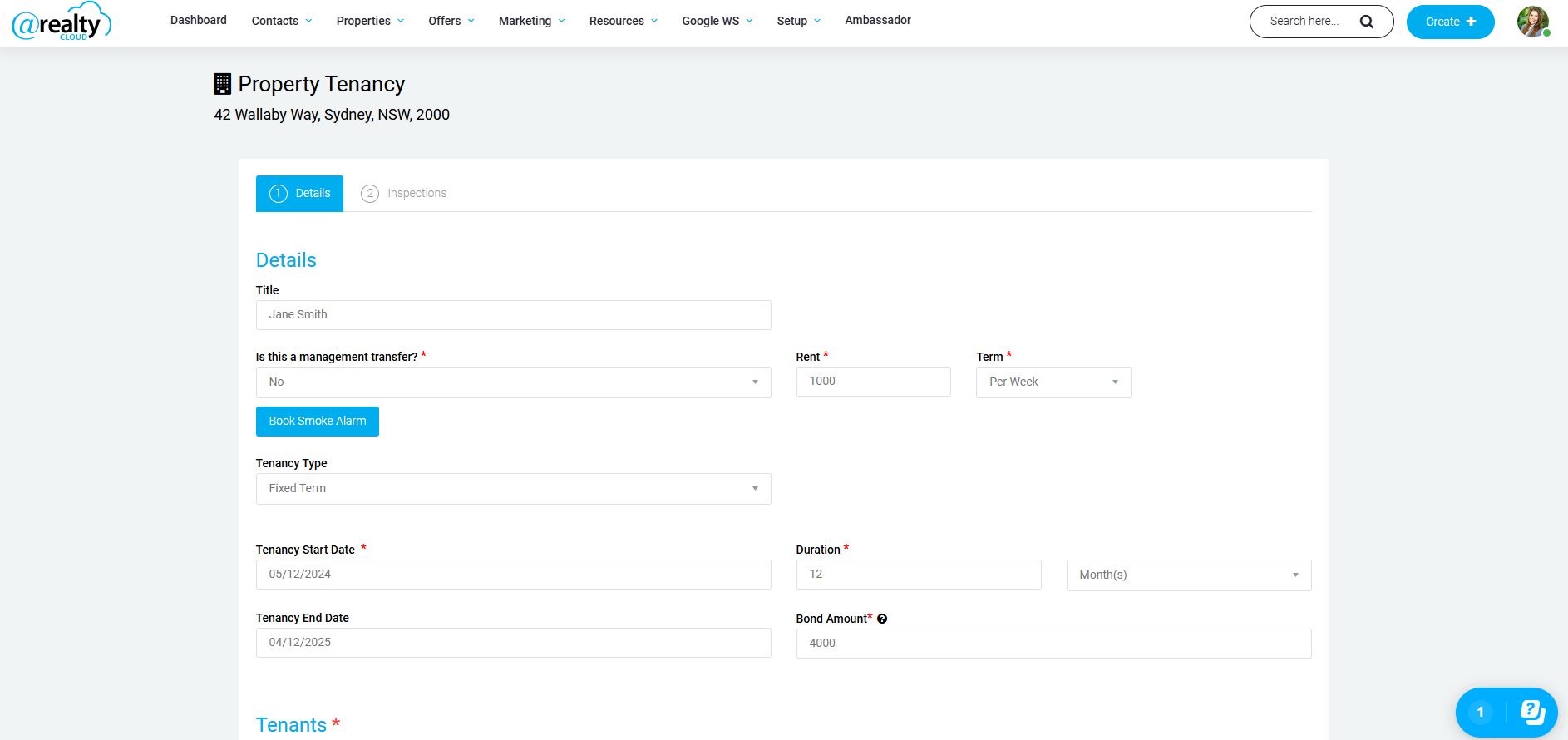
Fill in the below details (select 'Yes' under management transfer if you have taken over the management of an existing tenancy, this will then request additional documentation for this record such as their previous tenancy ledger & bond transfer document):
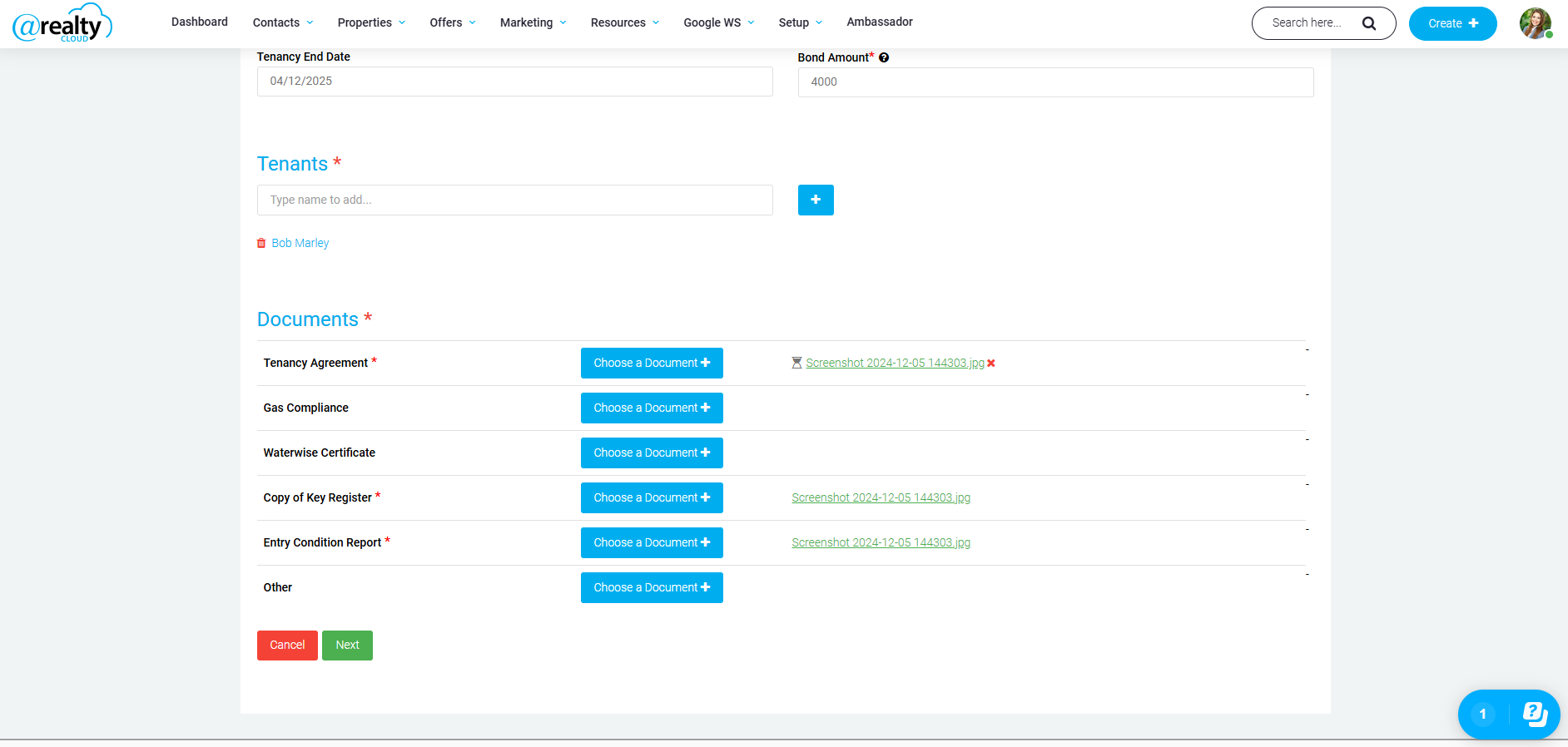
If the tenant is an existing contact, you can simply search their name and select the contact. Otherwise, click the blue + button and add them in as a contact.
Upload the required documents below and click next.
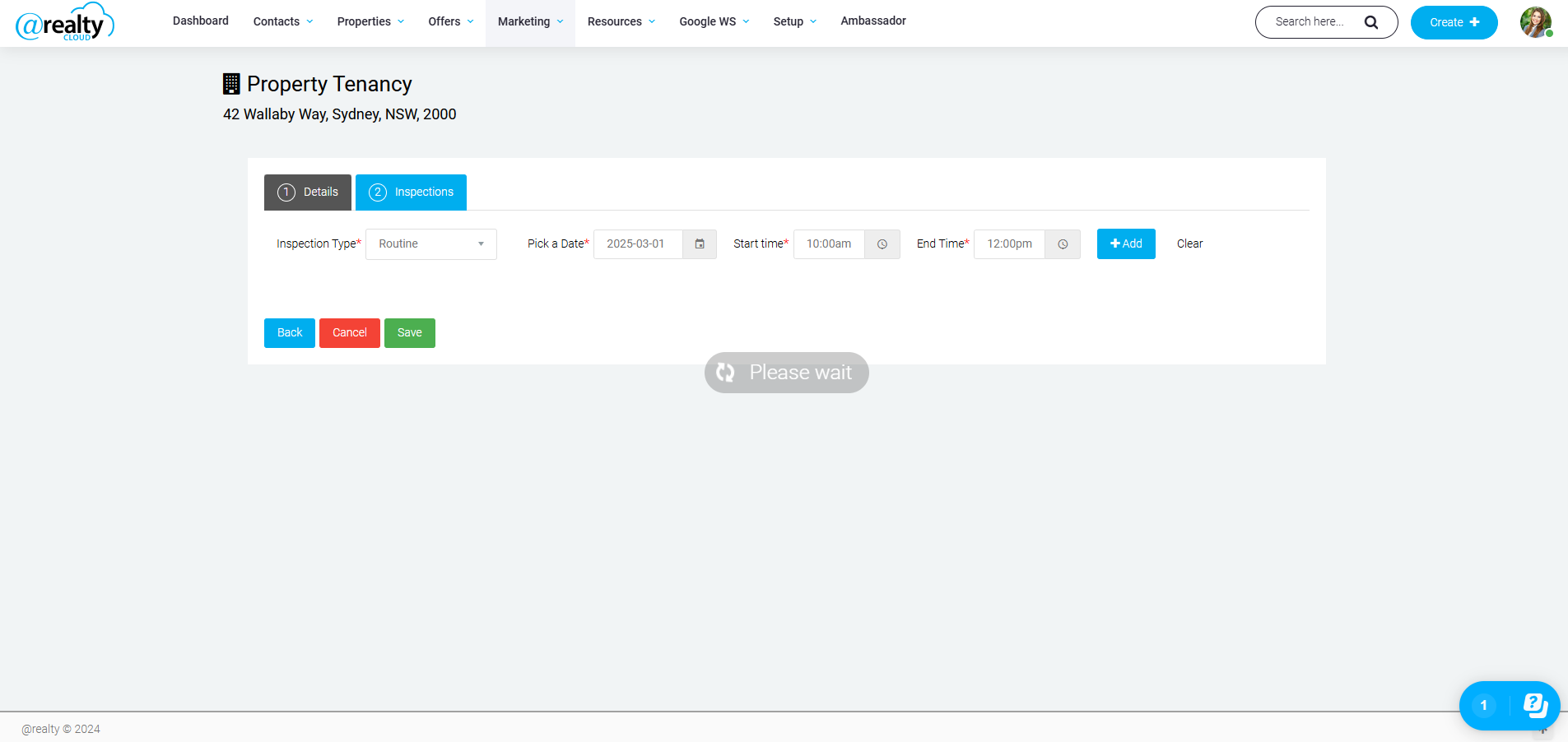
Clicking next will take you to the below screen where you can enter your inspections. Once you have added in all the inspections you need, click save.
Once you have saved the record, it will take you to the screen where you are viewing the tenancy record you just created. The tenants unique reference number can then be found in the top lefthand corner beside the ID number. This will be the tenants reference number they must used to pay their rent into our trust account.
The Head Office Rentals team will receive the agreement & documents you uploaded. The Rentals team will review it for compliance & will advise you if anything needs updating.
If the agreement is deemed compliant, Head Office Rentals team will create the tenancy record in Property Tree & can begin receipting rent.
Was this article helpful?
That’s Great!
Thank you for your feedback
Sorry! We couldn't be helpful
Thank you for your feedback
Feedback sent
We appreciate your effort and will try to fix the article