Buyer verification starts after an offer is accepted. The buyer AML function only appears once the offer has been accepted — it cannot be activated while the offer is still under negotiation.
Deadline. Once the offer is accepted, start immediately. You have until 28 days after exchange of contracts, or 3 days before settlement, whichever is sooner. @realty requires the AML to be submitted within 14 days to allow for AML verification delays.
Prefer to follow this on screen? The same process is available as an interactive step-by-step guide with tick-off checkboxes and a progress bar: Open the AMLHub Buyers Verification Guide
Before you start
- Access to @realty Cloud CRM (logged in)
- Offer created in the listing's Details section — all buyers recorded as contacts with full name, mobile number and email
- Offer marked as accepted in the CRM (buyer AML cannot be activated before acceptance)
- Payment method decided — the buyer pays via Stripe link, or you pay on their behalf
- AMLHub mobile app access — contact the @realty Support Team if you need login details. You log in using your Google Workspace account.
How the process is split
There are two phases. Phase A happens in the @realty CRM and ends when you submit the request. Phase B happens in the AMLHub mobile app and is where the deal is actually completed and verified.
The most common mistake: stopping after you click Save in AMLHub. Saving the deal details does not finish the deal. You must also answer the Risk questions and verify each party, or the deal stays unverified.
Phase A — In the @realty CRM (Steps 1–8)
Step 1 — Record the buyer's offer in the CRM
Create the offer within the listing's Details section. Make sure all buyers are recorded as contacts with their full name, mobile number and email address.
IMPORTANT: Make sure all contacts have a phone number and email before submitting.
Step 2 — Mark the offer as accepted
Update the offer status to Accepted in the CRM.
This blocks progress. The buyer AML function only appears once the offer is accepted — it cannot be activated while the offer is still under negotiation.
Step 3 — Open the AML attachment
Navigate to Details → Attachments → AML Create Deal on the accepted offer.
Step 4 — Generate the payment link
Click Generate Payment Link under Step 2 in the AML Create Deal section.
Step 5 — Send the payment link to the buyer
Send the payment link to the buyer by email or SMS, or to yourself if you're paying on their behalf.
Buyer payments go through the secure Stripe payment portal — the buyer pays online by card.
Step 6 — Wait for payment confirmation
This blocks progress. Once processed, the Attachments section displays "AML Buyer Product — Paid". You cannot create the AML Hub deal or submit a verification request until payment is confirmed.
Step 7 — Select the buyers and submit to AML Hub
Select the buyer or buyers requiring verification and submit the request to AML Hub.
Include every buyer who is a party to the transaction. If there are multiple buyers, select them all before submitting, ensure you have an email address and phone number for each party before submitting for verification
Step 8 — Monitor the verification status
The AML section at the top right of the accepted offer shows status and history for every party. You'll also receive an email when verification completes.
Do not submit again if the status already shows Submitted or In Progress — AMLHub is already working on it.
Phase B — In the AMLHub mobile app (Steps 9–18)
Don't have the app yet? Download it here.
| Apple / iOS | Android |
|---|---|
|
|
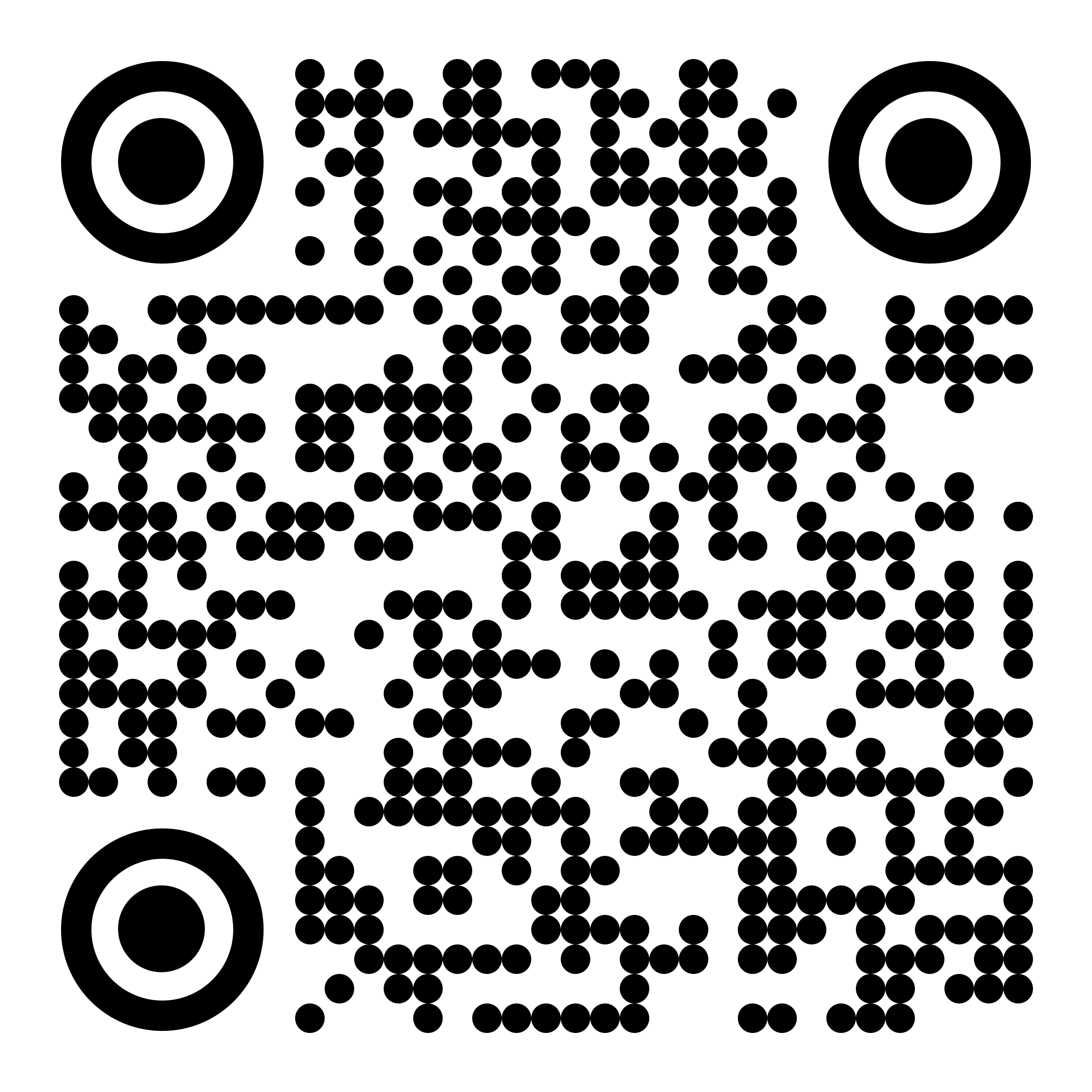
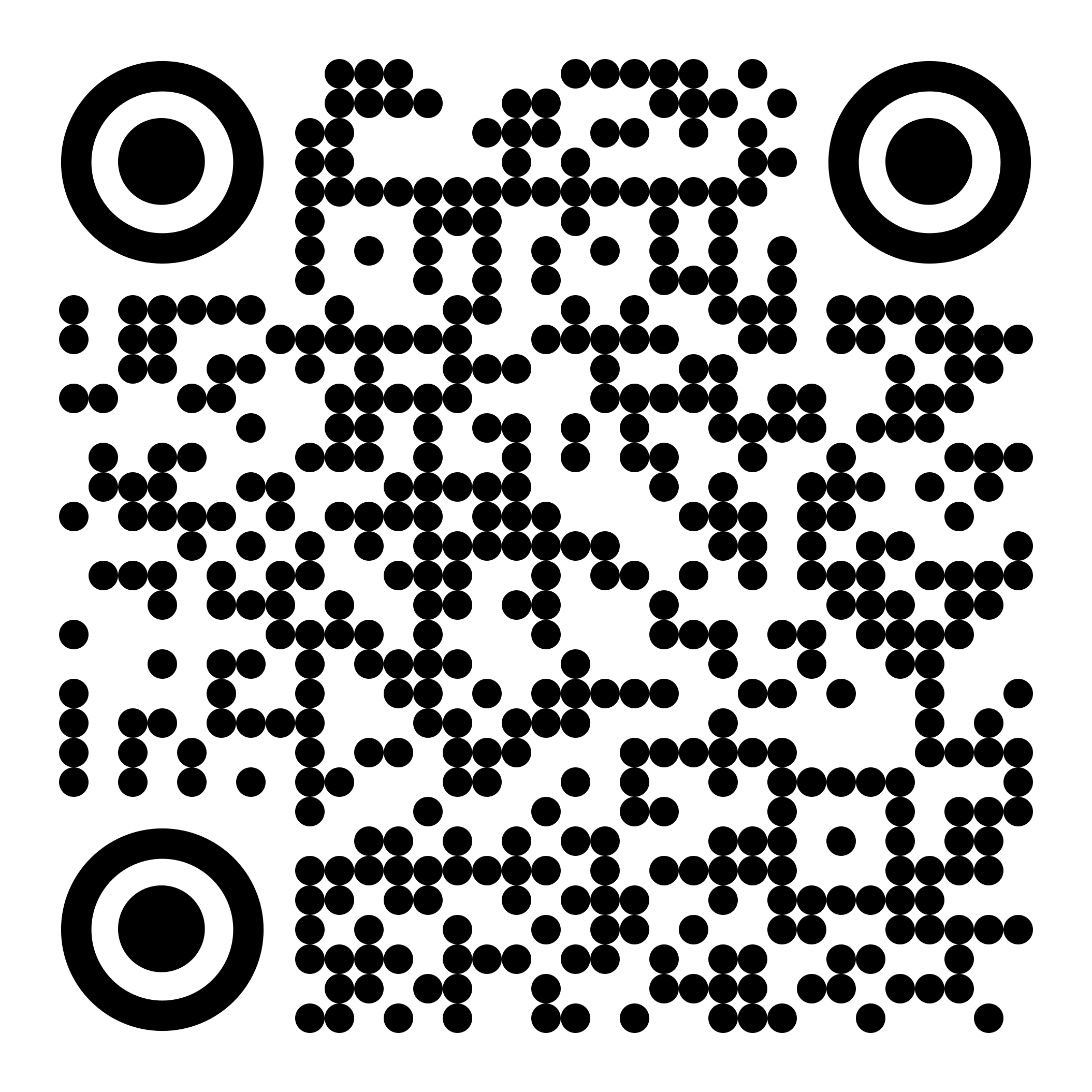
Log in with the same Google Workspace account you use for the @realty CRM.
Step 9 — Open the AMLHub mobile app
Log in to the AMLHub mobile app and find the submission on your dashboard.
Step 10 — Open the property deal
Click into the deal to see the individuals or entities linked to it. You should see each buyer listed.
Step 11 — Fill in the deal details
Click the property address at the top of the deal structure to open the deal details form. Complete all fields:
| Field | What to enter |
|---|---|
| Deal Type | Residential, Commercial Sale, Commercial Lease, Lifestyle, Rural, Other |
| Deal Purpose | For example Downsizing, Relocating, Upsizing, Deceased Estate, Relationship Split — plus a short free-text description |
| Trust Type | Not Asked / Yes, held in Trust / No, not held in Trust |
| Meeting all clients face-to-face? | Required |
| Property on-sold quickly? | Required |
| Key Contact / Red Flag | Choose the main contact; Red Flag Yes or No — if Yes, add a description |
| Deal value | Minimum and maximum, plus any transaction description |
Click Save when done. Saving here does not complete the deal — continue to the steps below.
Step 12 — Complete each person's details
Click each individual's name in the deal structure and fill in all required fields:
- Title, first/middle/last name, date of birth
- Residential address, email, phone, country of residence
- Their Type (e.g. 25% Ownership; Effective Controller — i.e. Director; Trustee)
- Occupation type, payment method
- Foreign exposure? (required)
- Offshore Exposure Risk — PEP? (required) — Yes or No
- Have you met face to face and sighted documents? (required)
- Per-person Red Flag
This blocks progress. AMLHub will not let you verify anyone until the PEP question is answered. It shows a red banner: "Information must be provided before a verification or permanent exception can be granted."
Compliance term — PEP. A Politically Exposed Person is someone who holds or has held a prominent public position (politician, senior government official, judge, military officer, etc.) or is a close family member or known associate of one. Most clients will be No. If you are unsure, contact the Compliance Officer before proceeding.
Step 13 — Run the eChecks for each person
On each person's eChecks tab, run both checks and wait for them to complete:
- EIV — Electronic Identity Verification via AplyID. Checks the person's ID against the Australian Government's Document Verification Service (DVS).
- PEP Check — screens against international sanctions lists and globally recognised politically exposed person databases.
Status moves from Pending → Completed / Passed. Follow up with Support if a check stays Pending for more than 24 hours.
Step 14 — Upload documents on each party's Documents tab
Required documents depend on who is being verified:
- Individuals: certified copy of photo ID (driver's licence or passport), or AplyID verification results.
- Trusts: certified copy of the trust deed.
Step 15 — Answer the Risk questions
On the deal's Risk tab, answer all questions. There are two sections:
| Client Risk Factors (per person or company) | Deal Risks (for the deal) |
|---|---|
| Cash payment of $50,000 or more? Paying with cryptocurrency or virtual assets? Customer from or transacting with a medium-risk country? Customer or related party a domestic or international PEP? Residents of or located in a high-risk country? | Charity or non-profit (NPO) involved? Remote interaction only? Third-party representative? |
This blocks progress. AMLHub shows "Risk fields incomplete — approval blocked until all factors are answered" if any question is left blank. You cannot approve or verify until every question has an answer.
Step 16 — Approve the risk level
AMLHub calculates a risk rating (High, Medium or Low) based on your answers. Click Approve risk level to confirm.
Low-risk deals may be auto-approved by the AMLHub system. Medium and High-risk deals require a person to approve manually.
Step 17 — Verify each party
On each party's Verification tab: choose Verification or Alternative means, set the date, add any notes, and click Verify.
Temporary or permanent exceptions can be granted where needed. Delay CDD is available on low-risk deals where CDD has started and completing it now would disrupt the deal.
Step 18 — Hand the deal over to @realty
Once every party is verified and the risk level is approved, use the Handover function in AMLHub to pass the deal to the @realty compliance team for final review and record-keeping.
The deal is not finished until it has been handed over. A fully verified deal still sitting with you has not reached @realty compliance.
After you submit
AMLHub contacts each selected client directly by mobile phone and by email. AMLHub manages the verification process end to end and updates the status in @realty Cloud as each step completes. You don't need to chase the client.
Buying through a company or trust?
When the buyer is a company or trust, AMLHub nests the deal structure: Property → Company → Trust → the people who control it. Every director, trustee and anyone with 25% or more ownership must be added to the deal and verified individually.
| Extra questions for a company | Extra questions for a trust |
|---|---|
| Does the company have a constitution? Foreign exposure? Nominee shareholders? Country of establishment ACN / ABN | Trust type Country of establishment ABN A certified copy of the trust deed must be uploaded on the trust's Documents tab |
Not sure how to structure the deal? Contact the @realty Support Team before submitting — it's much easier to set up correctly from the start than to fix it after submission.
Verification statuses
| Status | What it means |
|---|---|
| Submitted | Request sent to AML Hub |
| In Progress | Client is completing verification |
| Verified | Identity confirmed |
| Not Verified | Party still outstanding |
In the AMLHub register you may also see: New, Handover, Outsourced, Ready, Verified and Closed. Handover is where deals sit once you have passed them to the @realty compliance team.
Important reminders
- Buyer verification can only commence after the offer is accepted.
- Payment must be received before an AML Hub deal can be created.
- Check email addresses and mobile numbers carefully before submitting.
- Include every buyer who is a party to the transaction.
- Do not submit more than once if status shows Submitted or In Progress.
- Agents using another AML provider should upload documents directly to the listing.
- The deal is not finished when you click Save — you must also answer the Risk questions and verify each party.
- Hand the deal over to @realty once all parties are verified — the deal isn't complete until it has been handed over.
Related articles
- Using the AMLHub Mobile App (Australia ONLY)
- AMLHub Seller Verification — Step-by-Step Guide for Agents
Need help?
Contact the @realty Support Team on 1300 299 377 or support@atrealty.com.au.
Was this article helpful?
That’s Great!
Thank you for your feedback
Sorry! We couldn't be helpful
Thank you for your feedback
Feedback sent
We appreciate your effort and will try to fix the article