Completing an AMLHub Deal: CRM to App to Handover (Australia)
Every AML deal follows three phases: start it in the @realty CRM, answer the questions in the AMLHub app, then hand it over. A deal is not finished until you select Handover.
This guide covers Australian sales through the @realty AML service. Rental and lease listings do not use this CRM AML gate. New Zealand has a separate process.
IMPORTANT: A submitted deal is not a completed verification. Do not submit another request just because the status is Submitted or In Progress.
In this guide
- Check your setup
- Phase 1: Start in the CRM
- Phase 2: Complete the app questions
- Phase 3: Handover
- Check status and history
- Portal-upload checks
- Business sales and land
- Payments and subscriptions
- Troubleshooting
Check your setup
- Complete your AML setup and install the AMLHub ID2 app. Follow Getting Started with AML and Download the AMLHub ID2 App.
- Check that every seller on the title or every buyer is recorded correctly. Confirm full names, mobile numbers and email addresses. Each selected person needs an email address for the verification invitation.
- Confirm your AML pathway. Your agent profile's Operations tab has an AML Account setting. Ask Support to check it if it is missing or incorrect. Do not change providers to bypass a block.
| Pathway | What to do |
|---|---|
| @realty | Use this CRM-to-app process. The relevant verification payment must be paid or reconciled before you create the deal. |
| Own Account (external provider) | Manage AML through your provider. The CRM does not require AML before you market a property on this pathway. Complete the external-provider choice in the setup guide so your pathway is recorded correctly. In your profile, this pathway is labelled Own Account. |
| Not set | Ask Support to confirm your pathway before starting. |
For the @realty pathway, your profile also needs the correct AML Hub Office ID under SSO & Export → AML Hub. Ask Support to check a missing ID. Do not enter a guessed number.
Phase 1: Start in the CRM
Sellers: open the listing
- Open the sale listing and go to Documents → AML.
- Check the seller verification payment. If the marketing campaign or invoice already includes AML Seller Verification, use that payment route. Do not arrange a second payment.
Buyers: open the accepted offer
- Open the buyer's Accepted offer. Buyer verification cannot start before acceptance.
- Go to Edit → Details → AML under the offer attachments.
- Check the AML Buyer Verification payment. It is separate from seller verification.
Complete the Create Deal wizard
When the relevant payment is paid or reconciled, select Create Deal or Create AML Hub Deal. Work through Deal details → Owners (seller) or Buyers (buyer) → Review & submit.
- Deal details: check the inherited address. Select Type, then an appropriate Purpose from the available list. Complete the required Purpose text with a description of the transaction. Answer Meeting all vendors face-to-face? and the other required questions shown for your transaction.
- Seller transaction values: enter the Min Est. Transaction Value and Max Est. Transaction Value as numbers. Use the actual estimated range, with the minimum no higher than the maximum. For a buyer deal, answer Property on-sold quickly when shown.
- Red Flag: give the correct answer. If you select Yes, select at least one Red Flag Description. Complete any validation messages before selecting Next.
- Owners / Buyers: tick every relevant party. Newly added contacts may be unticked, so check the whole list. Select Edit details for each included person and resolve every Needs detail message. Include at least one party.
- Choose the correct Owner type, such as Individual, Company or Trust. This identifies the party's entity type, not a person's ownership role. Check first name, last name, country of residence, email and phone. Answer the required occupation, overseas business or property, owner/acting-on-behalf and sole-trader questions. Add middle names and date of birth where available. Residential address is optional but helps processing. If a red flag is raised, select its description.
- Correct identity and contact information carefully. Saving the party step can overwrite the linked CRM contact's details, not just fill blanks. Country of Residence is deal-only information. Check any contact-save warning before continuing.
- Review & submit: check the full deal and all selected parties. Use Edit to correct a previous step. Tick the required acknowledgement confirming all owners or buyers are included and their details are true and correct. A missed individual after verification can require further verification and another charge.
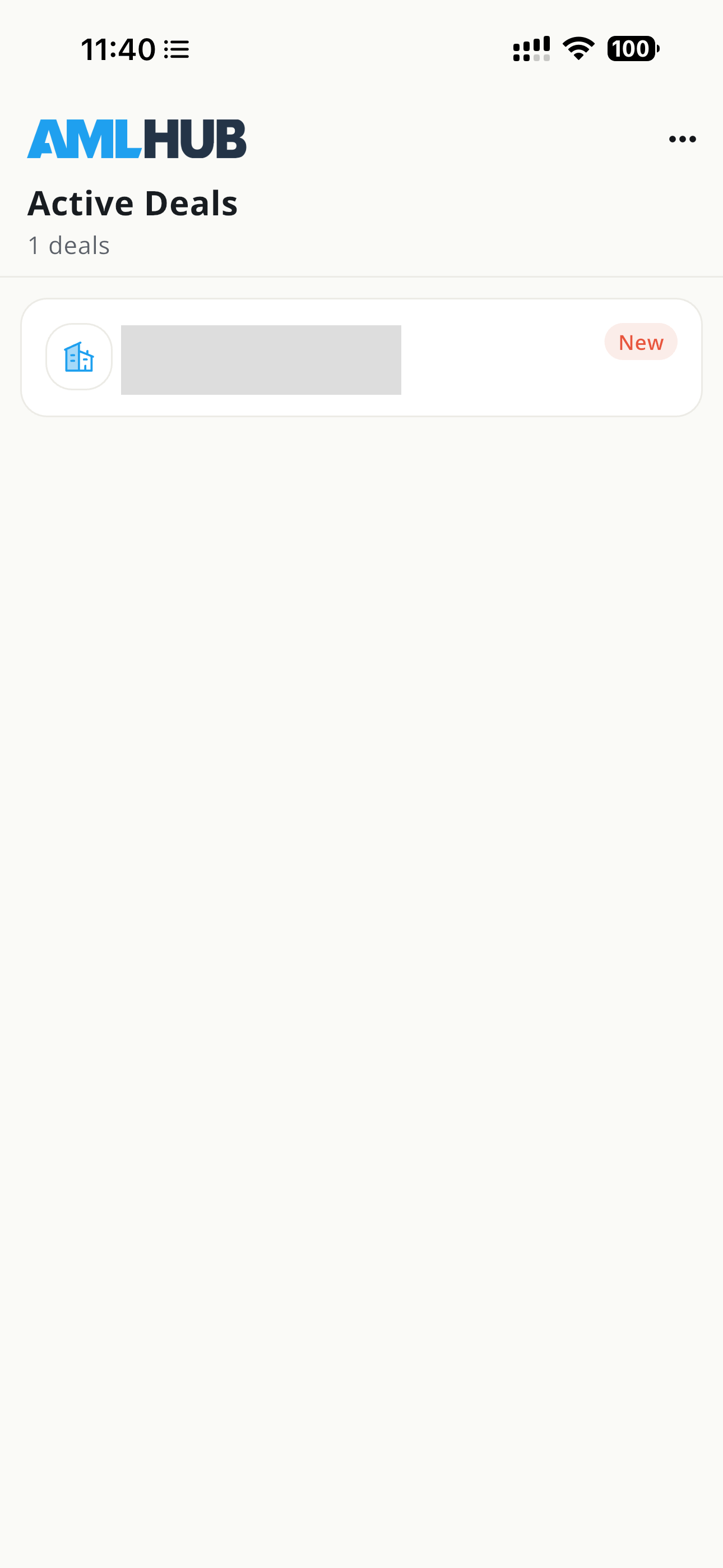
- Select Submit to AML Hub only when the information is correct. Check that the CRM records the submission, then open the AMLHub app and find the deal under Active Deals. Keep the CRM deal reference if you need help.
IMPORTANT: Check the parties before submitting. If someone is missing or a submitted deal needs correcting, contact Support. Do not submit again to try to update it. A Verified deal is locked.
When a company or trust is involved
- Confirm the ownership structure with your client, including directors, trustees, controllers and shareholders with 25% or more.
- Include the relevant existing owner or buyer contacts when you start the deal in the CRM and choose the actual Owner type. A CRM business contact and an individual marked Company or Trust are not interchangeable. Check the resulting entities in the app. Choosing an owner type does not confirm that the full ownership structure has transferred.
- In the AMLHub app, check the company or trust name and registration details already present. Complete or correct the structure using AML for Trusts and Companies. Add an entity or person only if they are not already included, and check that each ownership or control relationship is correct. For a company, provide ACN/ABN, country of establishment and the constitution, nominee-shareholder and foreign-exposure answers. For a trust, provide trust type, country of establishment, ABN and the certified trust deed.
- Name the primary contact and add the documents to the relevant entity's Documents tab. If you are unsure of the structure, contact Support before submitting or handing over.
Phase 2: Answer the questions in the app
Do this with your client if you can. Check the information already on the deal and complete anything still missing. An answer entered in the CRM is not a substitute for checking the app before handover.
- Check the structure. Open the deal. The Entities tab lists everyone linked to it. If the owner is a company or trust, follow AML for Trusts and Companies before going further.
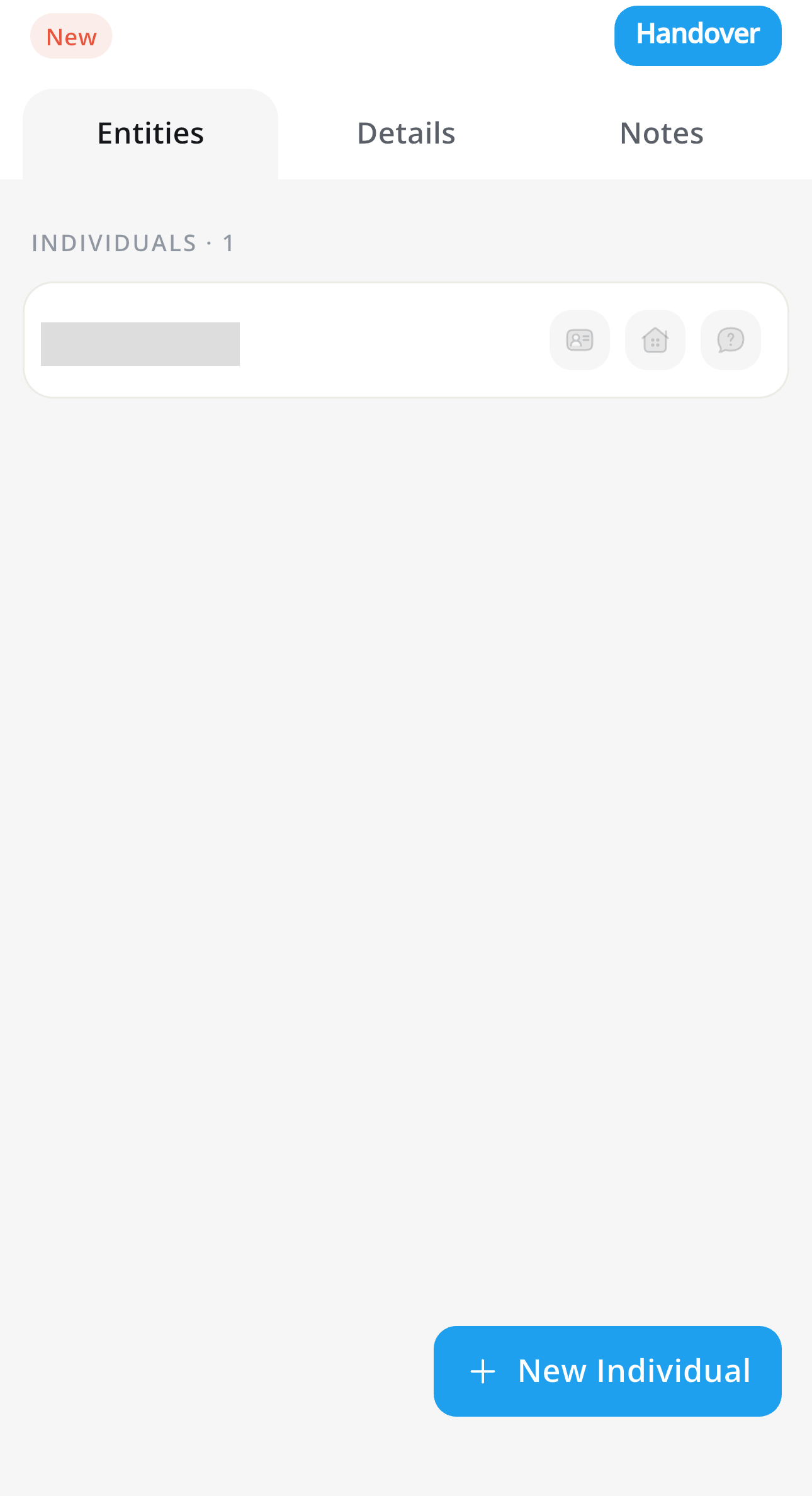
- Open Details and check Deal type. Choose the correct type, such as Business, Commercial Lease, Commercial Sale, Lifestyle, Residential, Rural or Other.
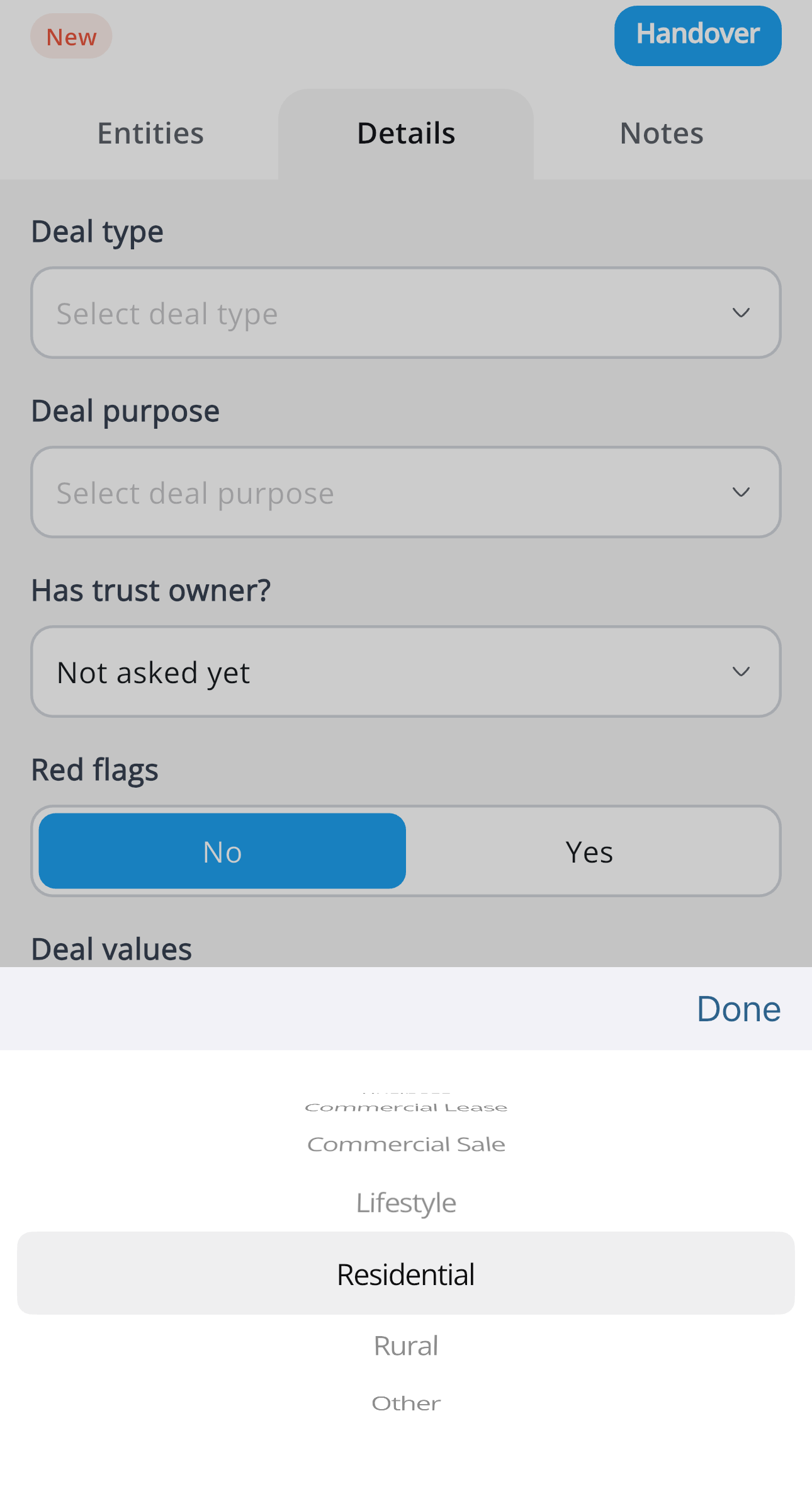
- Choose the Deal purpose, for example Downsizing, Deceased Estate, Relocating or Upsizing.
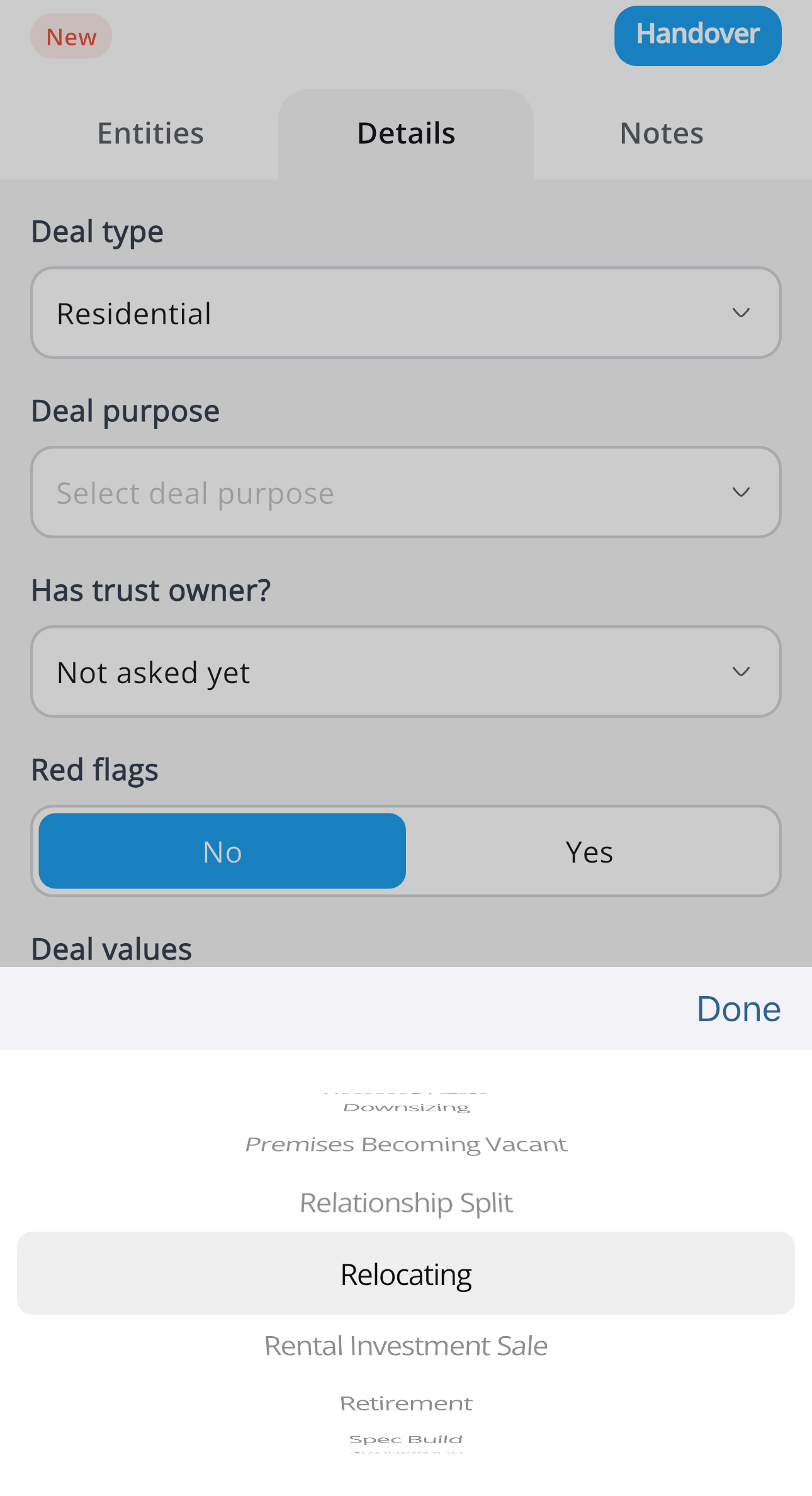
- Answer Has trust owner? and Red flags. Complete any additional information requested.
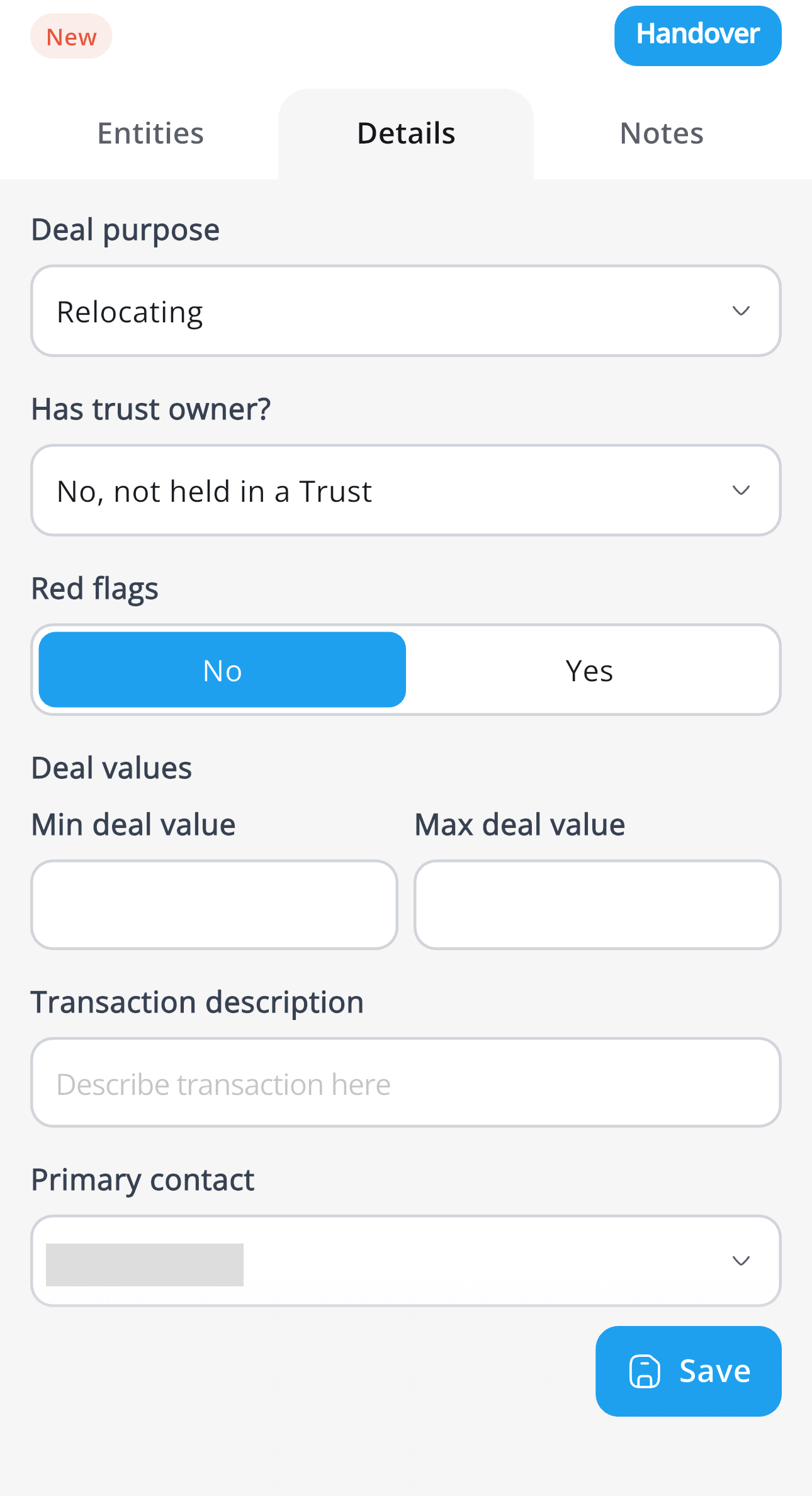
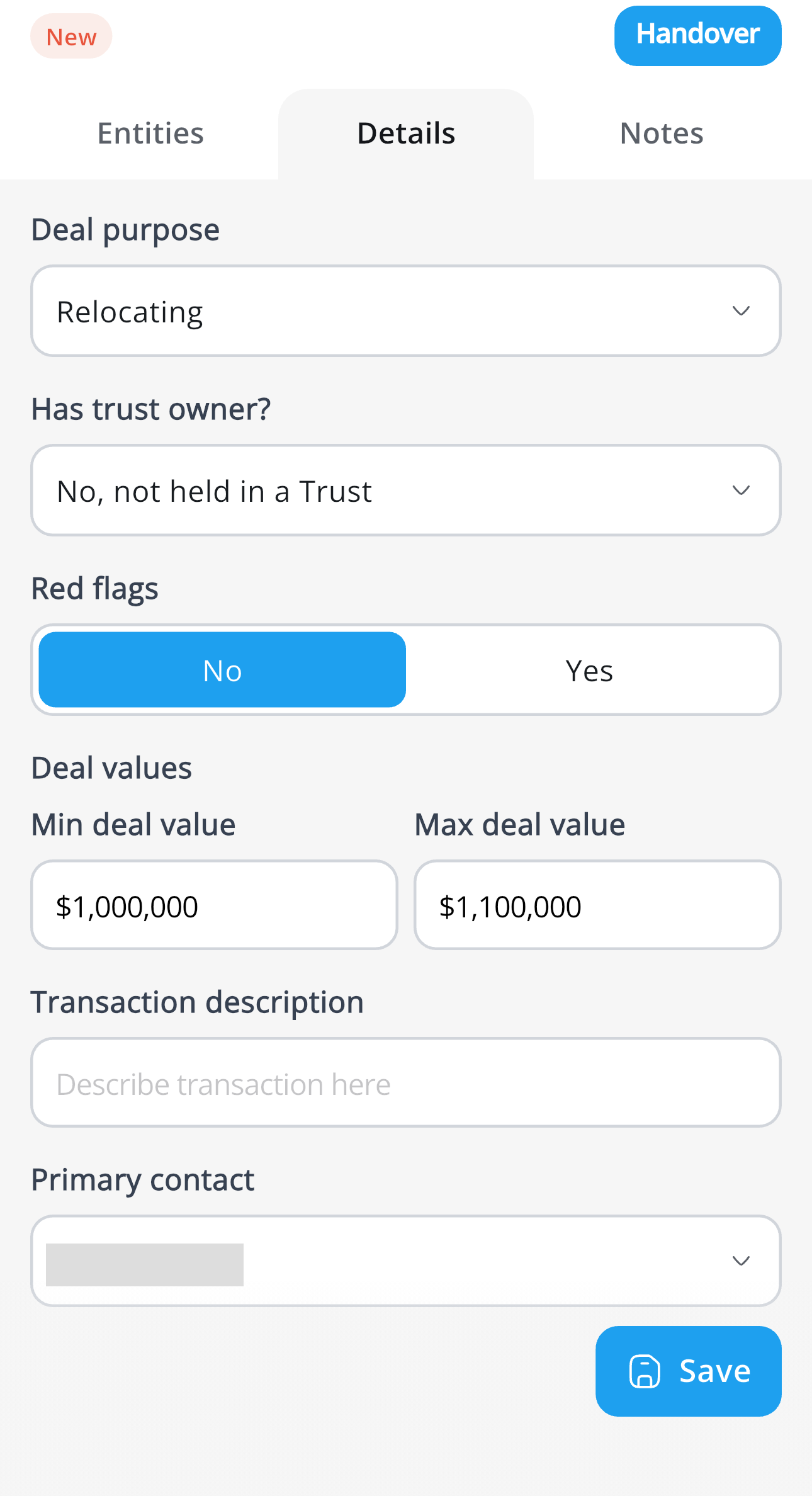
- Check the minimum and maximum Deal values and select the primary contact. The example below shows a range of $1,000,000 to $1,100,000. Use the correct values for your transaction, then select Save.
- Each person: tap each name and check date of birth, address and ownership type. Complete occupation, other names or acronyms, payment method, Foreign exposure, PEP and met face to face questions. If occupation, other names or overseas business or property answers are missing, enter them in AMLHub even if you answered them in the CRM. AMLHub won't verify anyone until the PEP question is answered.
- eChecks: on each person's eChecks tab, run EIV and PEP Check.
- Documents: upload certified photo ID if you have it. For a trust, the trust deed is required.
- Risk tab: answer every Client Risk Factor and Deal Risk question. Approval is blocked until every one is answered.
Saving the deal details does not complete the deal. Keep going to Phase 3.
Phase 3: Handover
- Check every question is answered and every person is listed.
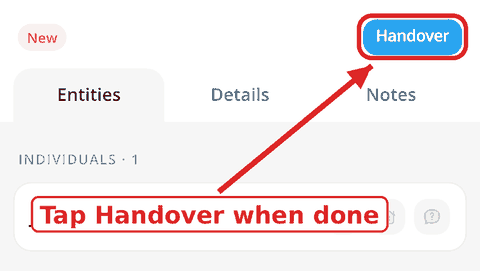
- Tap Handover in the top-right corner of the deal.
- AMLHub reviews the deal and contacts your client if anything is missing. Most standard deals are verified within 1 business day. See AML Turnaround Times and Getting Help.
- The CRM status moves from Submitted to In Progress to Verified, and you get an email when it's done.
Please don't call AMLHub directly. Contact the @realty Support Team on 1300 299 377 or support@atrealty.com.au.
Check status and history
- Return to Listing → Documents for a seller deal or open the offer for a buyer deal.
- Read the current AML status. Submitted means the request has been sent. In Progress means processing is underway. Verified means verification is complete. A failed or outstanding result needs follow-up, not another payment or duplicate submission.
- Use View Deal to check the selected parties and reference. Review Status History where shown for the sequence and timing of updates.
- On the read-only Offer View page, the AML card shows the deal status and history. If no deal exists, the empty state points you to Edit → Details.
Agents use the CRM and the AMLHub app. Direct external AML Hub deal links are restricted to Admin users. Do not expect the old New or @realty pills on the AML row.
Understand the portal-upload checks
For the @realty pathway, the CRM AML upload check applies to Australian sale listings created on or after 1 July 2026. Earlier listings are grandfathered for this CRM check. This is a software rule, not an exemption from legal obligations.
The seller's deal must be Verified before an in-scope listing can be sent to third-party portals, unless an authorised, auditable Not Required decision applies. Payment alone does not satisfy verification.
If you use an external AML provider, the CRM does not require AML before marketing. You remain responsible for meeting your obligations through that provider.
Rental and lease listings are excluded from this check. A business sale that includes leasehold land is still a sale, not a rental listing. Use the business rules below.
IMPORTANT: Clearing AML does not guarantee an upload will work. Listing status, required documents and portal-service setup may impose separate checks. If upload is unavailable, give Support the visible warning and listing reference.
Business sales and land
For an Australian business property, the land classification determines the business-sale AML rule. The field is Land included in the sale. When you create or edit a genuine business property, record its actual classification. Do not change it simply to unlock marketing.
| Land included | Business-sale AML handling |
|---|---|
| No land | Uses auditable AML Not Required handling. |
| Leasehold land, total term under 30 years | Uses auditable AML Not Required handling. |
| Leasehold land, total term exactly 30 years or longer | AML is required. Exactly 30 years is not exempt. |
| Freehold land | AML is required. |
- If the sale includes leasehold land, check Total lease term (years). Use the entire lease duration, not how many years remain.
- Check the resulting AML message on the listing’s Documents tab. A Not Required result should show its reason and audit information. It is not the same as a Verified deal.
- If an older business property has no land classification or the displayed result does not match the genuine transaction, contact Support. Do not use a manual bypass or change the property details without checking the facts.
An authorised Admin can record a separate Not Required decision with an audit trail. Agents cannot grant themselves that exception. A manually recorded Admin decision is not automatically overwritten by the land rule.
Payments and subscriptions
- Check whether the relevant AML Seller Verification or AML Buyer Verification product is already on the marketing campaign or invoice.
- If it is, use that route. The standalone Generate Payment Link option is hidden to prevent double payment, including while the campaign product is unpaid.
- If no campaign product exists and Generate Payment Link is available, confirm the intended payer before using it. The email provides a secure Stripe payment link, transaction details and invoice information.
- Wait until the payment shows as paid or reconciled. A bank payment still processing or proof of payment alone is not confirmation of reconciliation. Ask Accounts about a payment or reconciliation issue rather than paying again.
- Check that Create Deal becomes available. Check the CRM status as well as payment and verification notifications.
AML subscriptions are separate from per-transaction verification fees. Open Subscriptions to check the available AML Compliance plan, including any 3 days free trial and the applicable team size or OASIS option. Check the actual offer and billing terms before subscribing.
Troubleshooting
| What you see | What to check |
|---|---|
| AML Account not set | Ask Support to confirm your profile’s Operations setting. |
| Office ID not configured | Ask Support to check the AML Hub card under SSO & Export. Do not guess an ID. |
| Buyer action unavailable | Check the genuine offer status. Buyer deal creation requires Accepted. |
| Verification product not yet paid | Check the existing campaign/invoice and paid or reconciled status. Do not create a duplicate payment. |
| Deal still Submitted or In Progress | Check the app questions, parties and handover. Contact Support rather than submitting again. |
| Verified but portal upload unavailable | Check other listing and portal requirements. Give Support the listing reference, AML status and visible warning. |
| Business AML rule looks wrong | Check the actual land classification and total term. Exactly 30 years remains AML required. Ask Support about missing classifications or an existing Admin decision. |
Contact the @realty Support Team on 1300 299 377 or support@atrealty.com.au. Supply the CRM listing or offer reference and visible message. Do not send passwords or payment-card details.
Related articles
Was this article helpful?
That’s Great!
Thank you for your feedback
Sorry! We couldn't be helpful
Thank you for your feedback
Feedback sent
We appreciate your effort and will try to fix the article