TABLE OF CONTENTS
- What is it?
- Connect on the web
- Install and sign in on mobile
- Example: check your CRM connection
- Example: show recent listings
- Mobile example: recent offers and follow-up questions
- Frequently asked questions
What is it?
Gemini Enterprise lets you ask questions about your @realty CRM in plain language, on your computer or phone. The @realty integration uses MCP to connect Gemini to CRM tools. In Gemini, this connection is called Atrealty Mcp Production.
Before you start
Anyone in the @realty Google Workspace can use Gemini Enterprise. To connect to the CRM, sign in with a managed work Google account whose email matches an existing registered CRM user. Eligible registered @realty and OASIS users can use their branded Google Workspace accounts; an @atrealty.com.au email address is not required. Your CRM permissions determine which records you can access.
Use Gemini Enterprise for this guide. The regular Gemini website and consumer app are outside this rollout. If you cannot access the @realty Enterprise workspace with your work account, contact the Support Team.
For mobile setup, have your computer and phone ready. Your computer displays your sign-in QR code and the Gemini Enterprise mobile app scans it. Personal details and QR codes are hidden in the pictures below.
Connect on the web
1. Open Gemini Enterprise and sign in. Click this link to open @realty Gemini Enterprise on your computer. Use your @realty Google Workspace account. If the welcome screen appears, click Get started. You will see the message box below.
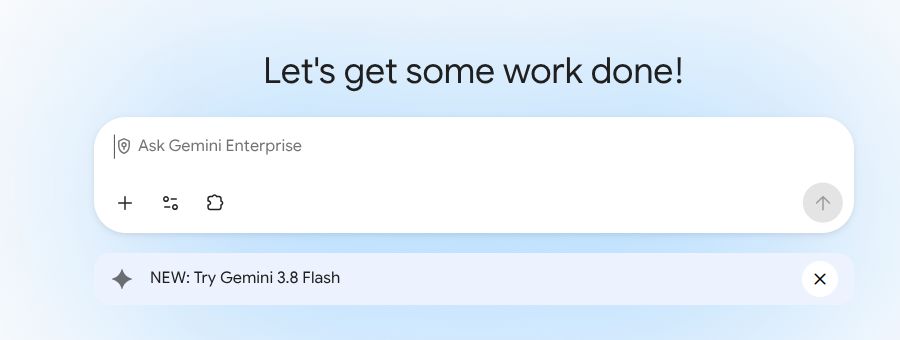
2. Open Sources. Click the plug icon below Ask Gemini Enterprise. Find Atrealty Mcp Production.
3. Authorise your CRM account. If the source shows Authorise, click it and complete the sign-in and authorisation prompts for your own account. Return to Gemini when finished. If it is already authorised, continue to the next step.
4. Switch on the CRM source. Check that Atrealty Mcp Production is switched on. The picture shows the connected source. The Unauthorize control is available once connected; leave the connection authorised. The source is already configured, so you do not need to enter an MCP server URL.
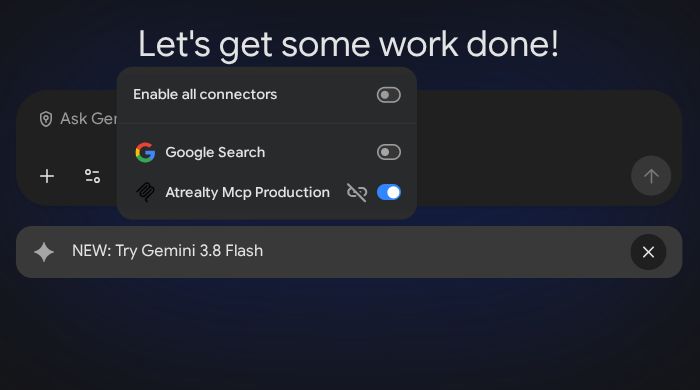
For CRM-only questions, you can switch Google Search off. The web examples below use only the CRM source.
5. Ask a question. Close the Sources menu, type your message and click the Submit arrow on the right. Follow the connection example below for a first question and its reply.
Install and sign in on mobile
1. Display your QR code on your computer. Open the @realty Gemini Enterprise mobile link in your computer's browser and sign in with your work Google account. The web application opens Settings → Mobile login and displays your QR code. Keep this page open.
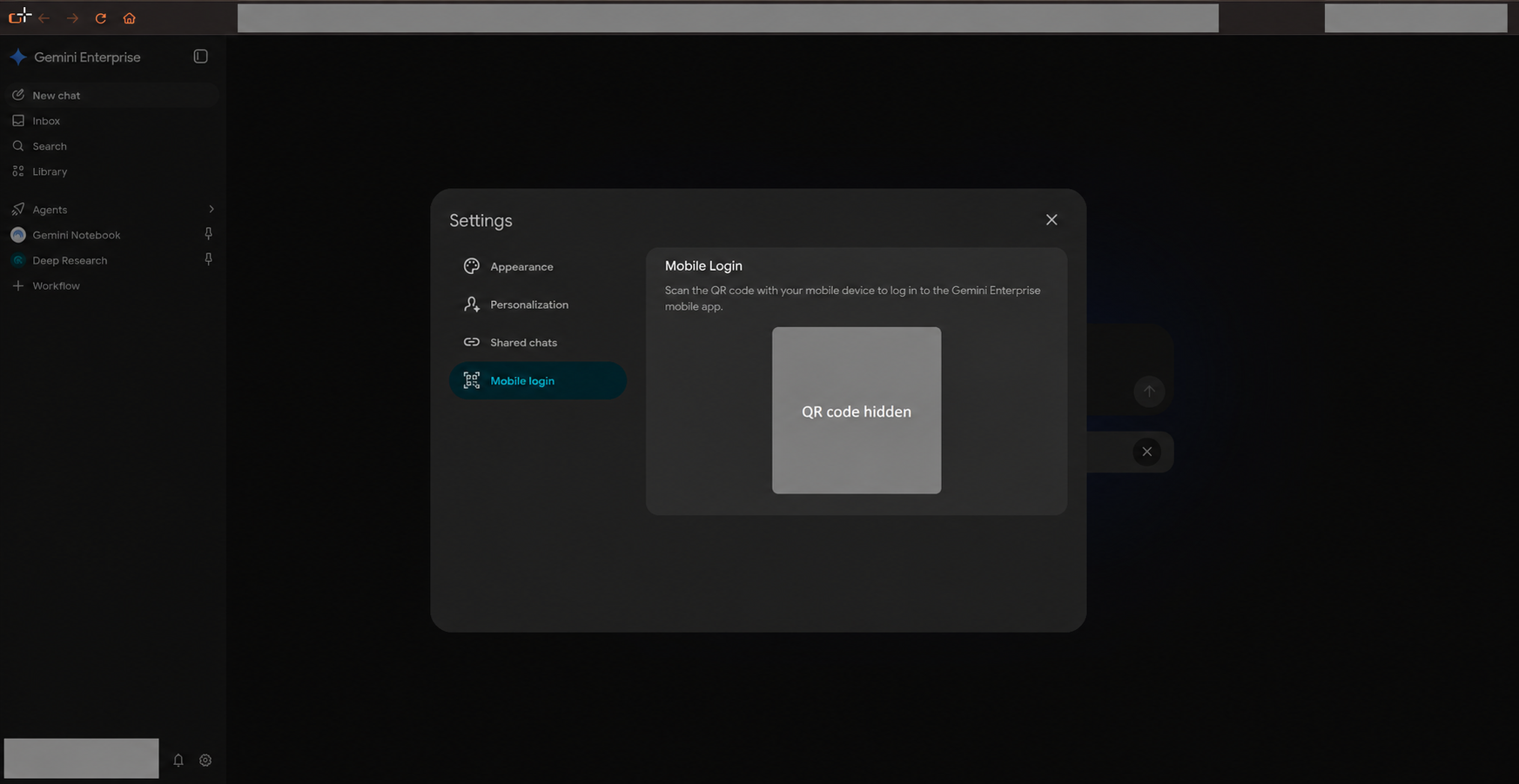
2. Install the phone app. Open the same mobile link on your phone. Follow the link to your phone's app store and download Google Gemini Enterprise. Open the app when installation finishes. Choose the Enterprise app shown below.
Android: Open Google Gemini Enterprise on Google Play on your phone, check that the developer is Google LLC and tap Install.
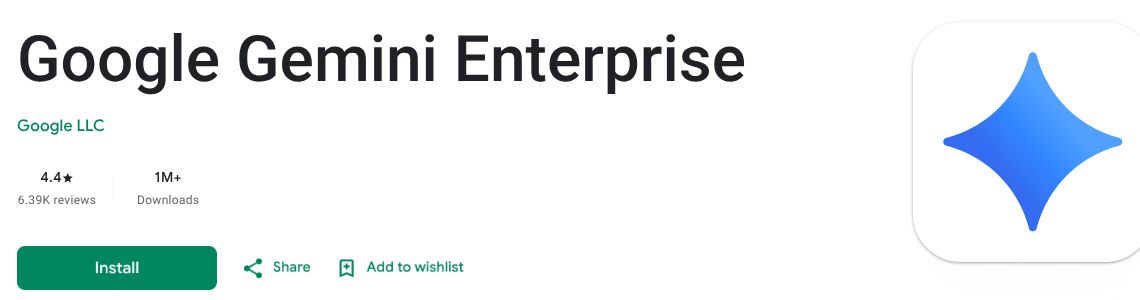
iPhone or iPad in Australia: Open Google Gemini Enterprise in the Australian App Store on your device and download the app by Google.
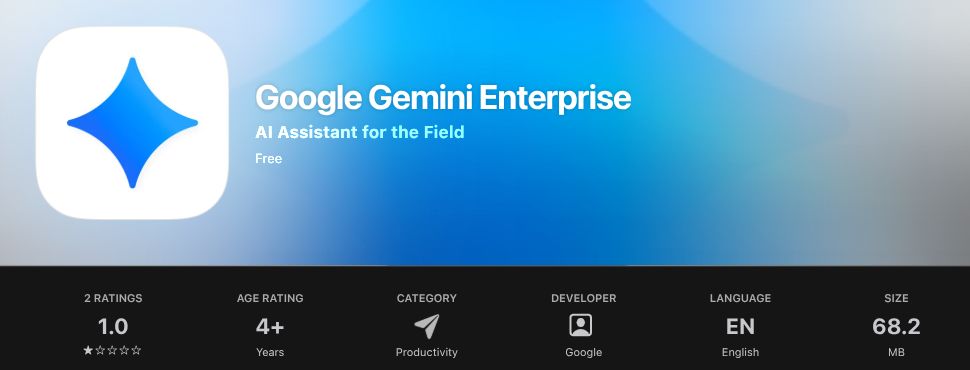
iPhone or iPad in New Zealand: Open Google Gemini Enterprise in the New Zealand App Store on your device and download the app by Google.
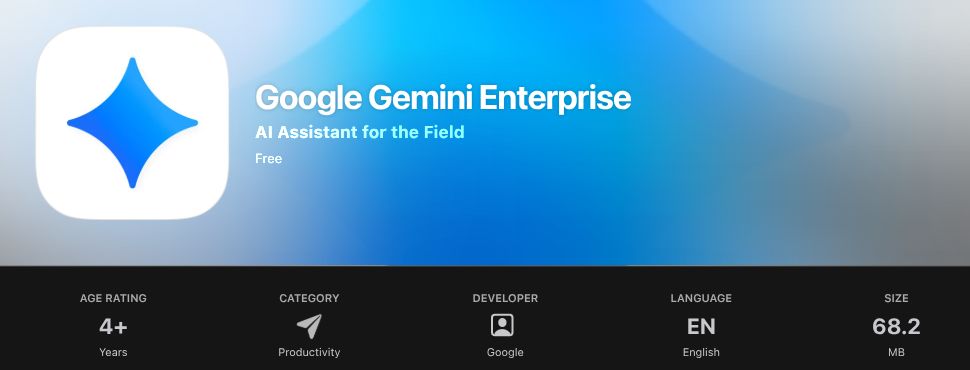
These pictures show the official store pages in a web browser. Open the appropriate link on your phone to install the app, then continue below.
3. Start QR sign-in. In the mobile app, tap Scan the QR code to sign in.
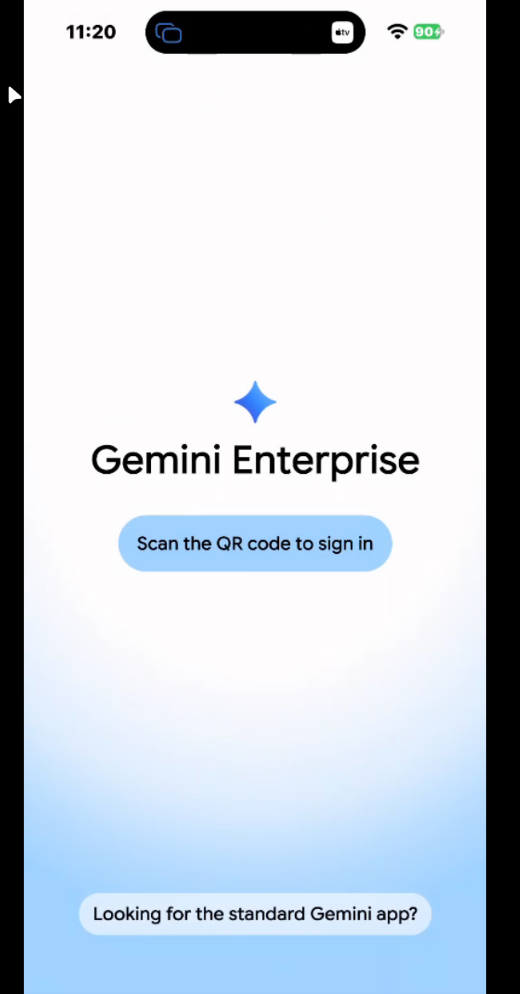
4. Scan the code from your computer. If prompted, allow camera access so the app can scan. Point your phone at the QR code shown under Mobile login in your own browser session. If Google asks you to confirm an account, check it is your work account and tap Continue as.
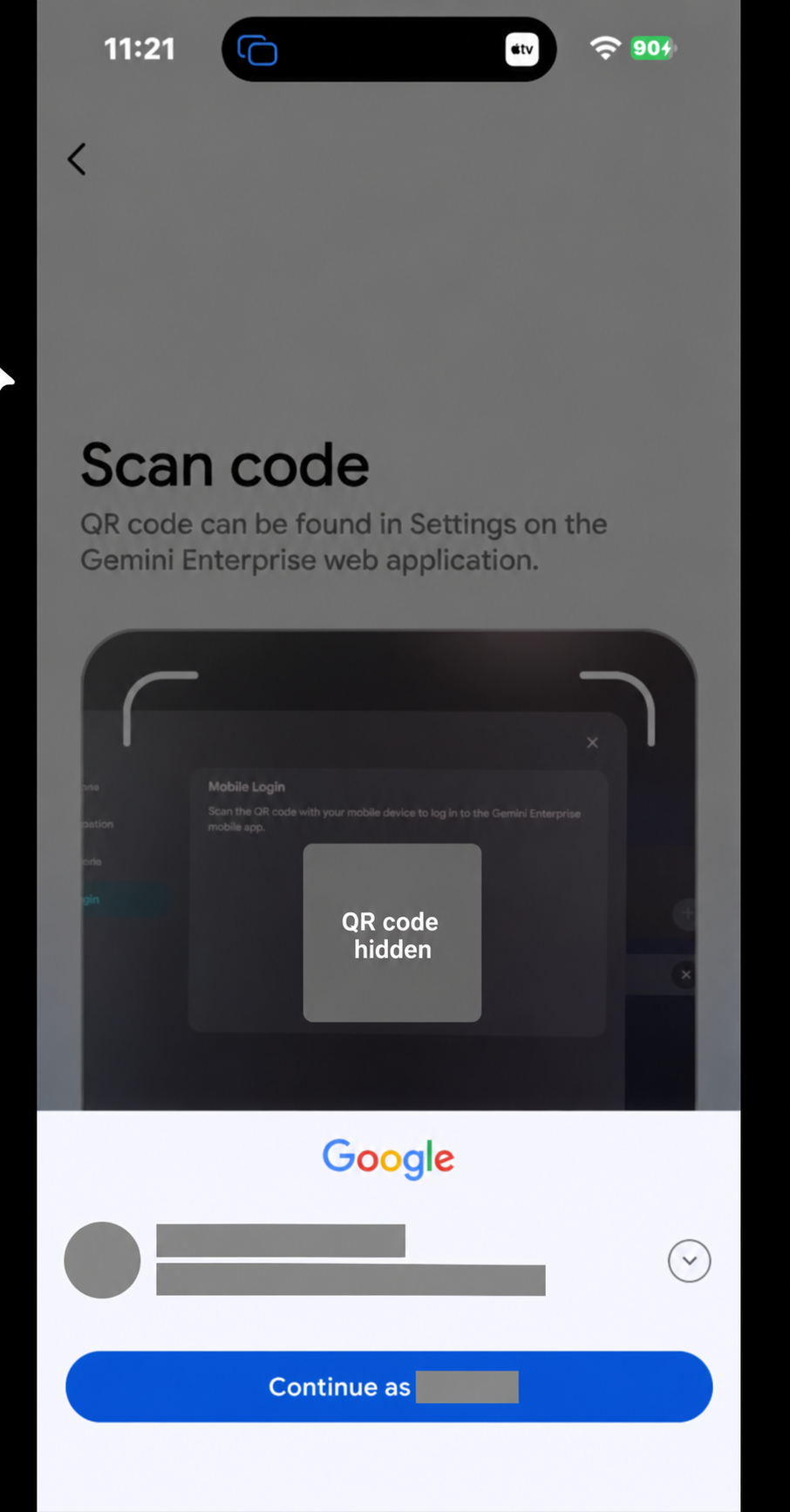
5. Finish signing in. The app uses the QR sign-in flow to open your Gemini Enterprise workspace. When the home screen appears, you are ready to ask a question.
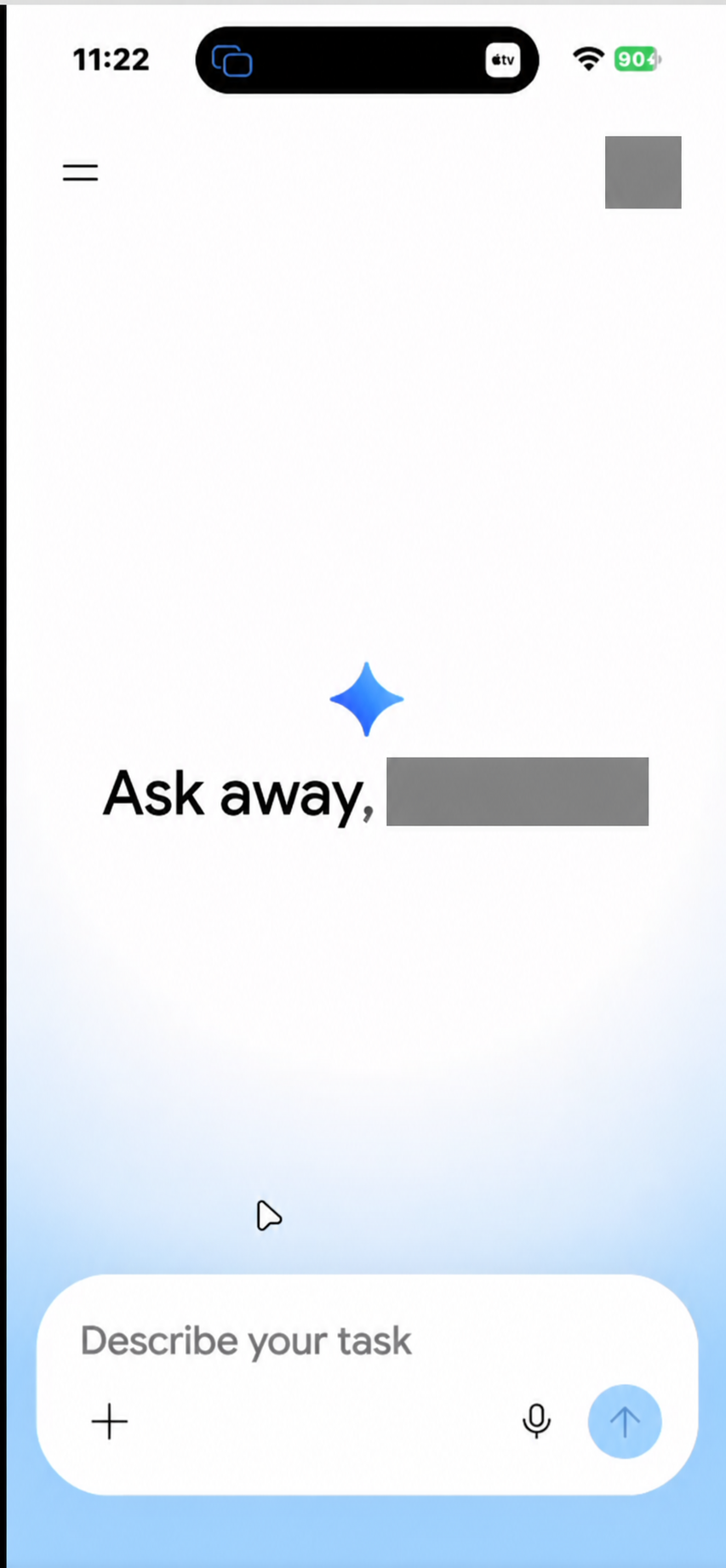
6. Try a CRM question. Tap Describe your task, enter your question and tap the up arrow to send. Start with the connection question or the mobile offers example below. If Gemini asks you to authorise the CRM source, complete the web connection steps above with the same work account and try again.
Use your own QR code. The QR code in this guide is hidden. Generate yours in your signed-in browser and do not share it.
Example: check your CRM connection
1. Enter this message. On the web, use Ask Gemini Enterprise. On mobile, use Describe your task.
Using only Atrealty Mcp Production, look up my connected CRM account and show only my role. Do not display my name, email address or user ID. Use read tools only and do not change any CRM records.
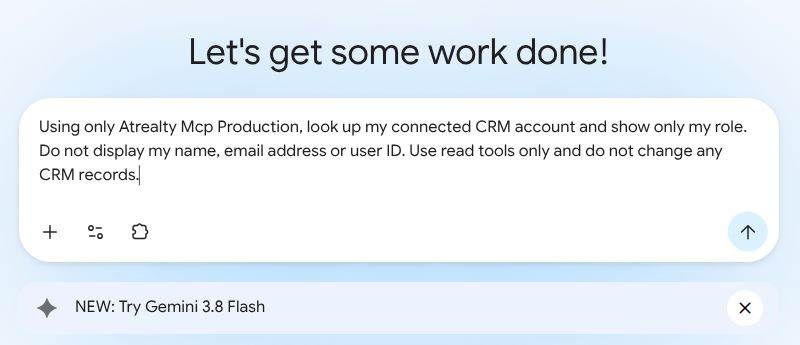
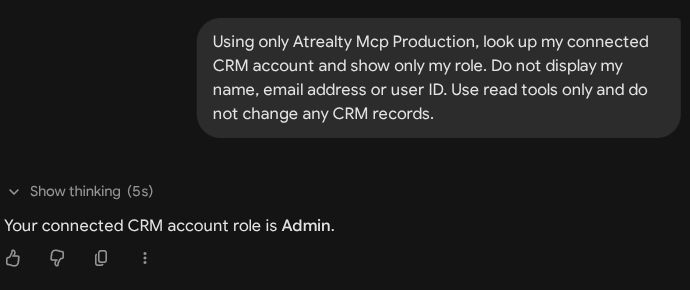
2. Send the message and read the reply. Click the Submit arrow. Gemini retrieves your account role from the CRM. The example below shows Admin; your own role may be different.
Example: show recent listings
1. Ask for a small set of listings. Enter this message and send it:
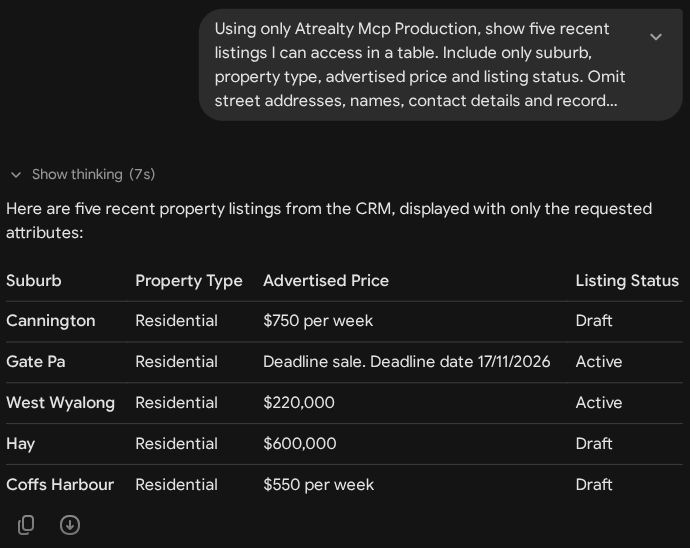
Using only Atrealty Mcp Production, show five recent listings I can access in a table. Include only suburb, property type, advertised price and listing status. Omit street addresses, names, contact details and record IDs. Use read tools only and do not change any CRM records.
2. Review the table. Gemini uses the CRM List Listings tool to retrieve the results. Your results depend on the records you can access and their current details.
Mobile example: recent offers and follow-up questions
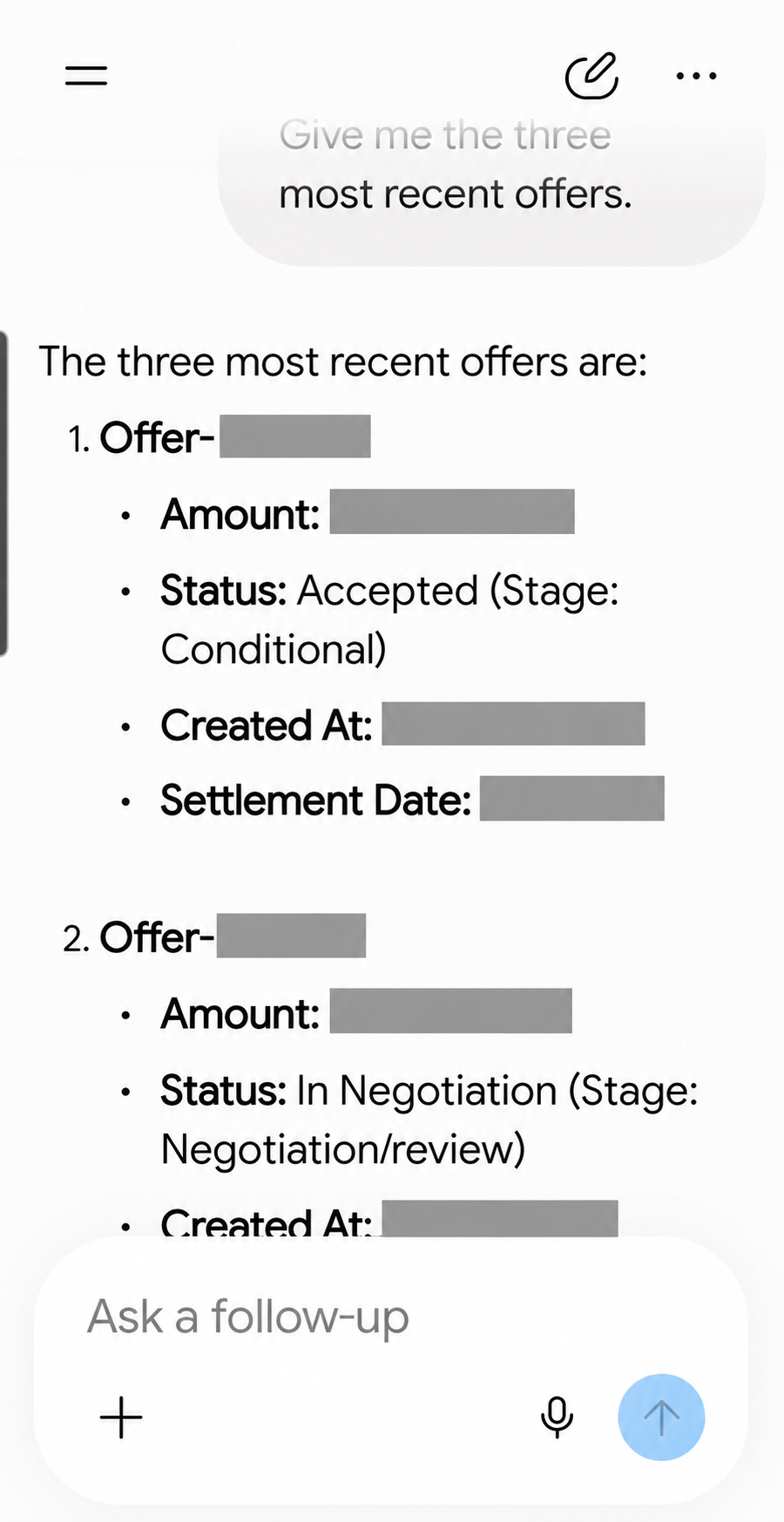
1. Ask for recent offers. In the mobile app, tap Describe your task, enter the message below and tap the up arrow.
Give me the three most recent offers.
Gemini returns the offers and their details. Scroll through the response to see all three. Identifying details and amounts are hidden in this example.
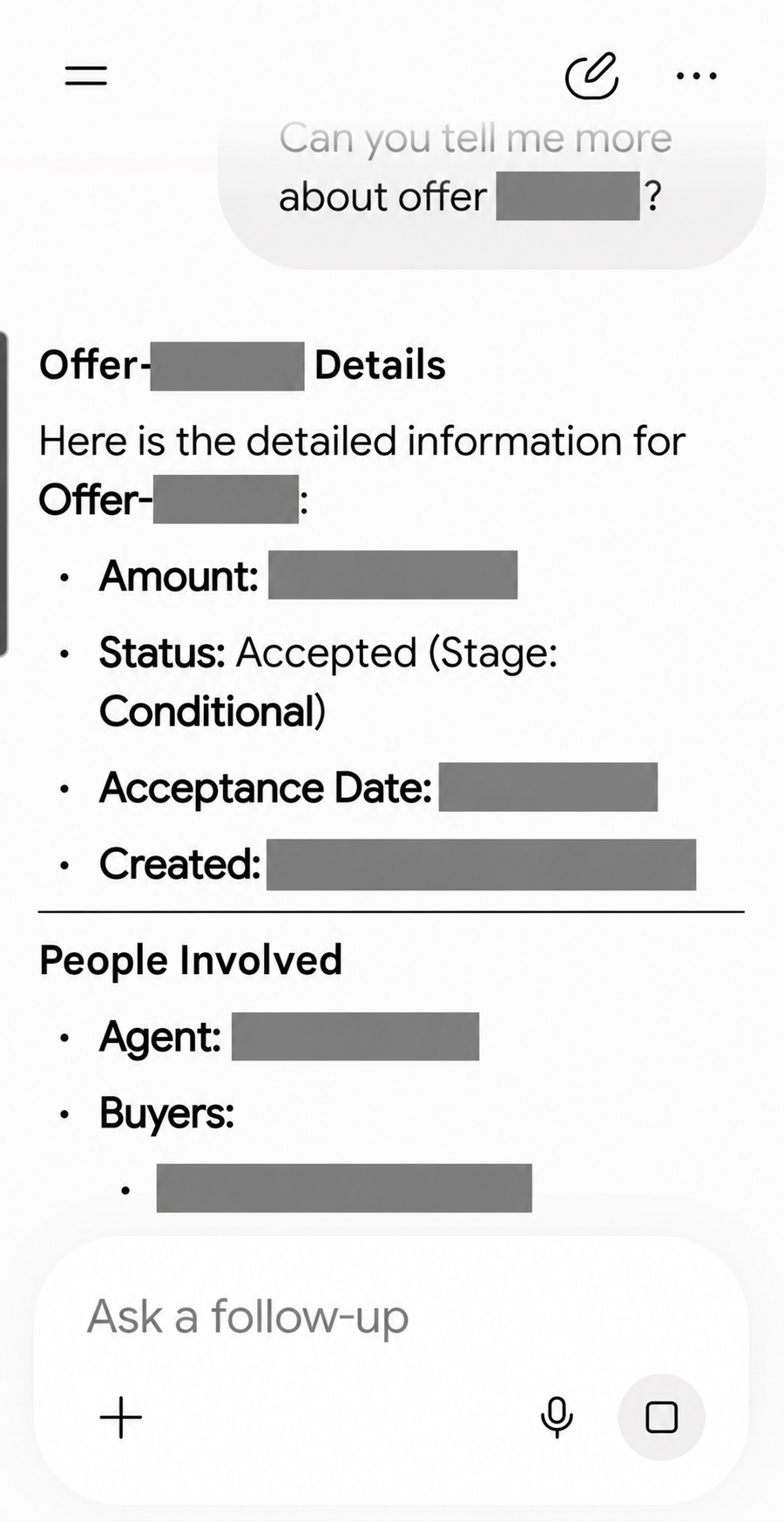
2. Ask about one of the results. Tap Ask a follow-up. Use an offer number from your own results in this message, then send it:
Can you tell me more about offer [offer number]?
3. Review the additional details. Gemini returns more information about the selected offer. The example shows the offer status and related fields, with personal details hidden.
Be specific about which record you mean and check the CRM before relying on an AI-generated answer. These examples retrieve information; they do not ask Gemini to change CRM records.
For more ideas, read Using the @realty CRM Assistant: tools and example prompts.
Frequently asked questions
Who can use Gemini Enterprise?
Anyone in the @realty Google Workspace can use Gemini Enterprise. The CRM connection also requires a managed work Google account matching a registered CRM user, including eligible OASIS branded accounts. Personal Google accounts and work accounts without a matching CRM user cannot authorise the CRM connection. Your CRM permissions determine which records you can retrieve.
Where is my mobile sign-in QR code?
Open the mobile link on your computer and sign in. The code appears in the Gemini Enterprise web application under Settings → Mobile login. Scan it using the mobile app.
Why does the same link behave differently on my phone and computer?
On a phone, the mobile link guides you to the app store to install Gemini Enterprise. On a computer, it opens the web application's mobile login screen with your QR code.
Gemini cannot access my CRM. What should I check?
Use the same work account, open Sources, complete Authorise if shown and make sure Atrealty Mcp Production is switched on. Check that you can access the requested record in the CRM.
If you need help, contact the Support Team at support@atrealty.com.au.
Was this article helpful?
That’s Great!
Thank you for your feedback
Sorry! We couldn't be helpful
Thank you for your feedback
Feedback sent
We appreciate your effort and will try to fix the article