TABLE OF CONTENTS
What is it?
DMARC is an email security setting you add to your business domain. This guide shows you how to check whether it is missing and add it.
If emails to Hotmail or Outlook bounce with “Message lacks SPF/DKIM/DMARC Auth Records”, start with the checks below. Adding DMARC does not repair other email authentication faults. If your SPF or DKIM checks are failing or unclear, contact Support rather than changing more records.
Before you start
You need your own business domain, such as you@yourbusiness.com.au, and authorised access to its active DNS provider. This may differ from the company that sold you the domain. Copy or screenshot the current DNS records before editing.
IMPORTANT: For an @realty address, an @realty-managed domain, uncertain DNS ownership or an unfamiliar setup, stop and contact Support. Do not change nameservers.
IMPORTANT: If your address has an extra part, such as you@sales.yourbusiness.com.au, ask Support before using this guide. A subdomain can inherit an existing policy.
Step 1: Check your domain
- Open Google Admin Toolbox Dig.
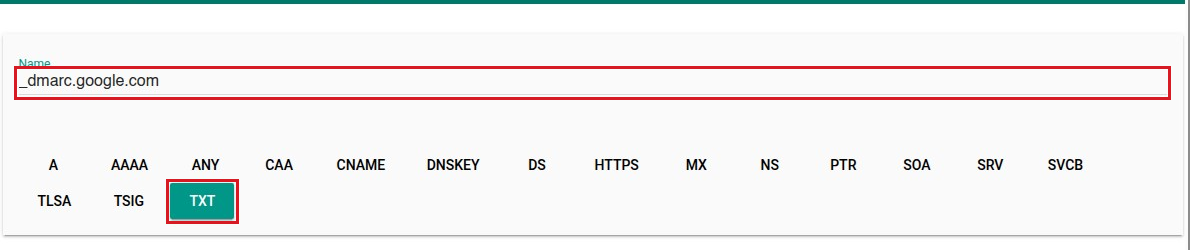
- In Name, enter
_dmarc.followed by your domain. Foryou@yourbusiness.com.au, enter_dmarc.yourbusiness.com.au. Select TXT.
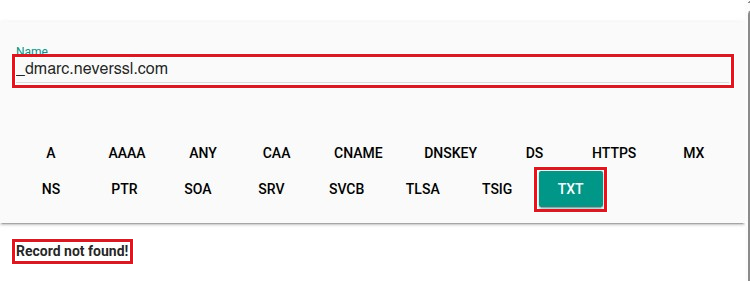
The illustrations use public example domains, not your domain. Enter your own domain for your check. Select an illustration to enlarge it.
- Check the result and follow the matching instruction below.
Record not found: the example below is a completed lookup with no TXT record returned for _dmarc.neverssl.com. It is not a connection failure. For your own main business domain, also check the active DNS record list. Continue to Step 2 only if both checks show no DMARC record at the correct name.
A record beginning v=DMARC1: stop and send the bounce to Support. Google's example below already has p=reject. Do not copy it, add another record, replace it or weaken an existing quarantine/reject policy.

If the lookup fails or you're unsure of the result, stop and contact Support. Do the same if you find multiple DMARC records or the public lookup and DNS record list disagree. Do not add or delete records to try to clear an error.
Step 2: Add the missing record
- Sign in to your active DNS provider and open your domain's DNS, Manage DNS or DNS Records.
- Select Add record and enter:
- Type:
TXT - Name / Host:
_dmarcwhen the provider automatically appends your domain - Value / Content:
v=DMARC1; p=none - TTL: leave the default
- Type:
- If your provider requires the full name instead, follow its field instructions. Verify the resulting complete name is
_dmarc.yourbusiness.com.au, using your actual domain, then select Save.
IMPORTANT: Preserve all unrelated records. Do not delete existing policies or rewrite SPF using this guide.
Provider instructions: GoDaddy: add a TXT record | Cloudflare: create a DNS record.
Step 3: Recheck and test
- Repeat the public TXT lookup from Step 1. Check again after saving. If the record hasn't appeared, allow for your DNS provider's update time and don't add another copy. Check that the returned value matches
v=DMARC1; p=none. If it remains absent after your provider's update time, contact Support. - Send a short, non-sensitive test through the sending method that bounced to a Hotmail or Outlook address you or a colleague can check. Check both inbox and junk. If both Gmail and CRM were affected, test them separately.
- If it still bounces, send Support the new bounce, sender address, sending time and sending method.
Previously bounced mail is not automatically resent. Check what still needs sending and avoid duplicate resends.
Frequently asked questions
Does p=none guarantee inbox delivery?
No. It does not request quarantine or rejection, but receiving providers still apply their own checks and spam filtering.
Who can help if I'm stuck?
Send the bounce and the details from Step 3 to support@atrealty.com.au. Leave existing records unchanged while Support checks the affected sending method.
Was this article helpful?
That’s Great!
Thank you for your feedback
Sorry! We couldn't be helpful
Thank you for your feedback
Feedback sent
We appreciate your effort and will try to fix the article